> ## Documentation Index
> Fetch the complete documentation index at: https://sentiment-docs.arhamwebworks.com/llms.txt
> Use this file to discover all available pages before exploring further.
# 404 page
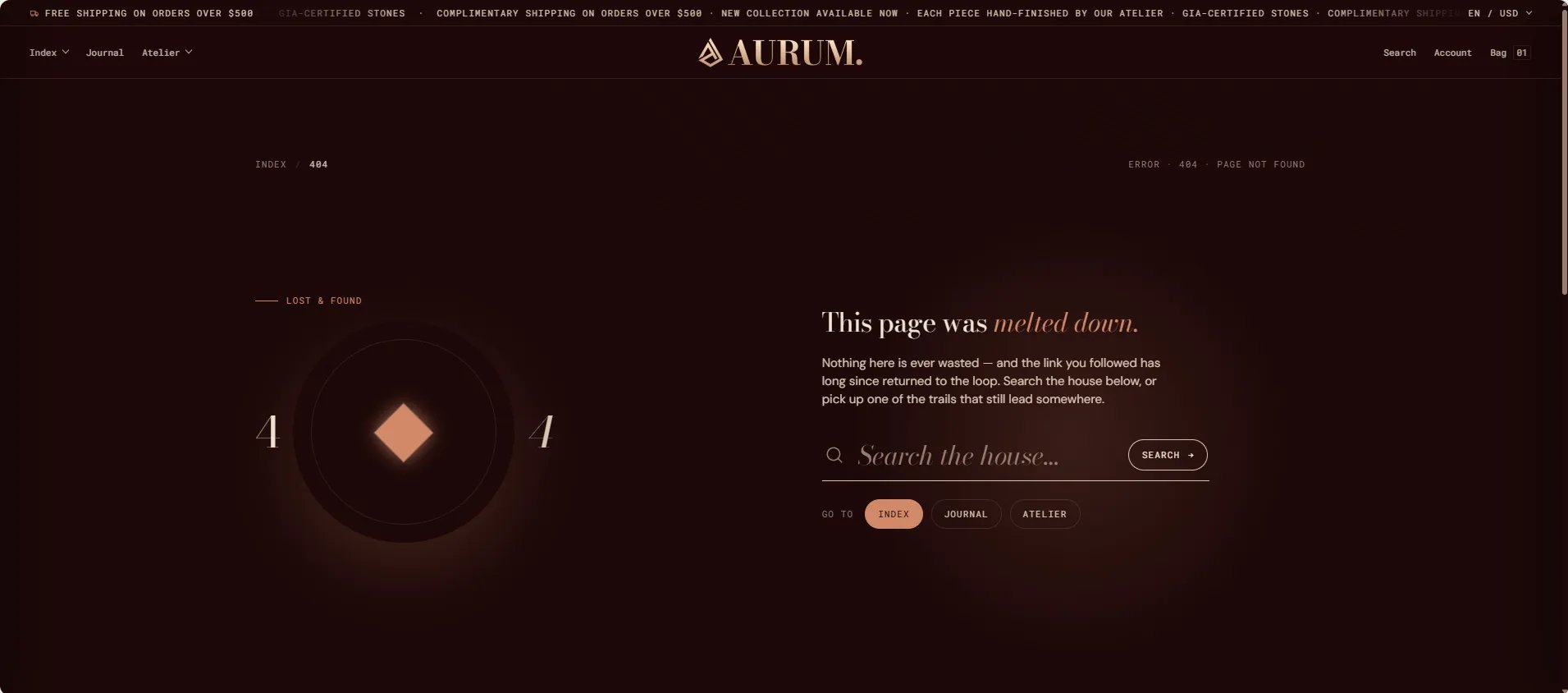
The **404** page in the Sentiment theme is built from two sections: a **Page not found** section with a branded error display, a site search bar, and quick-navigation links, and a **Product strip** that surfaces a curated selection to keep customers engaged rather than bouncing. Both sections are fully configurable from the Theme Editor.
 ### How to Configure the 404 Page
1. From your Shopify admin, go to **Online Store → Themes** and click **Customize**.
2. From the top page dropdown, select **404**.
3. Click **Page not found** or **Product strip** in the left sidebar under **Template** to open its settings.
4. Click **Save** when done.
The 404 page template contains these sections:
* **Page not found** — branded error display with eyebrow, headline, opening paragraph, search bar, and quick-navigation links
* **Product strip** — editorial product grid with heading, view-all link, and collection source
***
### Page Not Found Section Settings
The Page Not Found section is the core of the 404 experience — it renders a two-column layout with a large animated "404" graphic on the left and the headline, body text, search bar, and quick links on the right.
### How to Configure the 404 Page
1. From your Shopify admin, go to **Online Store → Themes** and click **Customize**.
2. From the top page dropdown, select **404**.
3. Click **Page not found** or **Product strip** in the left sidebar under **Template** to open its settings.
4. Click **Save** when done.
The 404 page template contains these sections:
* **Page not found** — branded error display with eyebrow, headline, opening paragraph, search bar, and quick-navigation links
* **Product strip** — editorial product grid with heading, view-all link, and collection source
***
### Page Not Found Section Settings
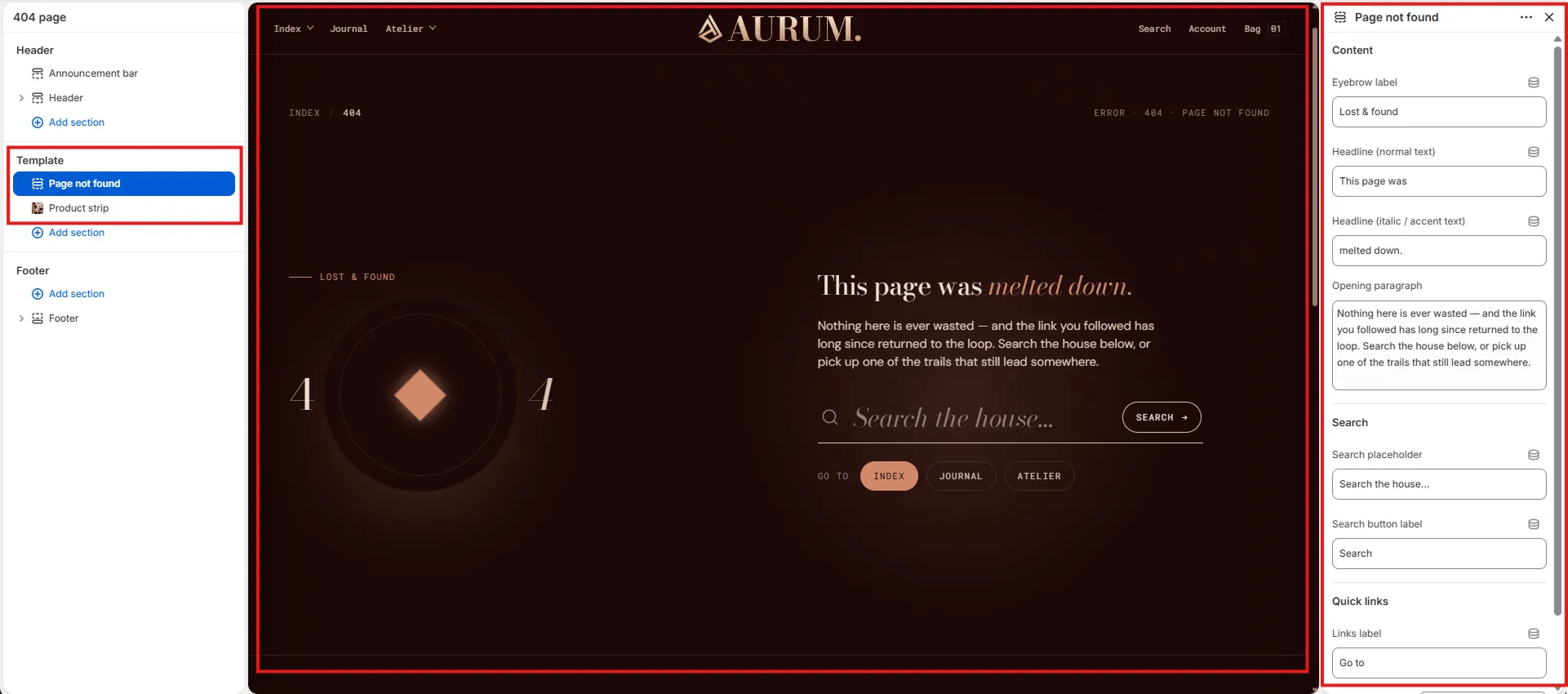
The Page Not Found section is the core of the 404 experience — it renders a two-column layout with a large animated "404" graphic on the left and the headline, body text, search bar, and quick links on the right.
 #### Content
* **Eyebrow label:** Small label displayed above the headline (e.g., "Lost & found").
* **Headline (normal text):** The regular-weight portion of the main headline (e.g., "This page was").
* **Headline (italic / accent text):** The italic or accent-colour portion of the headline rendered in the theme's accent typeface (e.g., "melted down.").
* **Opening paragraph:** Supporting body text displayed below the headline (e.g., "Nothing here is ever wasted — and the link you followed has long since returned to the loop. Search the house below, or pick up one of the trails that still lead somewhere.").
#### Search
* **Search placeholder:** Placeholder text inside the search input (e.g., "Search the house...").
* **Search button label:** Label on the search submit button (e.g., "Search").
#### Quick Links
* **Links label:** Small uppercase label displayed before the quick-link buttons (e.g., "Go to").
***
### Product Strip Section Settings
The Product Strip section renders a static product grid below the 404 message — keeping customers engaged by surfacing relevant pieces from a collection alongside an editorial heading and a view-all link.
#### Content
* **Eyebrow label:** Small label displayed above the headline (e.g., "Lost & found").
* **Headline (normal text):** The regular-weight portion of the main headline (e.g., "This page was").
* **Headline (italic / accent text):** The italic or accent-colour portion of the headline rendered in the theme's accent typeface (e.g., "melted down.").
* **Opening paragraph:** Supporting body text displayed below the headline (e.g., "Nothing here is ever wasted — and the link you followed has long since returned to the loop. Search the house below, or pick up one of the trails that still lead somewhere.").
#### Search
* **Search placeholder:** Placeholder text inside the search input (e.g., "Search the house...").
* **Search button label:** Label on the search submit button (e.g., "Search").
#### Quick Links
* **Links label:** Small uppercase label displayed before the quick-link buttons (e.g., "Go to").
***
### Product Strip Section Settings
The Product Strip section renders a static product grid below the 404 message — keeping customers engaged by surfacing relevant pieces from a collection alongside an editorial heading and a view-all link.
 #### Layout
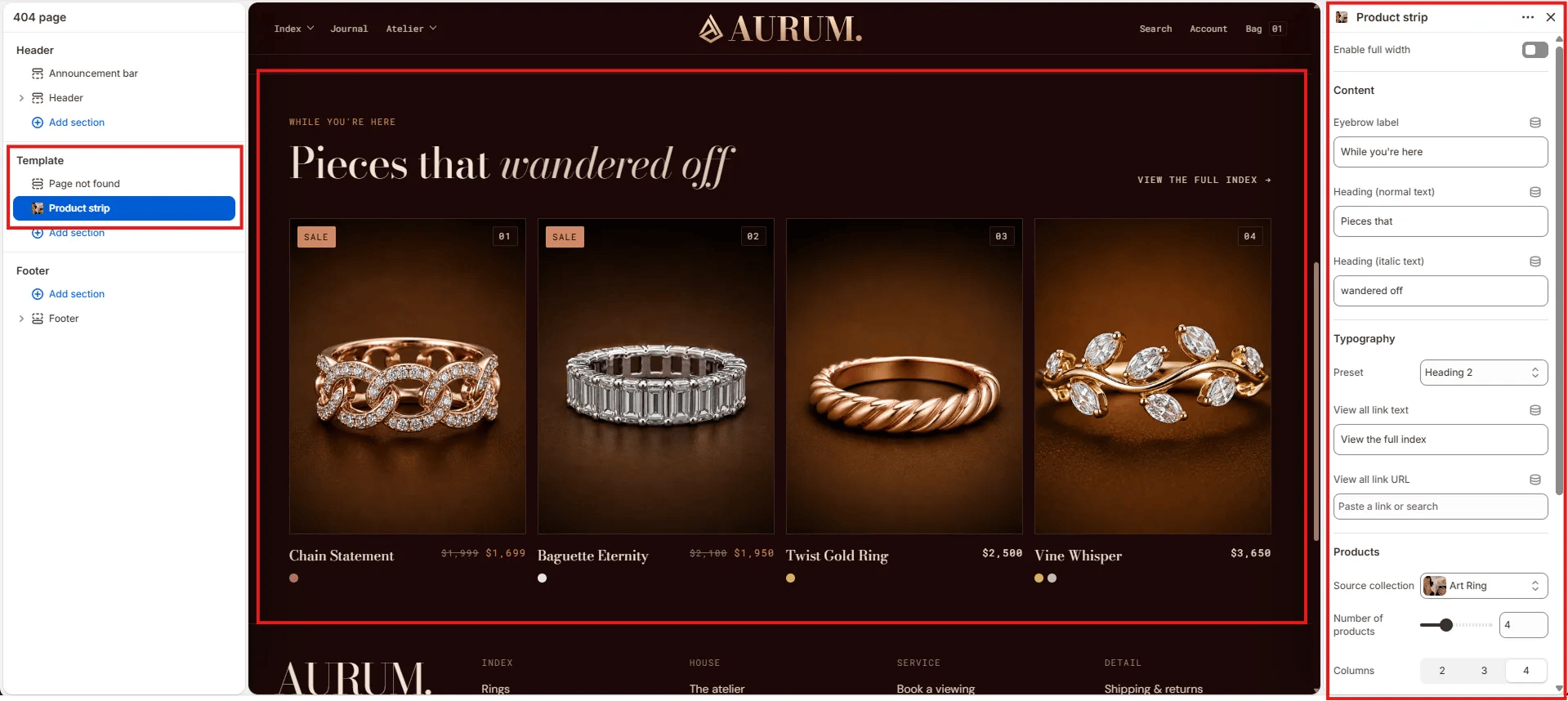
* **Enable full width:** Toggle to extend the section edge-to-edge across the viewport.
#### Content
* **Eyebrow label:** Small label displayed above the heading (e.g., "While you're here").
* **Heading (normal text):** The regular-weight portion of the section heading (e.g., "Pieces that").
* **Heading (italic text):** The italic portion of the section heading rendered in the theme's accent typeface (e.g., "wandered off").
* **Typography:** Choose the typographic preset for the heading (e.g., Heading 2).
* **View all link text:** Label for the view-all link displayed to the right of the heading (e.g., "View the full index").
* **View all link URL:** The destination URL for the view-all link (e.g., `/collections/all`).
#### Products
* **Source collection:** Select the Shopify collection to pull products from (e.g., Art Ring).
* **Number of products:** How many products to display in the grid (range: 2–8).
* **Columns:** Number of columns on desktop — 2, 3, or 4.
#### Spacing
* **Padding top / Padding bottom:** Control vertical spacing around the section.
#### Layout
* **Enable full width:** Toggle to extend the section edge-to-edge across the viewport.
#### Content
* **Eyebrow label:** Small label displayed above the heading (e.g., "While you're here").
* **Heading (normal text):** The regular-weight portion of the section heading (e.g., "Pieces that").
* **Heading (italic text):** The italic portion of the section heading rendered in the theme's accent typeface (e.g., "wandered off").
* **Typography:** Choose the typographic preset for the heading (e.g., Heading 2).
* **View all link text:** Label for the view-all link displayed to the right of the heading (e.g., "View the full index").
* **View all link URL:** The destination URL for the view-all link (e.g., `/collections/all`).
#### Products
* **Source collection:** Select the Shopify collection to pull products from (e.g., Art Ring).
* **Number of products:** How many products to display in the grid (range: 2–8).
* **Columns:** Number of columns on desktop — 2, 3, or 4.
#### Spacing
* **Padding top / Padding bottom:** Control vertical spacing around the section.