> ## Documentation Index
> Fetch the complete documentation index at: https://sentiment-docs.arhamwebworks.com/llms.txt
> Use this file to discover all available pages before exploring further.
# Announcement bar
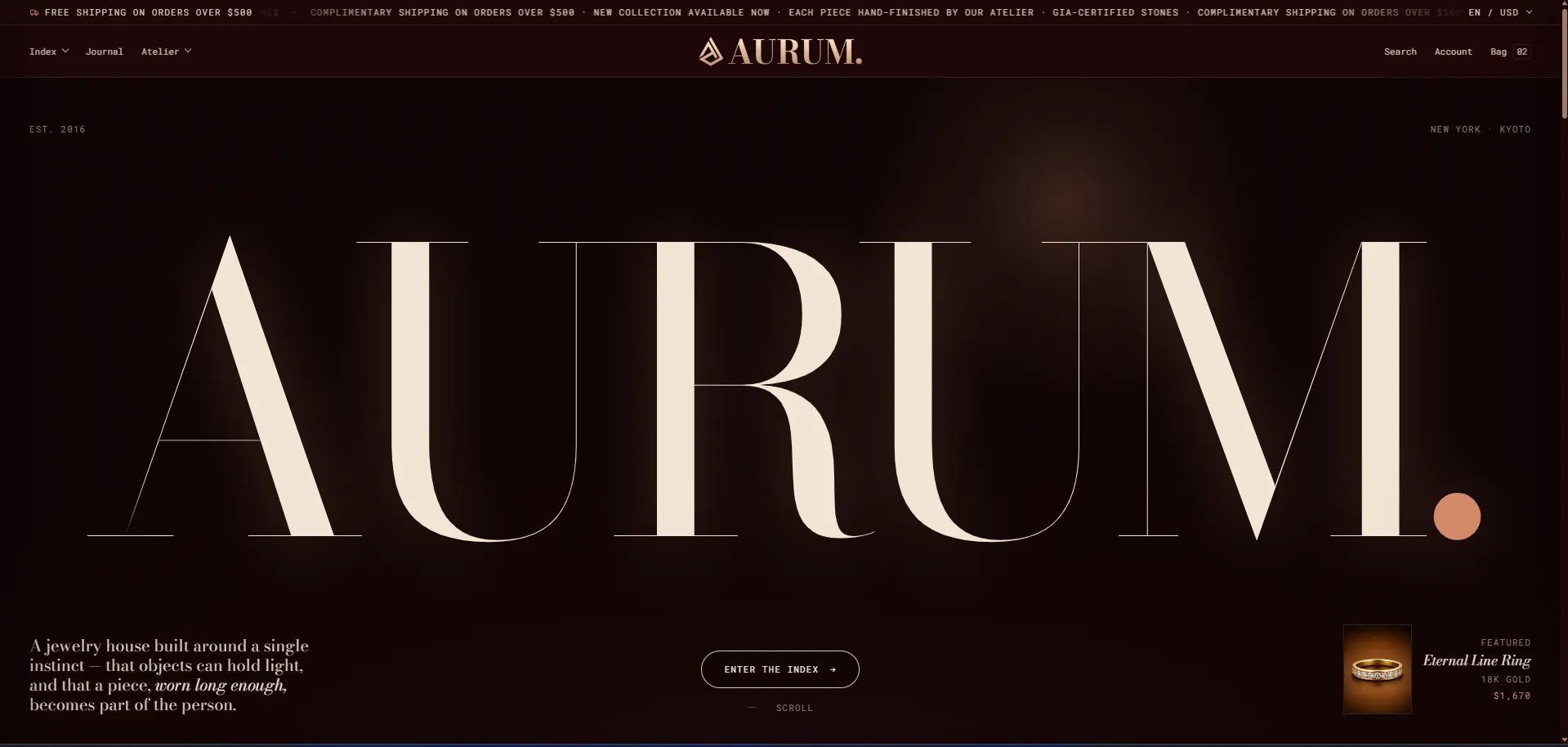
The **Announcement Bar** in the Sentiment theme is an elegant, scrolling marquee designed to highlight your most important messages right at the top of your store. Each announcement is its own block — you can add, remove, and reorder them individually. Perfect for showcasing shipping policies, new collection launches, craftsmanship details, or any other store-wide messages.
 ### How to Open the Announcement Bar
* From your Shopify admin, go to **Online Store → Themes**.
* Click **Customize** on the Sentiment theme.
* In the Theme Editor, expand **Header** in the left sidebar and select **Announcement bar**.
***
### Section Settings
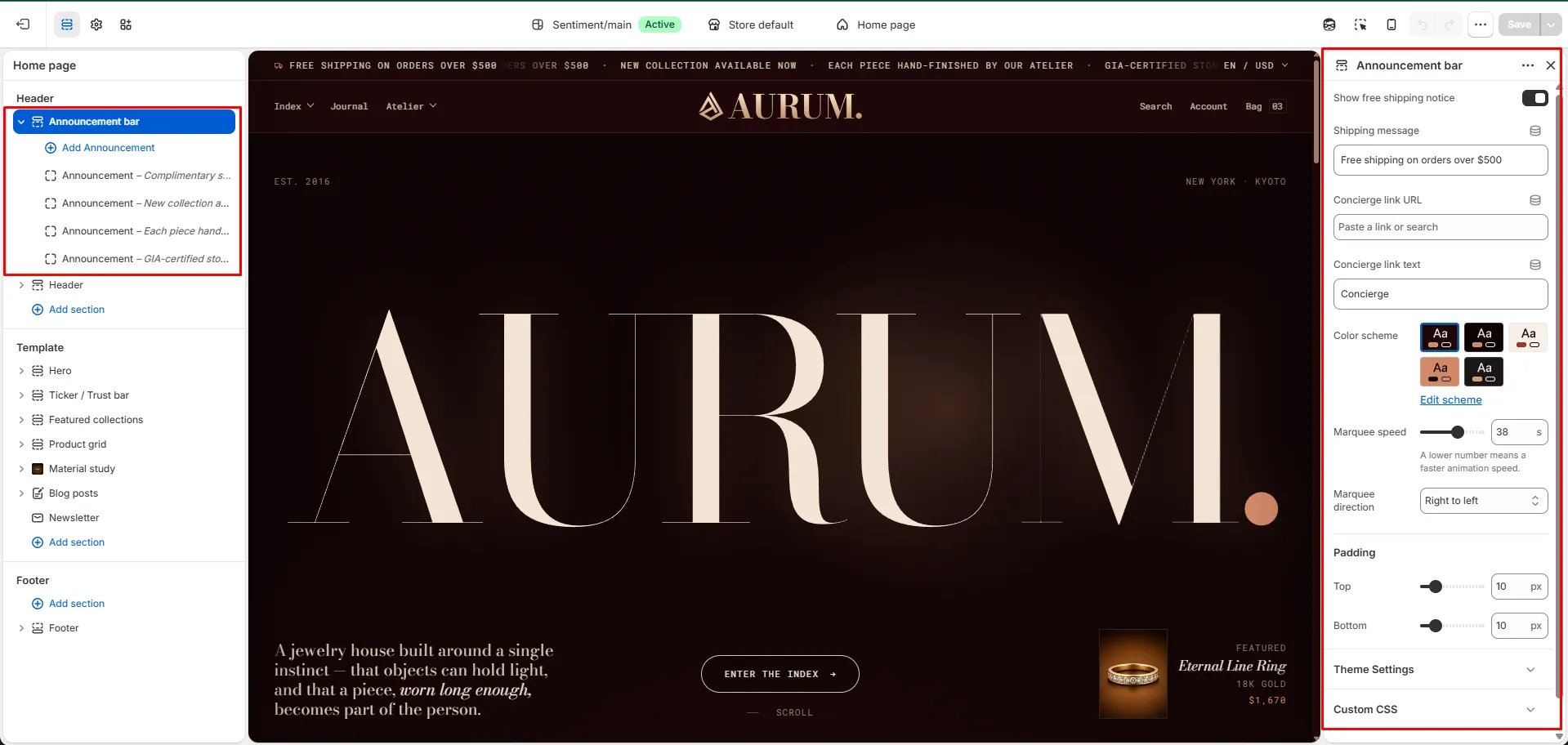
Click the **Announcement bar** section (not an individual block) to access these settings:
* **Show free shipping notice:** Toggle on to display a dedicated free shipping message alongside your announcements.
* **Shipping message:** The text shown when the free shipping notice is enabled (e.g., "Free shipping on orders over \$500").
* **Concierge link URL:** Paste the page link you want customers directed to when they click the concierge label (e.g., a contact or personal shopping page).
* **Concierge link text:** The label shown for the concierge link (e.g., "Concierge").
* **Color scheme:** Choose from the available preset color combinations. Click **Edit scheme** to customize colors further.
* **Marquee speed:** Controls how fast the text scrolls. The default is **38**. A lower number means a faster animation speed.
* **Marquee direction:** Set the scroll direction — **Right to left** (default) or Left to right.
* **Padding:** Set the top and bottom spacing inside the announcement bar (default is **10 px** each).
### How to Open the Announcement Bar
* From your Shopify admin, go to **Online Store → Themes**.
* Click **Customize** on the Sentiment theme.
* In the Theme Editor, expand **Header** in the left sidebar and select **Announcement bar**.
***
### Section Settings
Click the **Announcement bar** section (not an individual block) to access these settings:
* **Show free shipping notice:** Toggle on to display a dedicated free shipping message alongside your announcements.
* **Shipping message:** The text shown when the free shipping notice is enabled (e.g., "Free shipping on orders over \$500").
* **Concierge link URL:** Paste the page link you want customers directed to when they click the concierge label (e.g., a contact or personal shopping page).
* **Concierge link text:** The label shown for the concierge link (e.g., "Concierge").
* **Color scheme:** Choose from the available preset color combinations. Click **Edit scheme** to customize colors further.
* **Marquee speed:** Controls how fast the text scrolls. The default is **38**. A lower number means a faster animation speed.
* **Marquee direction:** Set the scroll direction — **Right to left** (default) or Left to right.
* **Padding:** Set the top and bottom spacing inside the announcement bar (default is **10 px** each).
 ***
### Managing Announcement Blocks
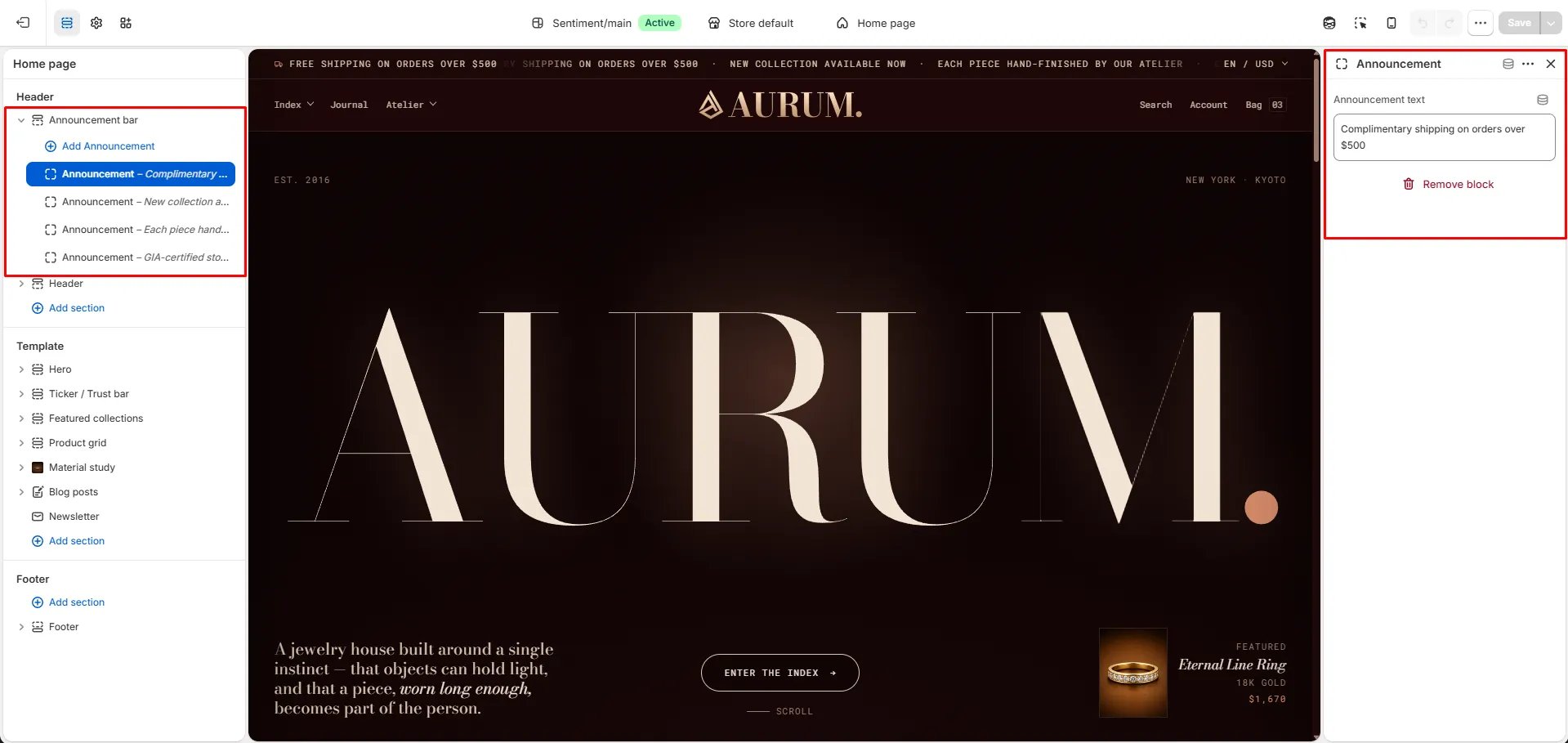
Each scrolling message is an individual block. You can add, edit, and remove blocks independently.
**To add an announcement:**
* In the left sidebar under **Announcement bar**, click **+ Add Announcement**.
* A new block will appear. Click it to open its settings on the right.
* Enter your message in the **Announcement text** field.
**To edit an announcement:**
* Click any existing announcement block in the left sidebar (e.g., *Announcement – Complimentary s...*).
* Update the **Announcement text** on the right panel.
**To remove an announcement:**
* Click the block you want to delete.
* Click **Remove block** at the bottom of the right panel.
***
### Save Your Changes
Click **Save** in the top-right corner of the Theme Editor to apply all changes.
***
### Managing Announcement Blocks
Each scrolling message is an individual block. You can add, edit, and remove blocks independently.
**To add an announcement:**
* In the left sidebar under **Announcement bar**, click **+ Add Announcement**.
* A new block will appear. Click it to open its settings on the right.
* Enter your message in the **Announcement text** field.
**To edit an announcement:**
* Click any existing announcement block in the left sidebar (e.g., *Announcement – Complimentary s...*).
* Update the **Announcement text** on the right panel.
**To remove an announcement:**
* Click the block you want to delete.
* Click **Remove block** at the bottom of the right panel.
***
### Save Your Changes
Click **Save** in the top-right corner of the Theme Editor to apply all changes.