> ## Documentation Index
> Fetch the complete documentation index at: https://sentiment-docs.arhamwebworks.com/llms.txt
> Use this file to discover all available pages before exploring further.
# FAQ page
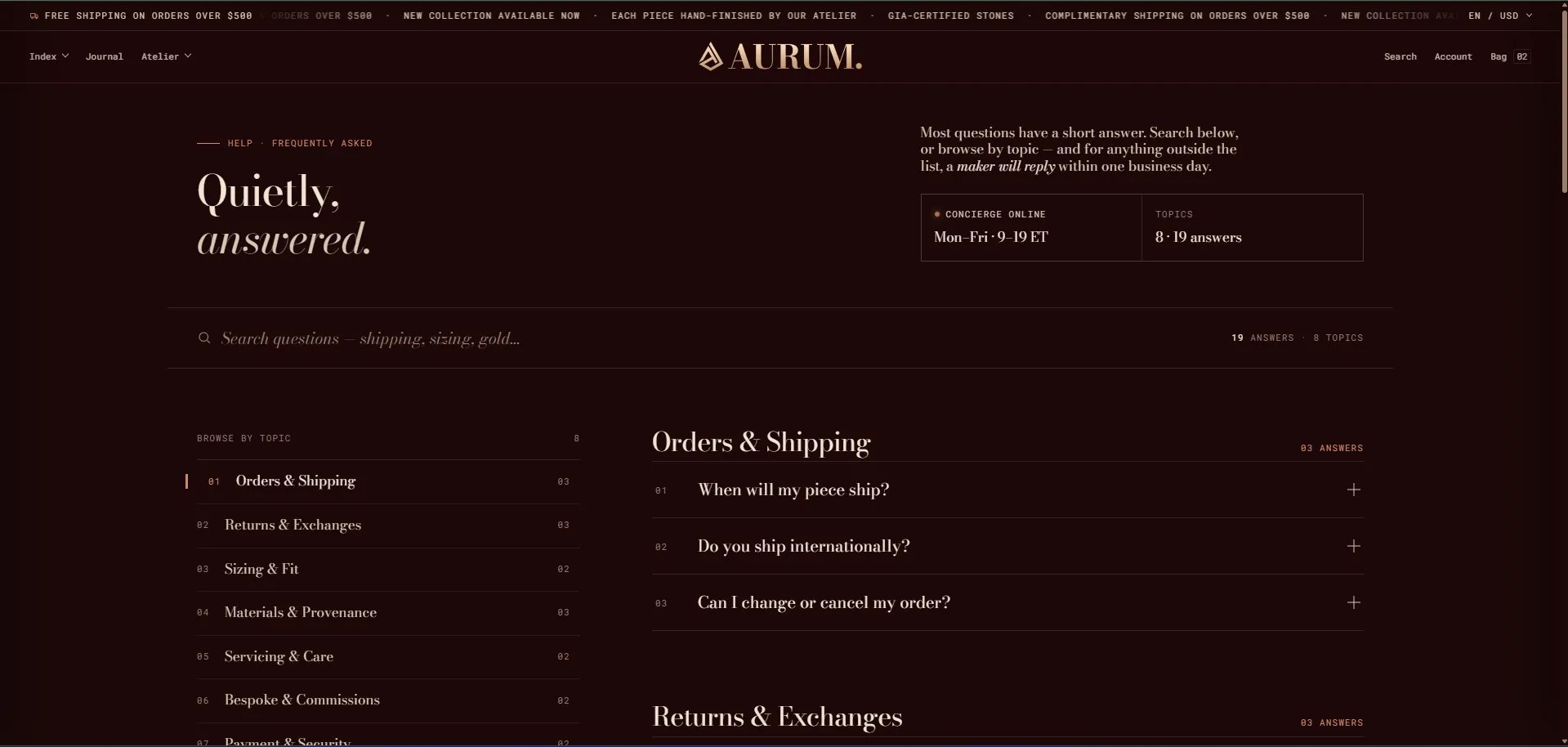
The **FAQ** page in the Sentiment theme is built from two sections: an **FAQ with groups** section that renders a full searchable, categorized FAQ with a left-sidebar topic index, and an **FAQ help CTA** closing section with branded buttons for escalating to the concierge. Questions are organized using **Category group** blocks as dividers and **Question & answer** blocks for each individual entry.
 ### How to Configure the FAQ Page
1. From your Shopify admin, go to **Online Store → Themes** and click **Customize**.
2. From the top page dropdown, select **Pages → FAQ**.
3. Click **FAQ with groups** or **FAQ help CTA** in the left sidebar under **Template** to open settings.
4. Add **Category group** blocks to create topic sections, then add **Question & answer** blocks beneath each group.
5. Click **Save** when done.
The FAQ page template contains these sections:
* **FAQ with groups** — searchable FAQ with topic sidebar, availability stats, and a sidebar CTA card
* **FAQ help CTA** — closing section with heading and CTA buttons
***
### FAQ With Groups Section Settings
The FAQ with groups section is the main body of the FAQ page — rendering the page masthead, a live search bar, a left sidebar with topic index and concierge card, and the full categorized question/answer accordion on the right.
### How to Configure the FAQ Page
1. From your Shopify admin, go to **Online Store → Themes** and click **Customize**.
2. From the top page dropdown, select **Pages → FAQ**.
3. Click **FAQ with groups** or **FAQ help CTA** in the left sidebar under **Template** to open settings.
4. Add **Category group** blocks to create topic sections, then add **Question & answer** blocks beneath each group.
5. Click **Save** when done.
The FAQ page template contains these sections:
* **FAQ with groups** — searchable FAQ with topic sidebar, availability stats, and a sidebar CTA card
* **FAQ help CTA** — closing section with heading and CTA buttons
***
### FAQ With Groups Section Settings
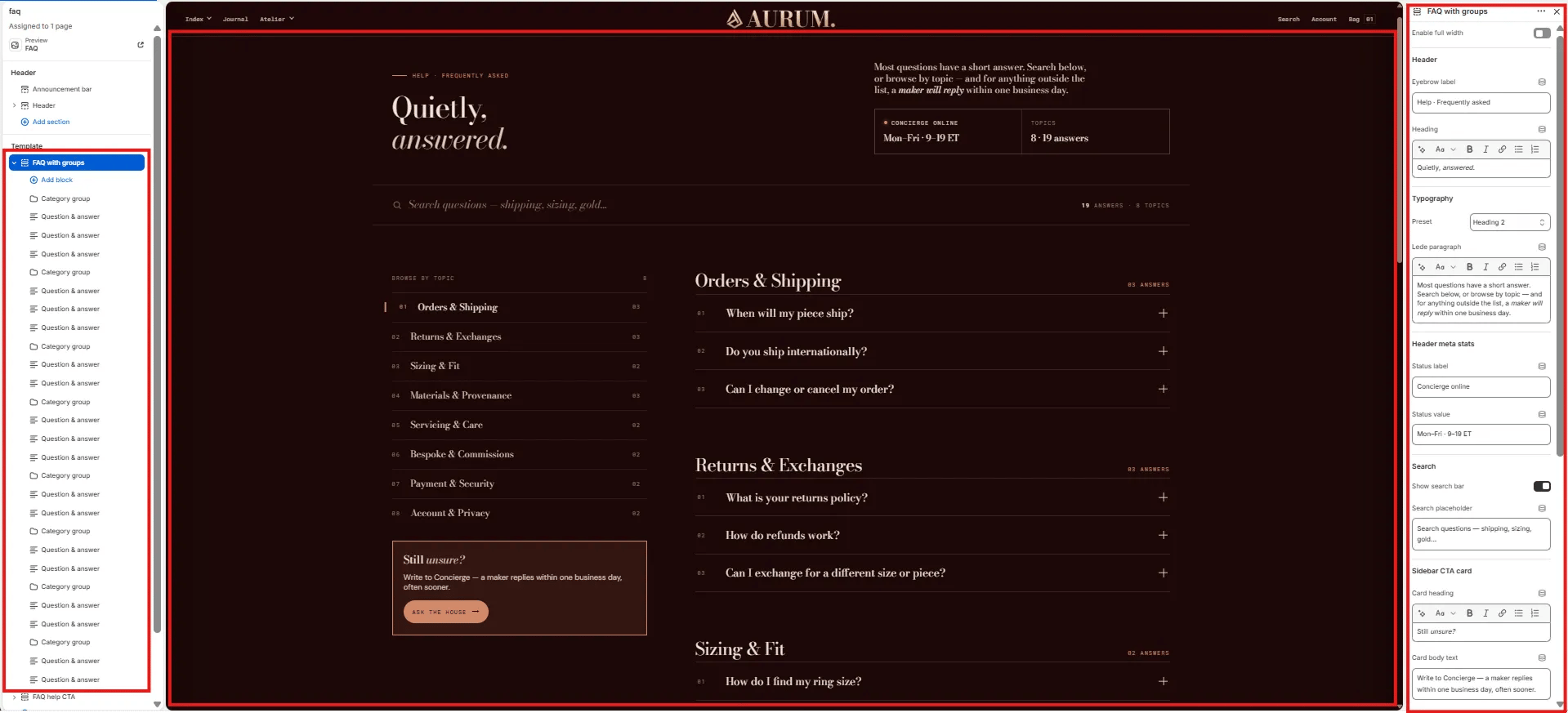
The FAQ with groups section is the main body of the FAQ page — rendering the page masthead, a live search bar, a left sidebar with topic index and concierge card, and the full categorized question/answer accordion on the right.
 #### Layout
* **Enable full width:** Toggle to extend the section edge-to-edge across the viewport.
#### Header
* **Eyebrow label:** Small label above the heading (e.g., "Help · Frequently asked").
* **Heading:** Main page heading. Supports rich text and italic emphasis (e.g., "Quietly, *answered.*").
* **Typography:** Choose the typographic preset for the heading (e.g., Heading 2).
* **Lede paragraph:** Supporting text displayed to the right of the heading (e.g., "Most questions have a short answer. Search below, or browse by topic — and for anything outside the list, a *maker will reply* within one business day.").
#### Header Meta Stats
Two stat cells displayed in a panel below the lede — showing concierge availability and total topic/answer counts.
* **Status label:** Label for the first stat (e.g., "Concierge online").
* **Status value:** Value for the first stat (e.g., "Mon–Fri · 9–19 ET").
> The second stat (Topics / answer count) is auto-generated from the blocks in the section and cannot be edited manually.
#### Search
* **Show search bar:** Toggle to show or hide the live search bar above the FAQ content. When enabled, customers can type to filter questions in real time.
* **Search placeholder:** Placeholder text inside the search input (e.g., "Search questions — shipping, sizing, gold...").
#### Sidebar CTA Card
A small card displayed at the bottom of the left sidebar, encouraging customers to write in if they can't find their answer.
* **Card heading:** Heading on the sidebar card. Supports italic/accent colour (e.g., "Still *unsure?*").
* **Card body text:** Supporting text below the heading (e.g., "Write to Concierge — a maker replies within one business day, often sooner.").
***
### Category Group Block Settings
Each Category Group block creates a new topic section in the FAQ — appearing as a named item in the left sidebar topic index and as a bold section heading above its question rows.
#### Layout
* **Enable full width:** Toggle to extend the section edge-to-edge across the viewport.
#### Header
* **Eyebrow label:** Small label above the heading (e.g., "Help · Frequently asked").
* **Heading:** Main page heading. Supports rich text and italic emphasis (e.g., "Quietly, *answered.*").
* **Typography:** Choose the typographic preset for the heading (e.g., Heading 2).
* **Lede paragraph:** Supporting text displayed to the right of the heading (e.g., "Most questions have a short answer. Search below, or browse by topic — and for anything outside the list, a *maker will reply* within one business day.").
#### Header Meta Stats
Two stat cells displayed in a panel below the lede — showing concierge availability and total topic/answer counts.
* **Status label:** Label for the first stat (e.g., "Concierge online").
* **Status value:** Value for the first stat (e.g., "Mon–Fri · 9–19 ET").
> The second stat (Topics / answer count) is auto-generated from the blocks in the section and cannot be edited manually.
#### Search
* **Show search bar:** Toggle to show or hide the live search bar above the FAQ content. When enabled, customers can type to filter questions in real time.
* **Search placeholder:** Placeholder text inside the search input (e.g., "Search questions — shipping, sizing, gold...").
#### Sidebar CTA Card
A small card displayed at the bottom of the left sidebar, encouraging customers to write in if they can't find their answer.
* **Card heading:** Heading on the sidebar card. Supports italic/accent colour (e.g., "Still *unsure?*").
* **Card body text:** Supporting text below the heading (e.g., "Write to Concierge — a maker replies within one business day, often sooner.").
***
### Category Group Block Settings
Each Category Group block creates a new topic section in the FAQ — appearing as a named item in the left sidebar topic index and as a bold section heading above its question rows.
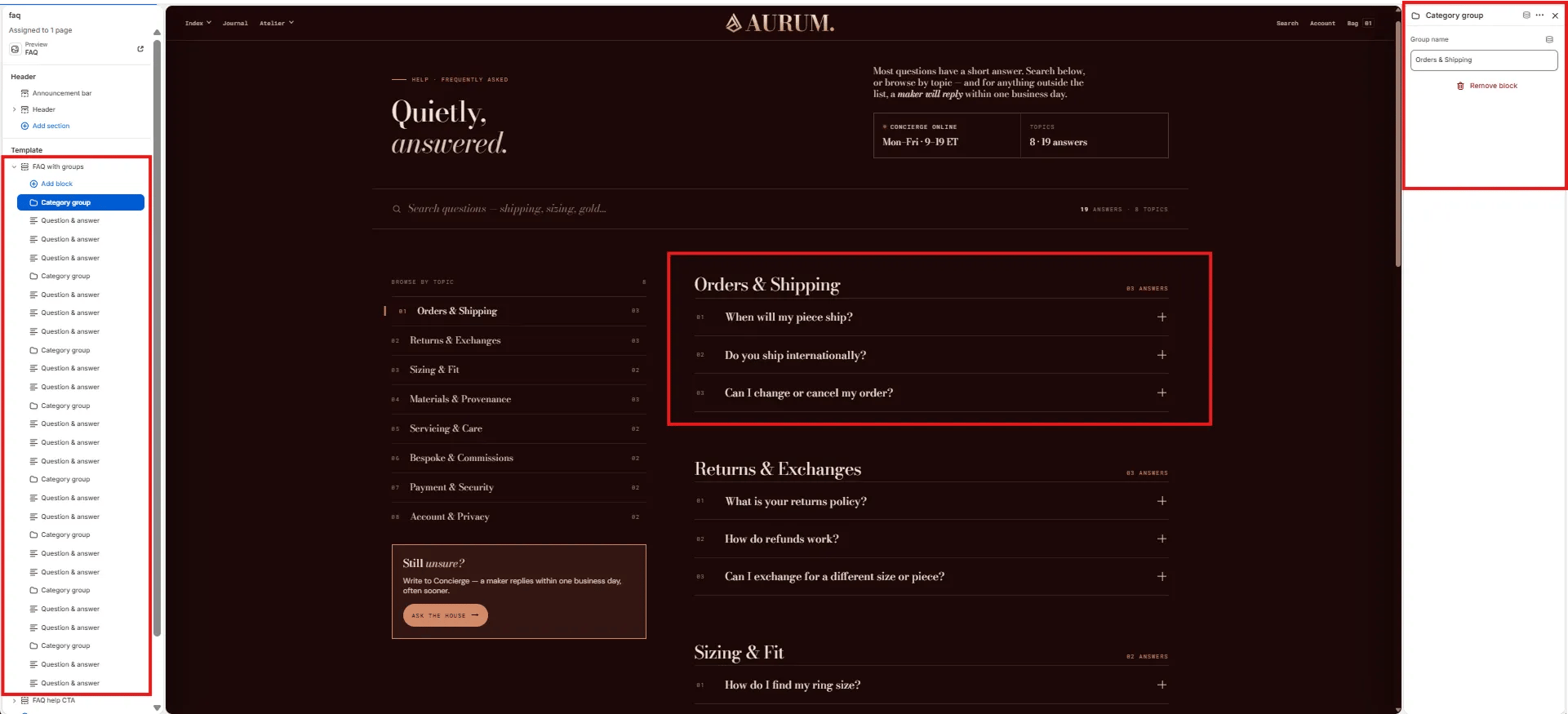 * **Group name:** The topic name displayed in the sidebar and as the section heading (e.g., "Orders & Shipping", "Returns & Exchanges", "Sizing & Fit").
Add one Category Group block per topic, then add **Question & answer** blocks directly below it. All Q\&A blocks after a category group and before the next category group belong to that topic.
***
### Question & Answer Block Settings
Each Question & Answer block is one entry in the FAQ accordion. It supports a question, a rich text answer, and up to two optional related links displayed below the answer.
* **Group name:** The topic name displayed in the sidebar and as the section heading (e.g., "Orders & Shipping", "Returns & Exchanges", "Sizing & Fit").
Add one Category Group block per topic, then add **Question & answer** blocks directly below it. All Q\&A blocks after a category group and before the next category group belong to that topic.
***
### Question & Answer Block Settings
Each Question & Answer block is one entry in the FAQ accordion. It supports a question, a rich text answer, and up to two optional related links displayed below the answer.
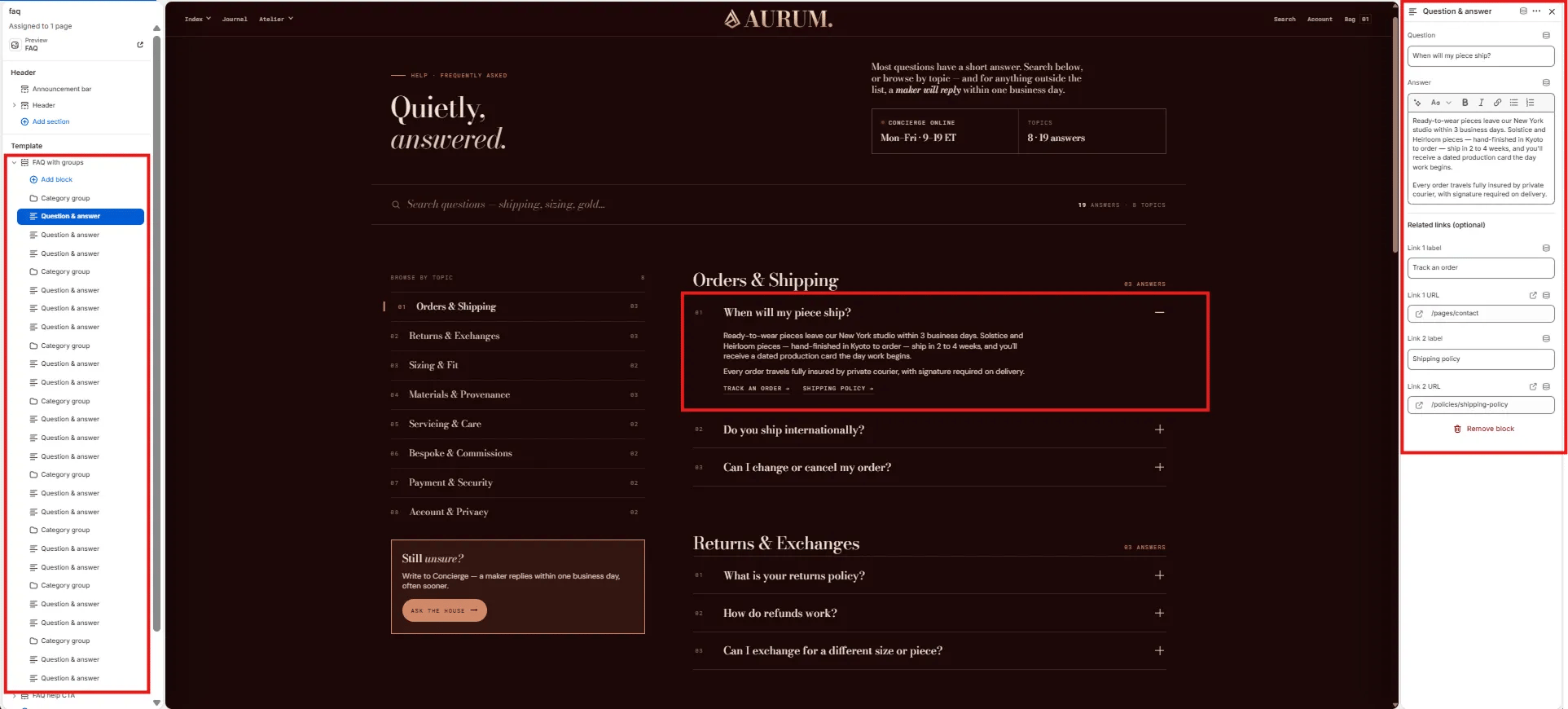 * **Question:** The accordion heading — the customer's question (e.g., "When will my piece ship?").
* **Answer:** Rich text answer displayed when the accordion row is expanded. Supports bold, italic, links, and lists.
#### Related Links (optional)
Up to two inline links displayed below the answer — useful for linking to policy pages, order tracking, or contact.
* **Link 1 label / URL:** Label and URL for the first related link (e.g., "Track an order" → `/pages/contact`).
* **Link 2 label / URL:** Label and URL for the second related link (e.g., "Shipping policy" → `/policies/shipping-policy`).
***
### FAQ Help CTA Section Settings
The FAQ help CTA section renders a two-column closing strip below the FAQ — with editorial copy on the left explaining the concierge service, and stacked CTA buttons on the right for direct escalation.
* **Question:** The accordion heading — the customer's question (e.g., "When will my piece ship?").
* **Answer:** Rich text answer displayed when the accordion row is expanded. Supports bold, italic, links, and lists.
#### Related Links (optional)
Up to two inline links displayed below the answer — useful for linking to policy pages, order tracking, or contact.
* **Link 1 label / URL:** Label and URL for the first related link (e.g., "Track an order" → `/pages/contact`).
* **Link 2 label / URL:** Label and URL for the second related link (e.g., "Shipping policy" → `/policies/shipping-policy`).
***
### FAQ Help CTA Section Settings
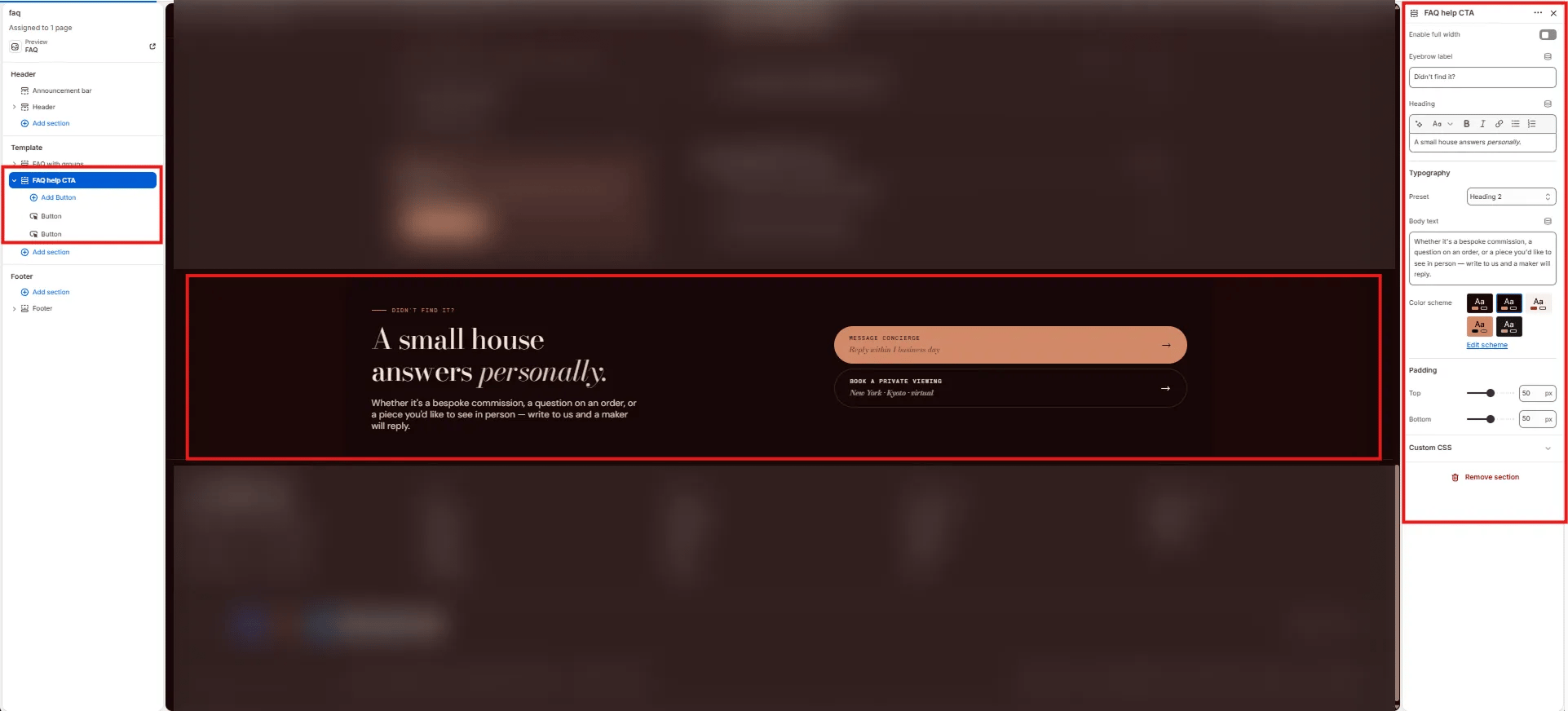
The FAQ help CTA section renders a two-column closing strip below the FAQ — with editorial copy on the left explaining the concierge service, and stacked CTA buttons on the right for direct escalation.
 #### Content
* **Enable full width:** Toggle to extend the section edge-to-edge.
* **Eyebrow label:** Small label above the heading (e.g., "Didn't find it?").
* **Heading:** Main section heading. Supports italic/accent colour (e.g., "A small house answers *personally.*").
* **Typography:** Choose the typographic preset for the heading (e.g., Heading 2).
* **Body text:** Supporting paragraph below the heading (e.g., "Whether it's a bespoke commission, a question on an order, or a piece you'd like to see in person — write to us and a maker will reply.").
#### Style
* **Color scheme:** Choose a color scheme for the section.
#### Spacing
* **Padding top / Padding bottom:** Control vertical spacing.
***
### Button Block Settings
Each Button block is one CTA button in the FAQ help CTA section. Add up to two Button blocks — the first uses a filled (primary) style and the second uses an outline style by default.
#### Content
* **Enable full width:** Toggle to extend the section edge-to-edge.
* **Eyebrow label:** Small label above the heading (e.g., "Didn't find it?").
* **Heading:** Main section heading. Supports italic/accent colour (e.g., "A small house answers *personally.*").
* **Typography:** Choose the typographic preset for the heading (e.g., Heading 2).
* **Body text:** Supporting paragraph below the heading (e.g., "Whether it's a bespoke commission, a question on an order, or a piece you'd like to see in person — write to us and a maker will reply.").
#### Style
* **Color scheme:** Choose a color scheme for the section.
#### Spacing
* **Padding top / Padding bottom:** Control vertical spacing.
***
### Button Block Settings
Each Button block is one CTA button in the FAQ help CTA section. Add up to two Button blocks — the first uses a filled (primary) style and the second uses an outline style by default.
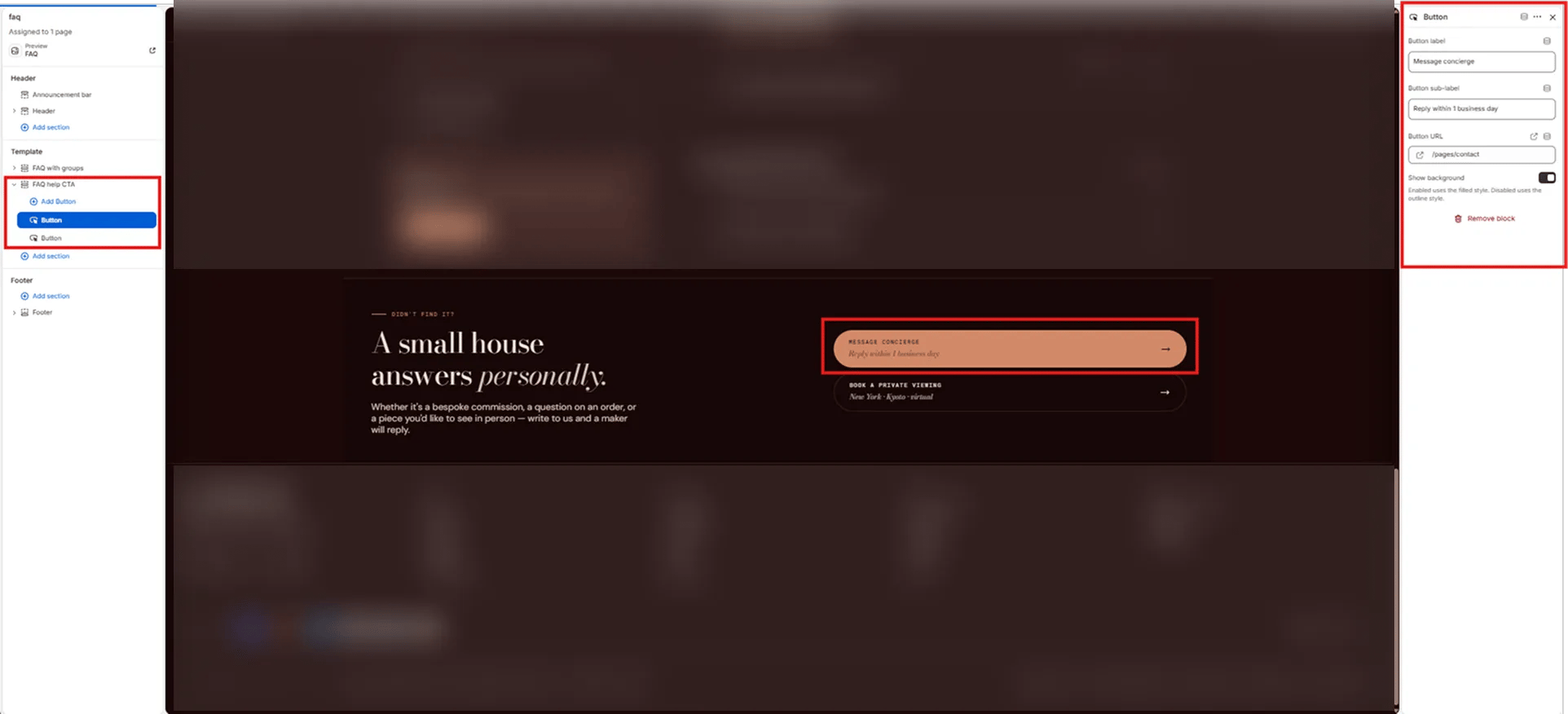 * **Button label:** Main button text displayed in large type (e.g., "Message concierge", "Book a private viewing").
* **Button sub-label:** Secondary smaller text displayed below the button label (e.g., "Reply within 1 business day", "New York · Kyoto · virtual").
* **Button URL:** Link destination for the button (e.g., `/pages/contact`).
* **Show background:** Toggle to switch between **filled** style (on) and **outline** style (off). Use filled for the primary action and outline for the secondary.
* **Button label:** Main button text displayed in large type (e.g., "Message concierge", "Book a private viewing").
* **Button sub-label:** Secondary smaller text displayed below the button label (e.g., "Reply within 1 business day", "New York · Kyoto · virtual").
* **Button URL:** Link destination for the button (e.g., `/pages/contact`).
* **Show background:** Toggle to switch between **filled** style (on) and **outline** style (off). Use filled for the primary action and outline for the secondary.