> ## Documentation Index
> Fetch the complete documentation index at: https://sentiment-docs.arhamwebworks.com/llms.txt
> Use this file to discover all available pages before exploring further.
# Featured article
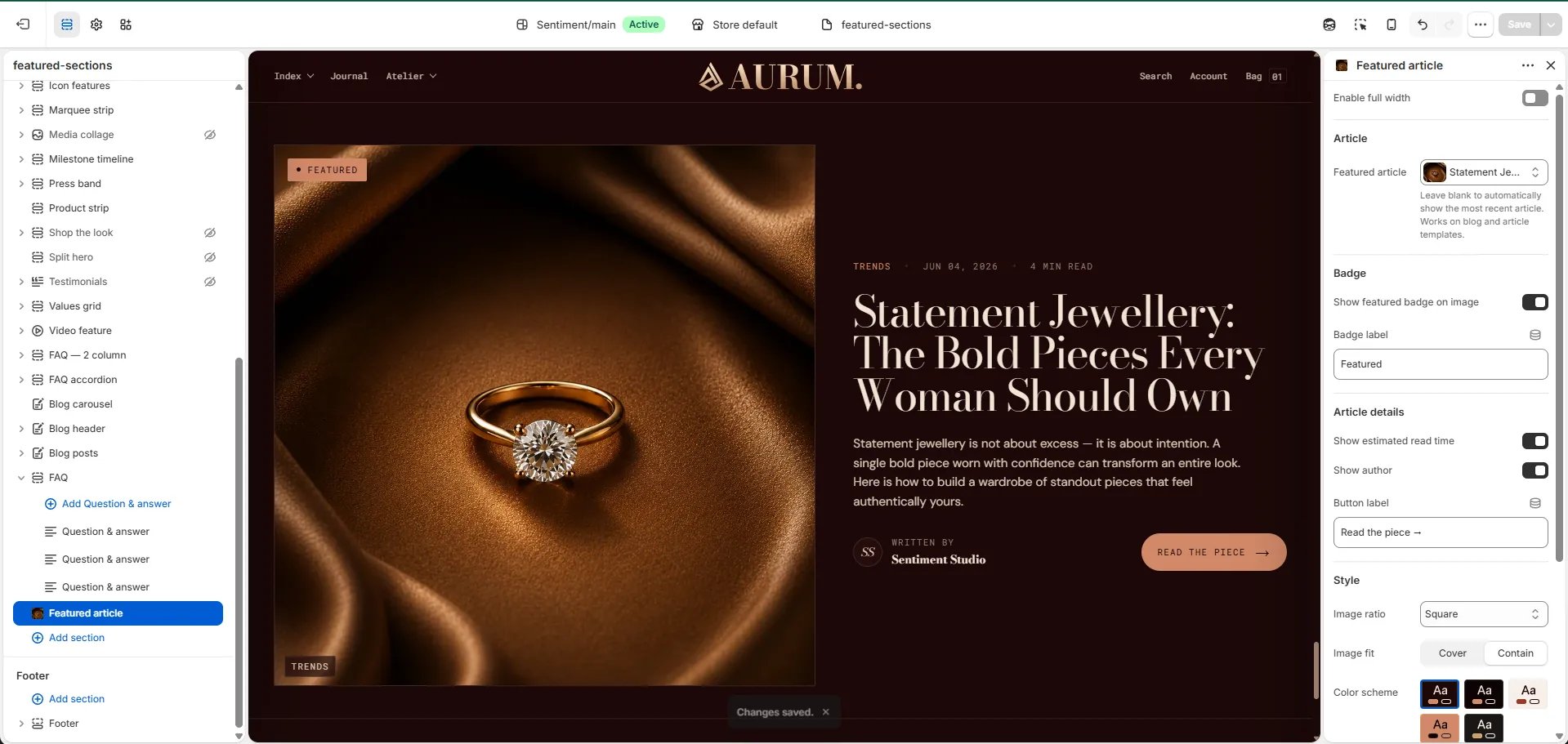
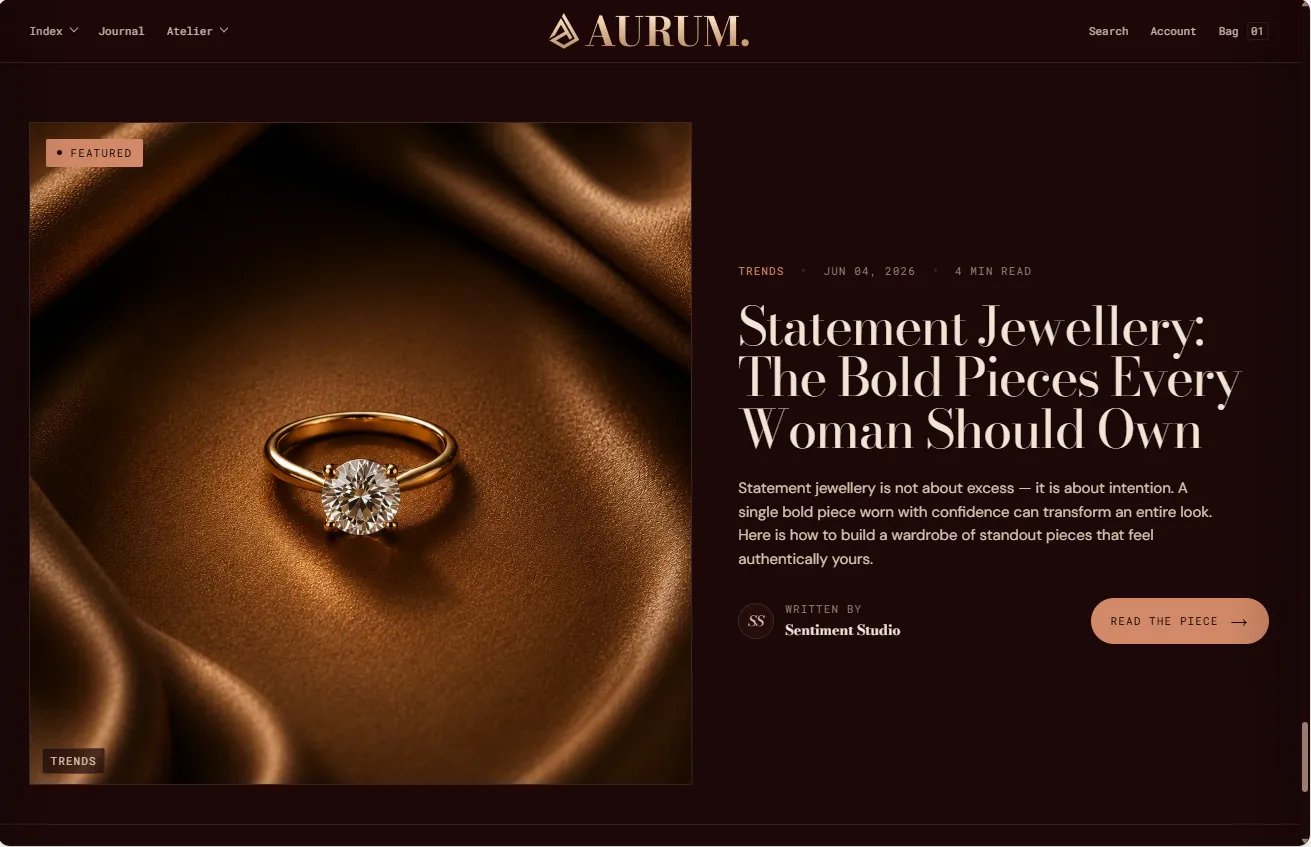
The **Featured Article** section highlights a single article in a large editorial card format, displaying the article's image, a featured badge, estimated read time, author name, and a CTA button. You can manually pin a specific article or let the section automatically display the most recent post from your blog.
 ### How to Add the Section
1. From your Shopify admin, go to **Online Store → Themes** and click **Customize**.
2. Navigate to the page where you want to add this section.
3. Click **Add section** and select **Featured article**.
4. Select an article or leave it blank to auto-display the most recent post.
5. Click **Save**.
### Section Settings
#### Source
* **Featured article:** Manually select the article to feature. Leave blank to automatically show the most recent article from your blog.
#### Content
* **Show featured badge:** Toggle to display a "Featured" badge on the article card.
* **Featured label:** The text shown inside the badge (default: "Featured").
* **Show read time:** Toggle to display the estimated read time on the card.
* **Show author:** Toggle to display the article author's name on the card.
* **Button label:** The label on the read CTA button (default: "Read the piece →").
#### Image
* **Image ratio:** Aspect ratio for the article image — 16:11, Portrait, Square, Landscape, or Adapt.
* **Image fit:** Controls how the image fills its container — **Cover** (fills and crops) or **Contain** (shows the full image without cropping).
#### Style
* **Full width:** When enabled, the section stretches edge-to-edge.
* **Color scheme:** Choose a color scheme for the section.
#### Spacing
* **Padding top / Padding bottom:** Control vertical spacing around the section.
### How to Add the Section
1. From your Shopify admin, go to **Online Store → Themes** and click **Customize**.
2. Navigate to the page where you want to add this section.
3. Click **Add section** and select **Featured article**.
4. Select an article or leave it blank to auto-display the most recent post.
5. Click **Save**.
### Section Settings
#### Source
* **Featured article:** Manually select the article to feature. Leave blank to automatically show the most recent article from your blog.
#### Content
* **Show featured badge:** Toggle to display a "Featured" badge on the article card.
* **Featured label:** The text shown inside the badge (default: "Featured").
* **Show read time:** Toggle to display the estimated read time on the card.
* **Show author:** Toggle to display the article author's name on the card.
* **Button label:** The label on the read CTA button (default: "Read the piece →").
#### Image
* **Image ratio:** Aspect ratio for the article image — 16:11, Portrait, Square, Landscape, or Adapt.
* **Image fit:** Controls how the image fills its container — **Cover** (fills and crops) or **Contain** (shows the full image without cropping).
#### Style
* **Full width:** When enabled, the section stretches edge-to-edge.
* **Color scheme:** Choose a color scheme for the section.
#### Spacing
* **Padding top / Padding bottom:** Control vertical spacing around the section.