> ## Documentation Index
> Fetch the complete documentation index at: https://sentiment-docs.arhamwebworks.com/llms.txt
> Use this file to discover all available pages before exploring further.
# Media collage
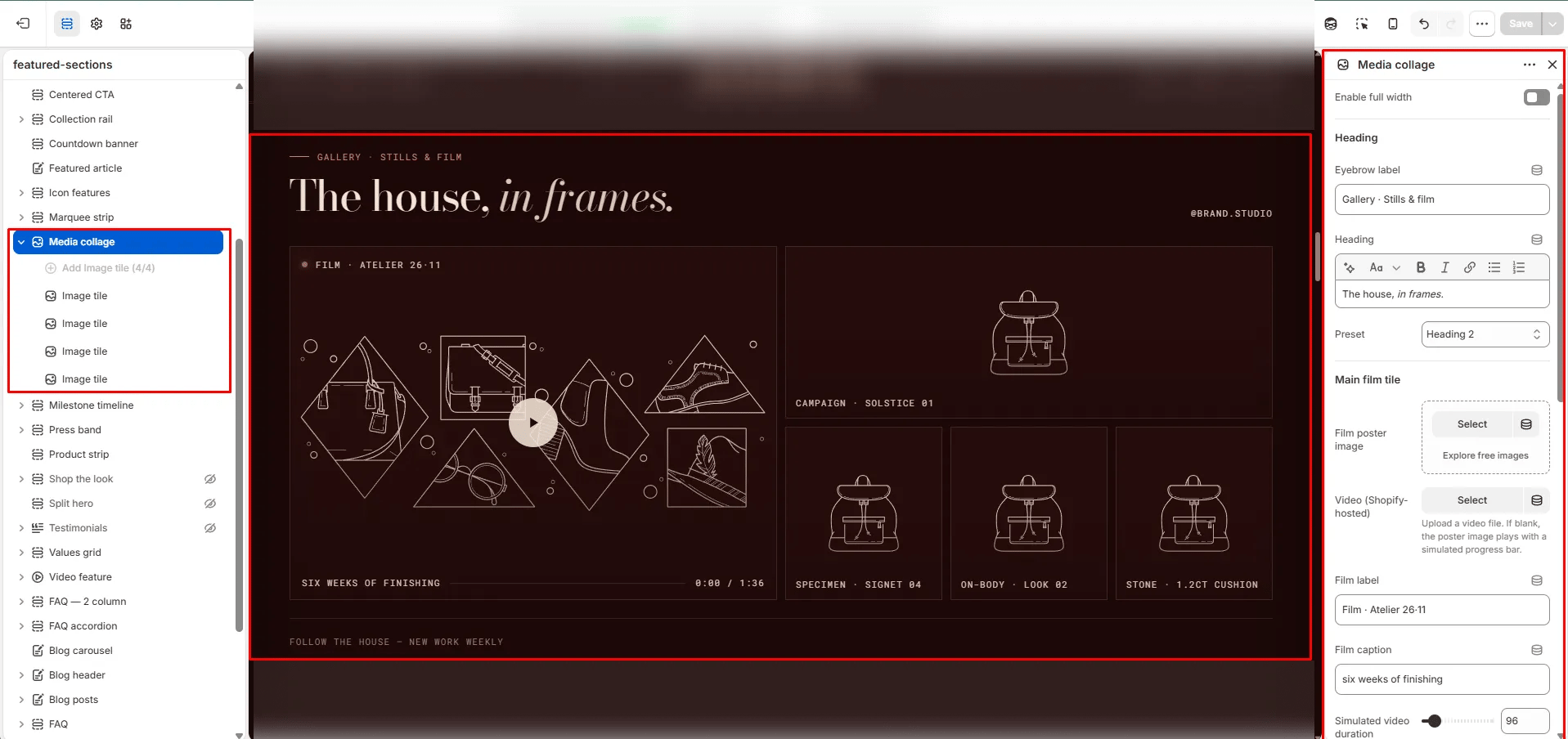
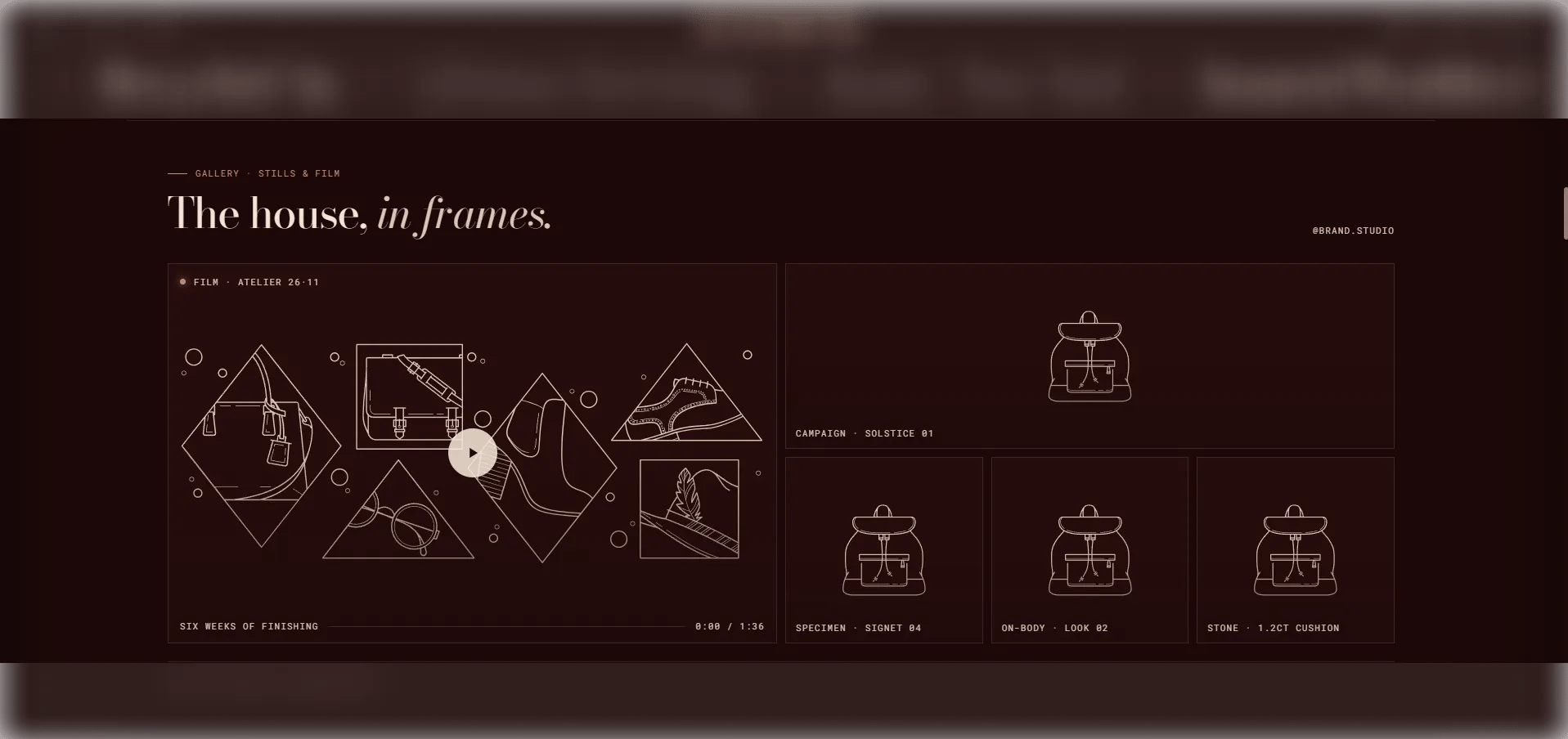
The **Media Collage** section combines a main video tile on the left with up to 4 image tiles on the right in an editorial photo-and-film layout. The video tile features a play/pause control, a progress bar, and social follow link — making it ideal for brand films, behind-the-scenes content, or campaign reels alongside editorial photography.
 ### How to Add the Section
1. From your Shopify admin, go to **Online Store → Themes** and click **Customize**.
2. Navigate to the page where you want to add this section.
3. Click **Add section** and select **Media collage**.
4. Upload a poster image and video, then add **Image** blocks for the collage tiles on the right.
5. Click **Save**.
### Section Settings
#### Content
* **Full width:** When enabled, the section stretches edge-to-edge across the viewport.
* **Eyebrow:** Small label above the heading.
* **Heading:** Main section heading. Supports rich text and italic emphasis.
* **Heading typography:** Select the typographic style for the heading.
#### Video Tile
* **Film image:** Upload a poster or cover image displayed before the video plays and as a fallback.
* **Video:** Upload a Shopify-hosted video for the main film tile. Falls back to the poster image if no video is uploaded.
* **Film label:** A label overlaid on the video tile (e.g., "Film · Atelier 26·11").
* **Film caption:** A secondary caption line below the film label.
* **Video duration:** The duration of the video in seconds, used to drive the progress bar animation (range: 30–600s).
#### Social & Footer
* **Social handle:** Your social media handle displayed below the collage (e.g., "@brand.studio").
* **Social URL:** The link for the social handle.
* **Footer label:** A text label displayed below the collage grid (e.g., "Follow the house — new work weekly").
* **Follow label:** The label on the social follow link.
#### Style
* **Color scheme:** Choose a color scheme for the section.
#### Spacing
* **Padding top / Padding bottom:** Control vertical spacing around the section.
***
### Image Block Settings
Each Image block adds one tile to the right-side collage grid. You can add up to 4 image tiles.
* **Image:** Upload the image for this collage tile.
* **Caption:** A small caption displayed on the image tile (e.g., "campaign · edit 01").
### How to Add the Section
1. From your Shopify admin, go to **Online Store → Themes** and click **Customize**.
2. Navigate to the page where you want to add this section.
3. Click **Add section** and select **Media collage**.
4. Upload a poster image and video, then add **Image** blocks for the collage tiles on the right.
5. Click **Save**.
### Section Settings
#### Content
* **Full width:** When enabled, the section stretches edge-to-edge across the viewport.
* **Eyebrow:** Small label above the heading.
* **Heading:** Main section heading. Supports rich text and italic emphasis.
* **Heading typography:** Select the typographic style for the heading.
#### Video Tile
* **Film image:** Upload a poster or cover image displayed before the video plays and as a fallback.
* **Video:** Upload a Shopify-hosted video for the main film tile. Falls back to the poster image if no video is uploaded.
* **Film label:** A label overlaid on the video tile (e.g., "Film · Atelier 26·11").
* **Film caption:** A secondary caption line below the film label.
* **Video duration:** The duration of the video in seconds, used to drive the progress bar animation (range: 30–600s).
#### Social & Footer
* **Social handle:** Your social media handle displayed below the collage (e.g., "@brand.studio").
* **Social URL:** The link for the social handle.
* **Footer label:** A text label displayed below the collage grid (e.g., "Follow the house — new work weekly").
* **Follow label:** The label on the social follow link.
#### Style
* **Color scheme:** Choose a color scheme for the section.
#### Spacing
* **Padding top / Padding bottom:** Control vertical spacing around the section.
***
### Image Block Settings
Each Image block adds one tile to the right-side collage grid. You can add up to 4 image tiles.
* **Image:** Upload the image for this collage tile.
* **Caption:** A small caption displayed on the image tile (e.g., "campaign · edit 01").