> ## Documentation Index
> Fetch the complete documentation index at: https://sentiment-docs.arhamwebworks.com/llms.txt
> Use this file to discover all available pages before exploring further.
# Related products
The **Related Products** section renders a full-width product grid below the main product content, showing items from the same collection under a configurable heading. It keeps customers engaged after viewing a product by surfacing contextually relevant pieces from your catalog.
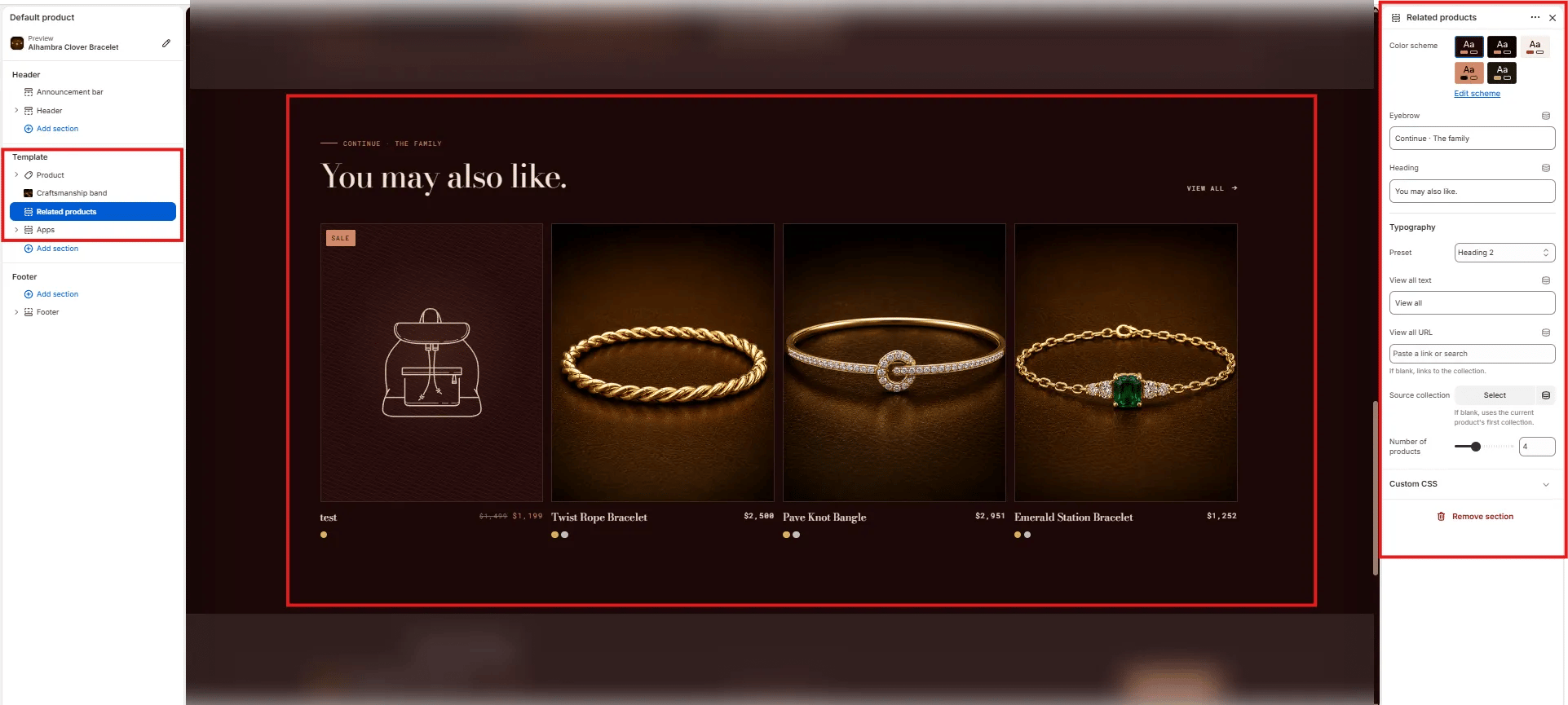 ### How to Add the Section
1. From your Shopify admin, go to **Online Store → Themes** and click **Customize**.
2. Navigate to a product page.
3. Click **Add section** and select **Related products**.
4. Configure the settings below and click **Save**.
***
### Section Settings
#### Content
* **Eyebrow:** Small label above the heading (e.g., "Continue · The family").
* **Heading:** Main section heading (e.g., "You may also like.").
* **Typography:** Typographic preset for the heading (e.g., Heading 2).
* **View all text:** Label for the "View all" link (default: "View all").
* **View all URL:** Destination for the "View all" link. Leave blank to auto-link to the source collection.
#### Source
* **Source collection:** Select a specific collection to pull related products from. If left blank, the section automatically uses the current product's first collection.
* **Number of products:** Number of product cards to show in the grid (range: 2–8, default: 4).
### How to Add the Section
1. From your Shopify admin, go to **Online Store → Themes** and click **Customize**.
2. Navigate to a product page.
3. Click **Add section** and select **Related products**.
4. Configure the settings below and click **Save**.
***
### Section Settings
#### Content
* **Eyebrow:** Small label above the heading (e.g., "Continue · The family").
* **Heading:** Main section heading (e.g., "You may also like.").
* **Typography:** Typographic preset for the heading (e.g., Heading 2).
* **View all text:** Label for the "View all" link (default: "View all").
* **View all URL:** Destination for the "View all" link. Leave blank to auto-link to the source collection.
#### Source
* **Source collection:** Select a specific collection to pull related products from. If left blank, the section automatically uses the current product's first collection.
* **Number of products:** Number of product cards to show in the grid (range: 2–8, default: 4).