> ## Documentation Index
> Fetch the complete documentation index at: https://sentiment-docs.arhamwebworks.com/llms.txt
> Use this file to discover all available pages before exploring further.
# Size chart
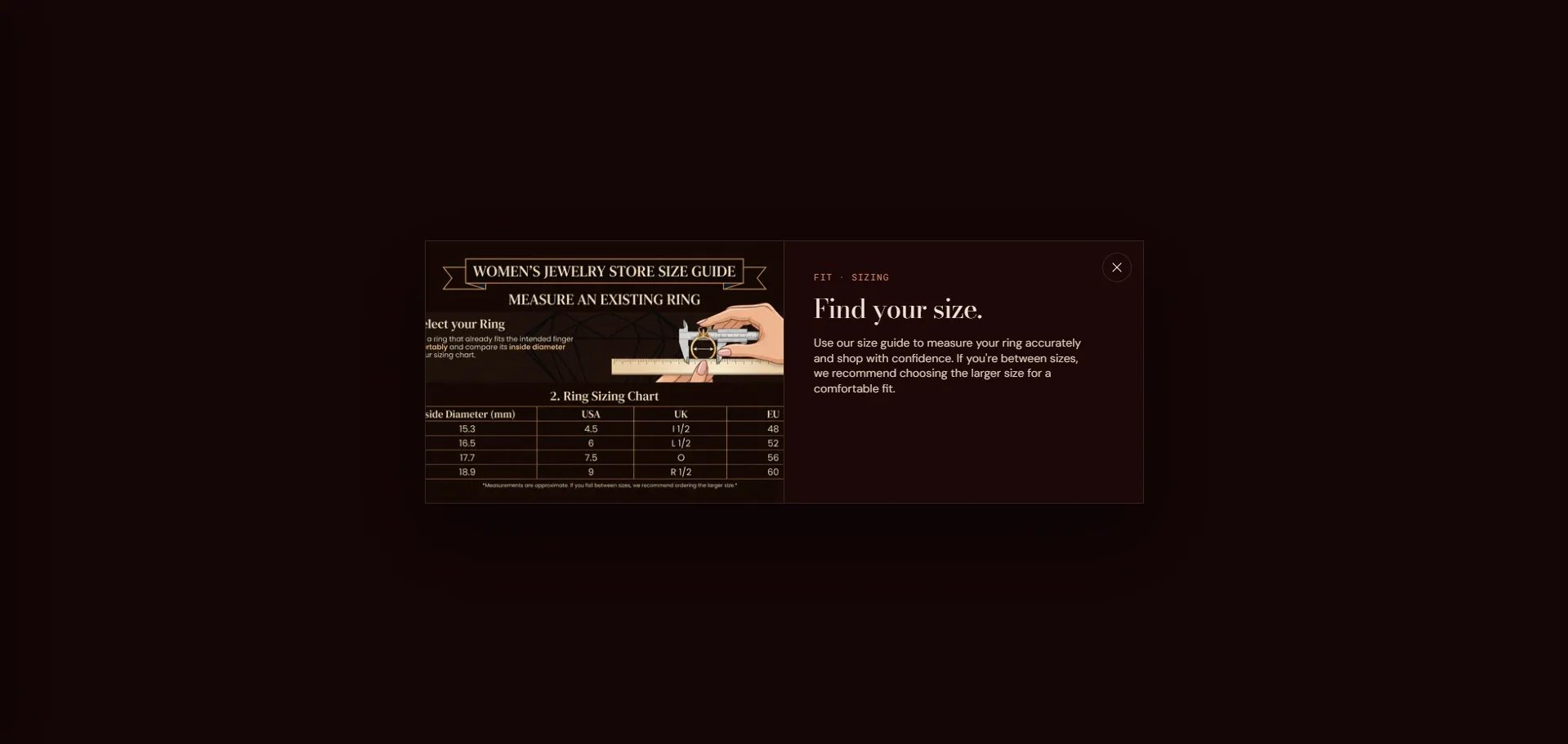
The **Size Chart** is a dialog modal displayed on the product page, giving customers access to sizing information before purchasing. It can display an image, rich text content, or pull content from a dedicated Shopify page.
The size chart is not a standalone section — it is configured within the **Product page** section settings.
 ### How to Configure the Size Chart
* From your Shopify admin, go to **Online Store → Themes** and click **Customize**.
* Navigate to a **Product** template page.
* Select the **Product** section in the left sidebar.
* Enable **Show size guide** to activate the size chart trigger on the product page.
* Upload a **Size guide image** or add **Size guide content** (rich text), or select a **Size guide page** to pull content from a Shopify page.
* Click **Save**.
### Settings *(within the Product section)*
* **Show size guide:** Toggle to display the size guide link on the product page.
* **Size guide image:** Upload an image (e.g., a size chart graphic) to display in the modal.
* **Size guide content:** Add rich text content directly to the modal.
* **Size guide page:** Select a Shopify page to pull its content into the modal — useful for maintaining a single source of truth for sizing information.
### How to Configure the Size Chart
* From your Shopify admin, go to **Online Store → Themes** and click **Customize**.
* Navigate to a **Product** template page.
* Select the **Product** section in the left sidebar.
* Enable **Show size guide** to activate the size chart trigger on the product page.
* Upload a **Size guide image** or add **Size guide content** (rich text), or select a **Size guide page** to pull content from a Shopify page.
* Click **Save**.
### Settings *(within the Product section)*
* **Show size guide:** Toggle to display the size guide link on the product page.
* **Size guide image:** Upload an image (e.g., a size chart graphic) to display in the modal.
* **Size guide content:** Add rich text content directly to the modal.
* **Size guide page:** Select a Shopify page to pull its content into the modal — useful for maintaining a single source of truth for sizing information.