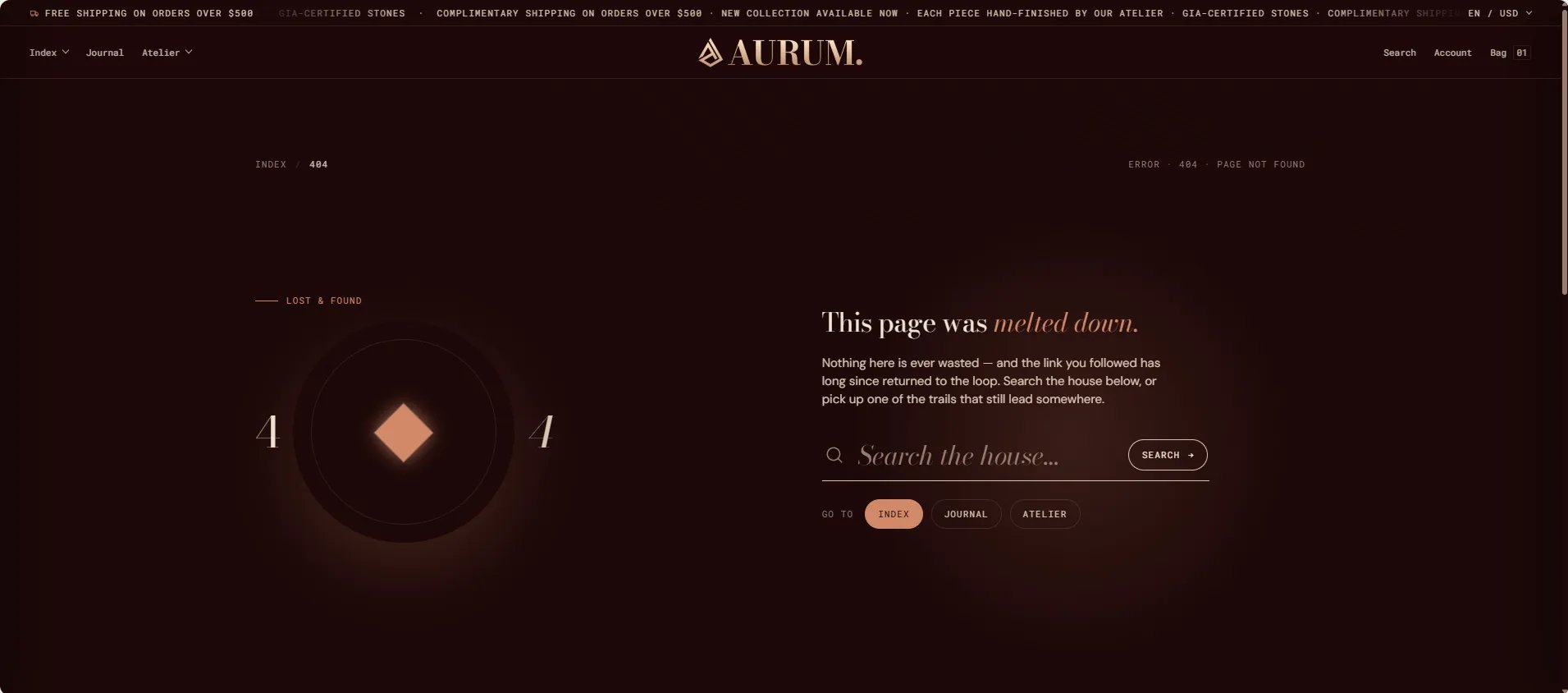
How to Configure the 404 Page
- From your Shopify admin, go to Online Store → Themes and click Customize.
- From the top page dropdown, select 404.
- Click Page not found or Product strip in the left sidebar under Template to open its settings.
- Click Save when done.
- Page not found — branded error display with eyebrow, headline, opening paragraph, search bar, and quick-navigation links
- Product strip — editorial product grid with heading, view-all link, and collection source
Page Not Found Section Settings
The Page Not Found section is the core of the 404 experience — it renders a two-column layout with a large animated “404” graphic on the left and the headline, body text, search bar, and quick links on the right.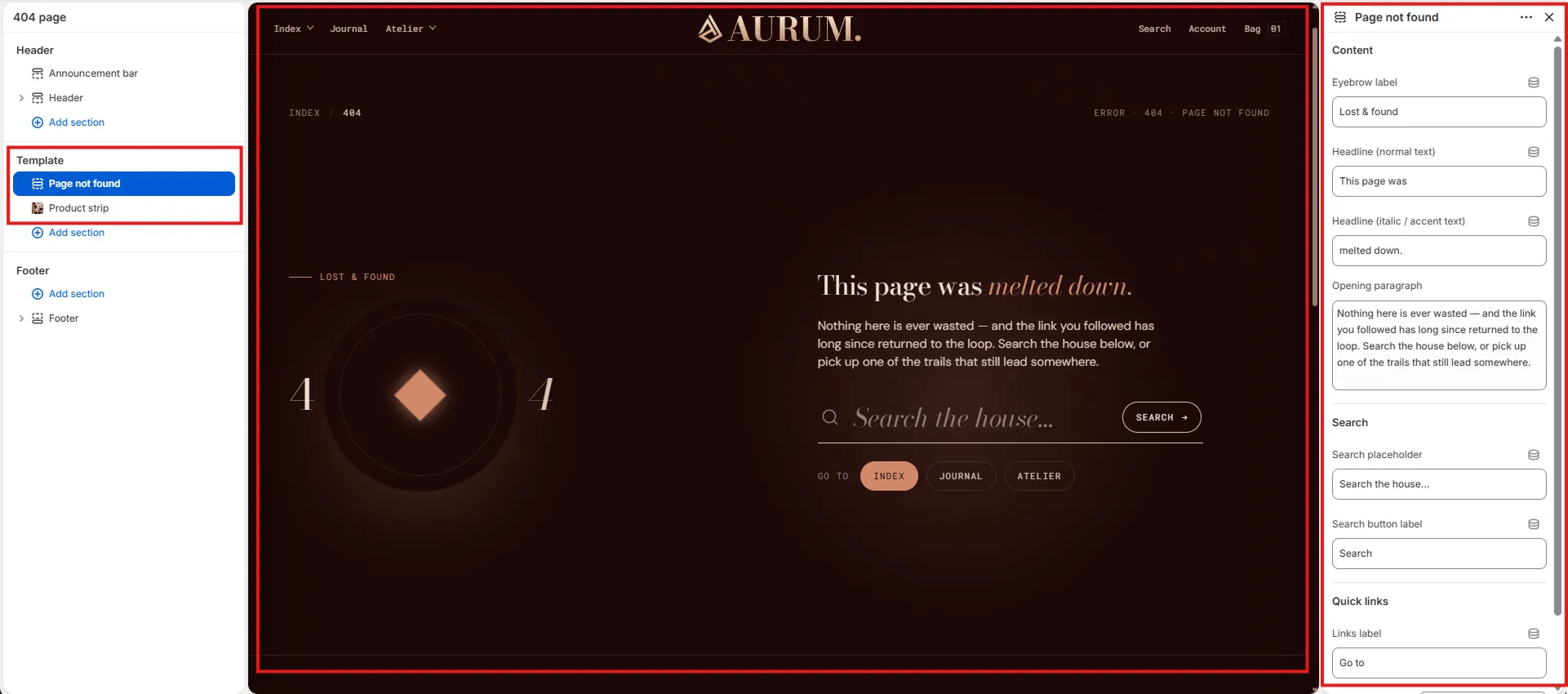
Content
- Eyebrow label: Small label displayed above the headline (e.g., “Lost & found”).
- Headline (normal text): The regular-weight portion of the main headline (e.g., “This page was”).
- Headline (italic / accent text): The italic or accent-colour portion of the headline rendered in the theme’s accent typeface (e.g., “melted down.”).
- Opening paragraph: Supporting body text displayed below the headline (e.g., “Nothing here is ever wasted — and the link you followed has long since returned to the loop. Search the house below, or pick up one of the trails that still lead somewhere.”).
Search
- Search placeholder: Placeholder text inside the search input (e.g., “Search the house…”).
- Search button label: Label on the search submit button (e.g., “Search”).
Quick Links
- Links label: Small uppercase label displayed before the quick-link buttons (e.g., “Go to”).
Product Strip Section Settings
The Product Strip section renders a static product grid below the 404 message — keeping customers engaged by surfacing relevant pieces from a collection alongside an editorial heading and a view-all link.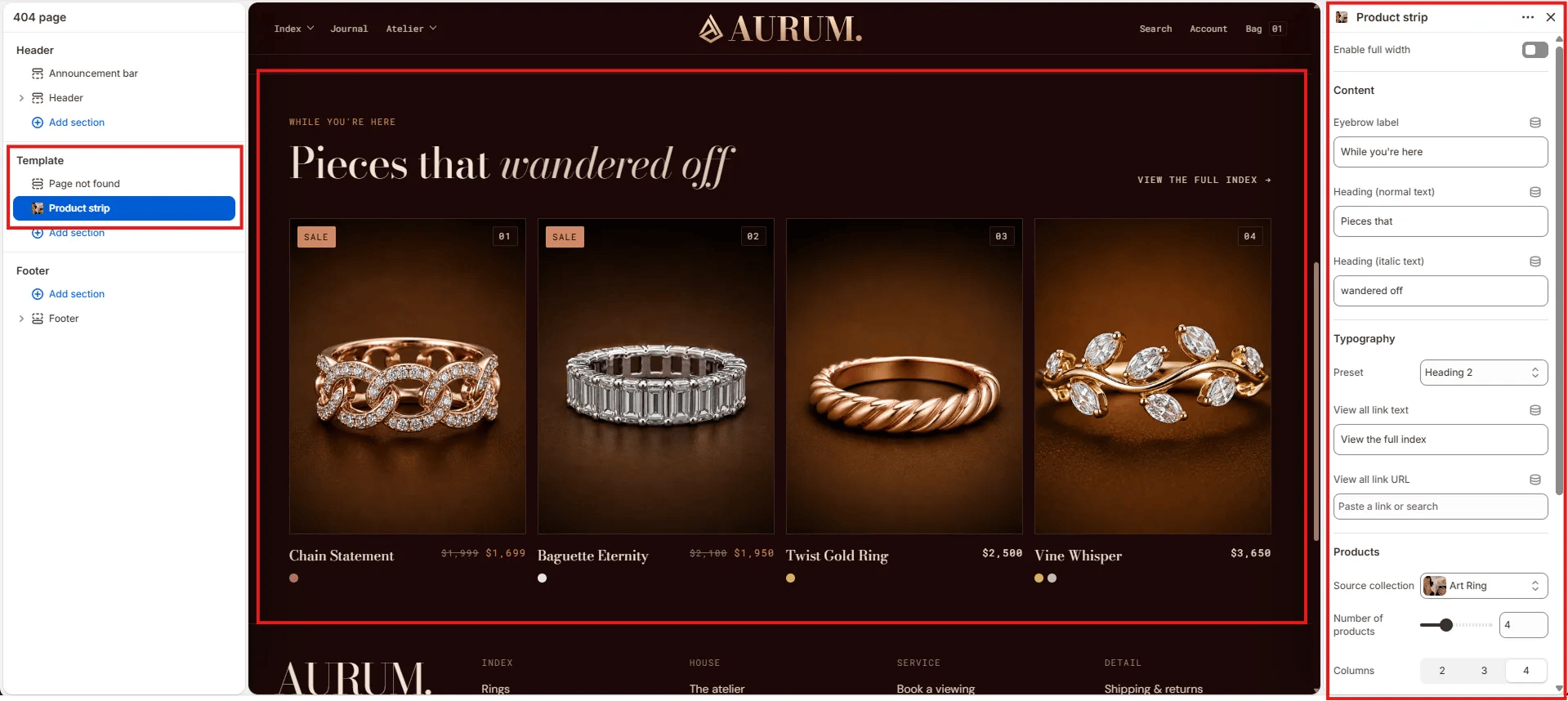
Layout
- Enable full width: Toggle to extend the section edge-to-edge across the viewport.
Content
- Eyebrow label: Small label displayed above the heading (e.g., “While you’re here”).
- Heading (normal text): The regular-weight portion of the section heading (e.g., “Pieces that”).
- Heading (italic text): The italic portion of the section heading rendered in the theme’s accent typeface (e.g., “wandered off”).
- Typography: Choose the typographic preset for the heading (e.g., Heading 2).
- View all link text: Label for the view-all link displayed to the right of the heading (e.g., “View the full index”).
- View all link URL: The destination URL for the view-all link (e.g.,
/collections/all).
Products
- Source collection: Select the Shopify collection to pull products from (e.g., Art Ring).
- Number of products: How many products to display in the grid (range: 2–8).
- Columns: Number of columns on desktop — 2, 3, or 4.
Spacing
- Padding top / Padding bottom: Control vertical spacing around the section.