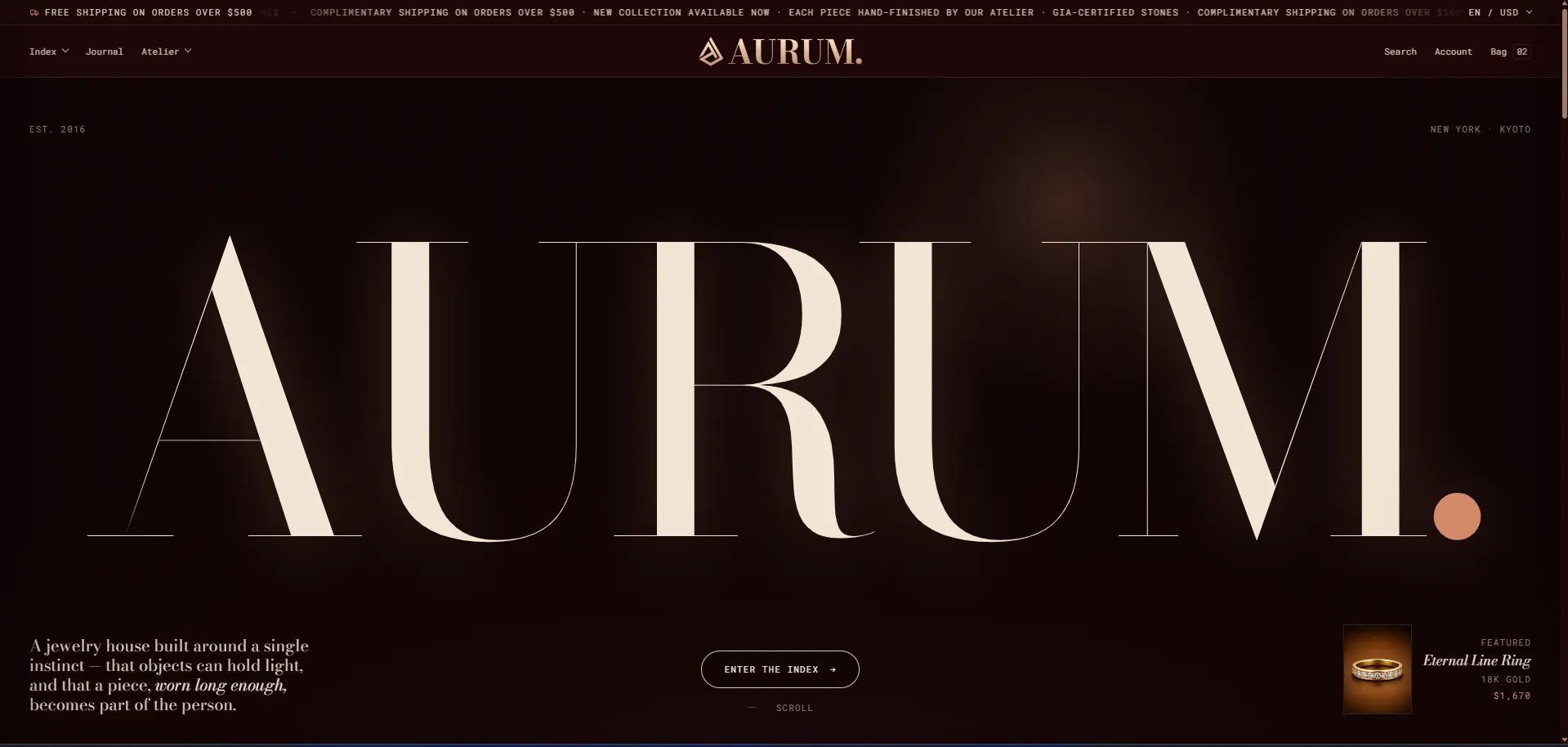
How to Open the Announcement Bar
- From your Shopify admin, go to Online Store → Themes.
- Click Customize on the Sentiment theme.
- In the Theme Editor, expand Header in the left sidebar and select Announcement bar.
Section Settings
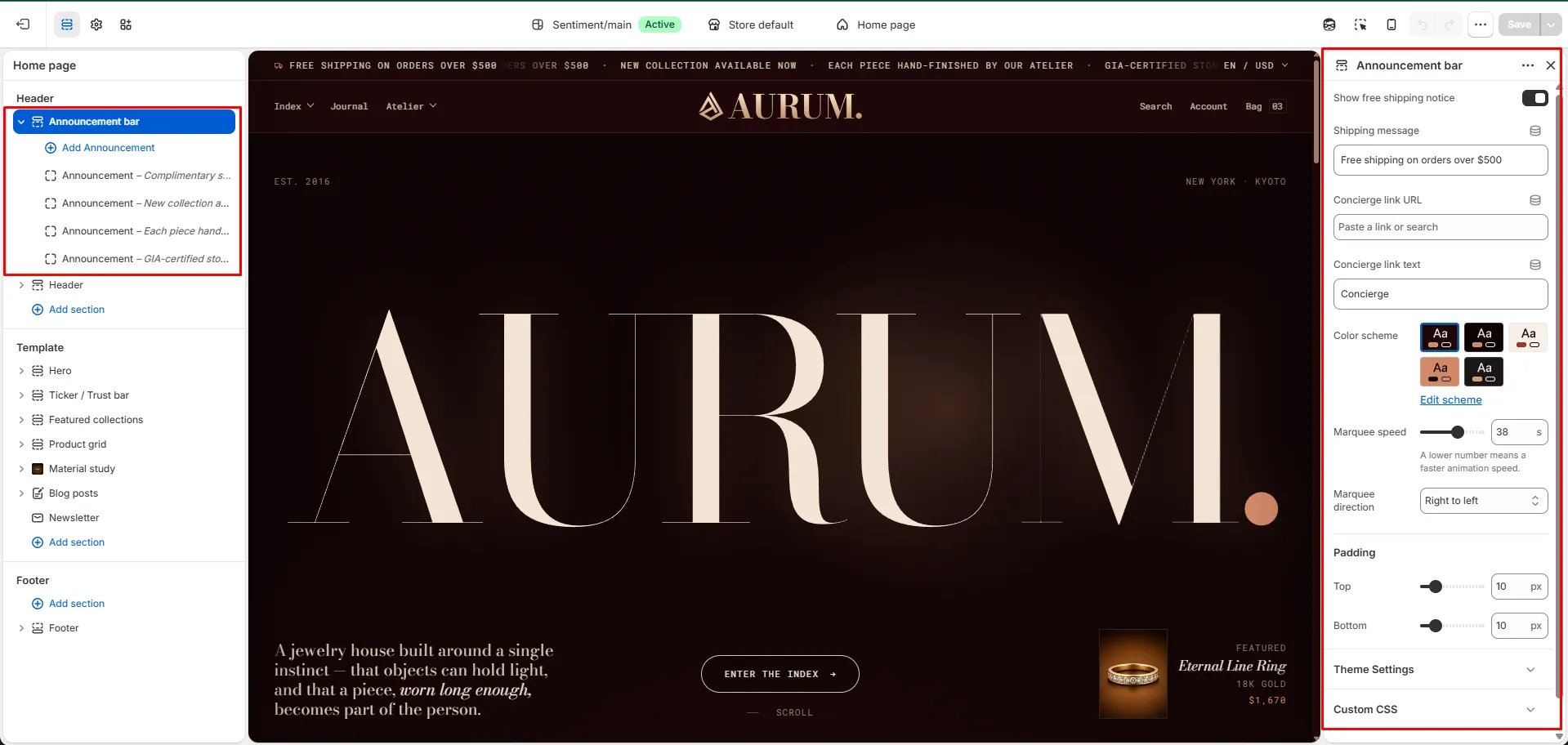
Click the Announcement bar section (not an individual block) to access these settings:- Show free shipping notice: Toggle on to display a dedicated free shipping message alongside your announcements.
- Shipping message: The text shown when the free shipping notice is enabled (e.g., “Free shipping on orders over $500”).
- Concierge link URL: Paste the page link you want customers directed to when they click the concierge label (e.g., a contact or personal shopping page).
- Concierge link text: The label shown for the concierge link (e.g., “Concierge”).
- Color scheme: Choose from the available preset color combinations. Click Edit scheme to customize colors further.
- Marquee speed: Controls how fast the text scrolls. The default is 38. A lower number means a faster animation speed.
- Marquee direction: Set the scroll direction — Right to left (default) or Left to right.
- Padding: Set the top and bottom spacing inside the announcement bar (default is 10 px each).
Managing Announcement Blocks
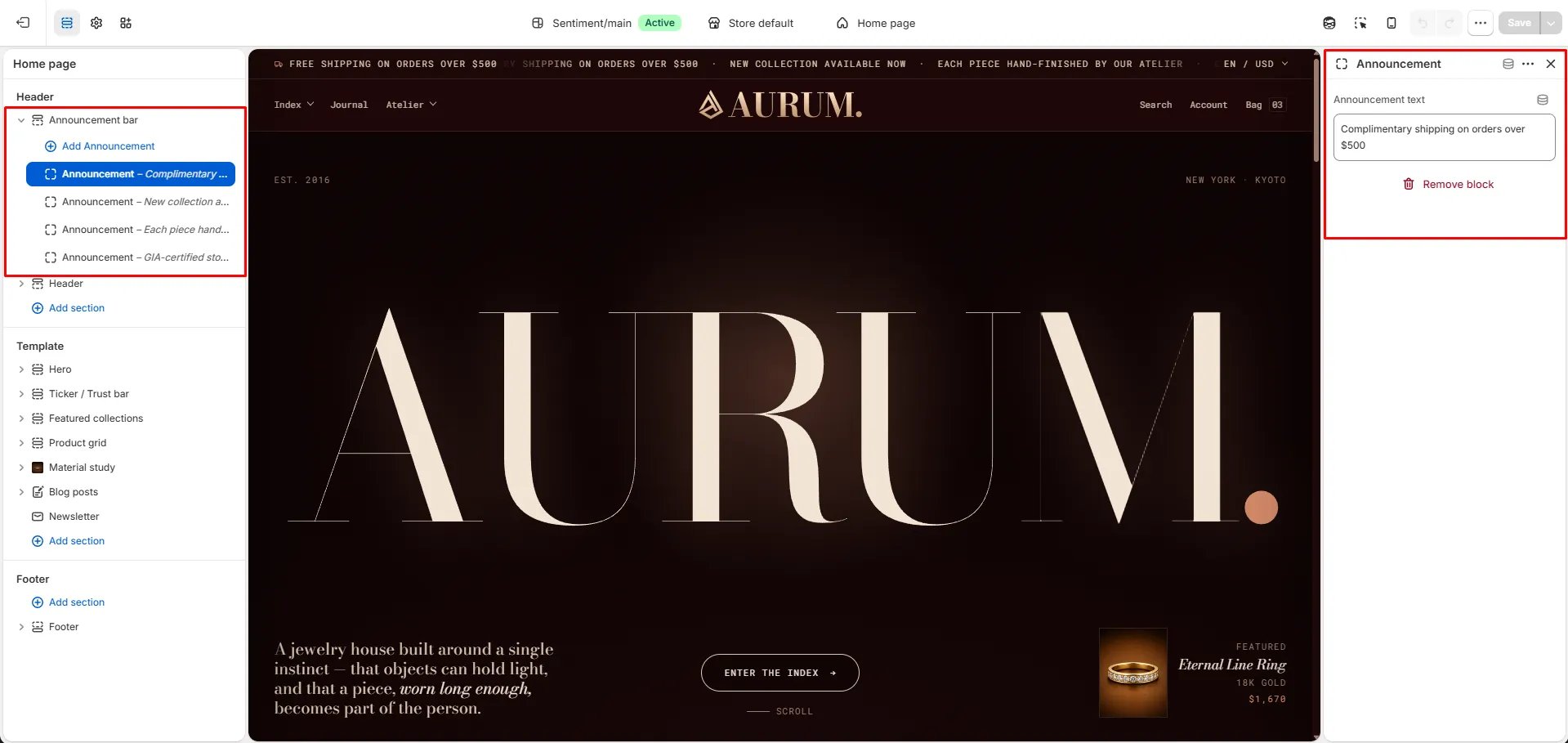
Each scrolling message is an individual block. You can add, edit, and remove blocks independently. To add an announcement:- In the left sidebar under Announcement bar, click + Add Announcement.
- A new block will appear. Click it to open its settings on the right.
- Enter your message in the Announcement text field.
- Click any existing announcement block in the left sidebar (e.g., Announcement – Complimentary s…).
- Update the Announcement text on the right panel.
- Click the block you want to delete.
- Click Remove block at the bottom of the right panel.