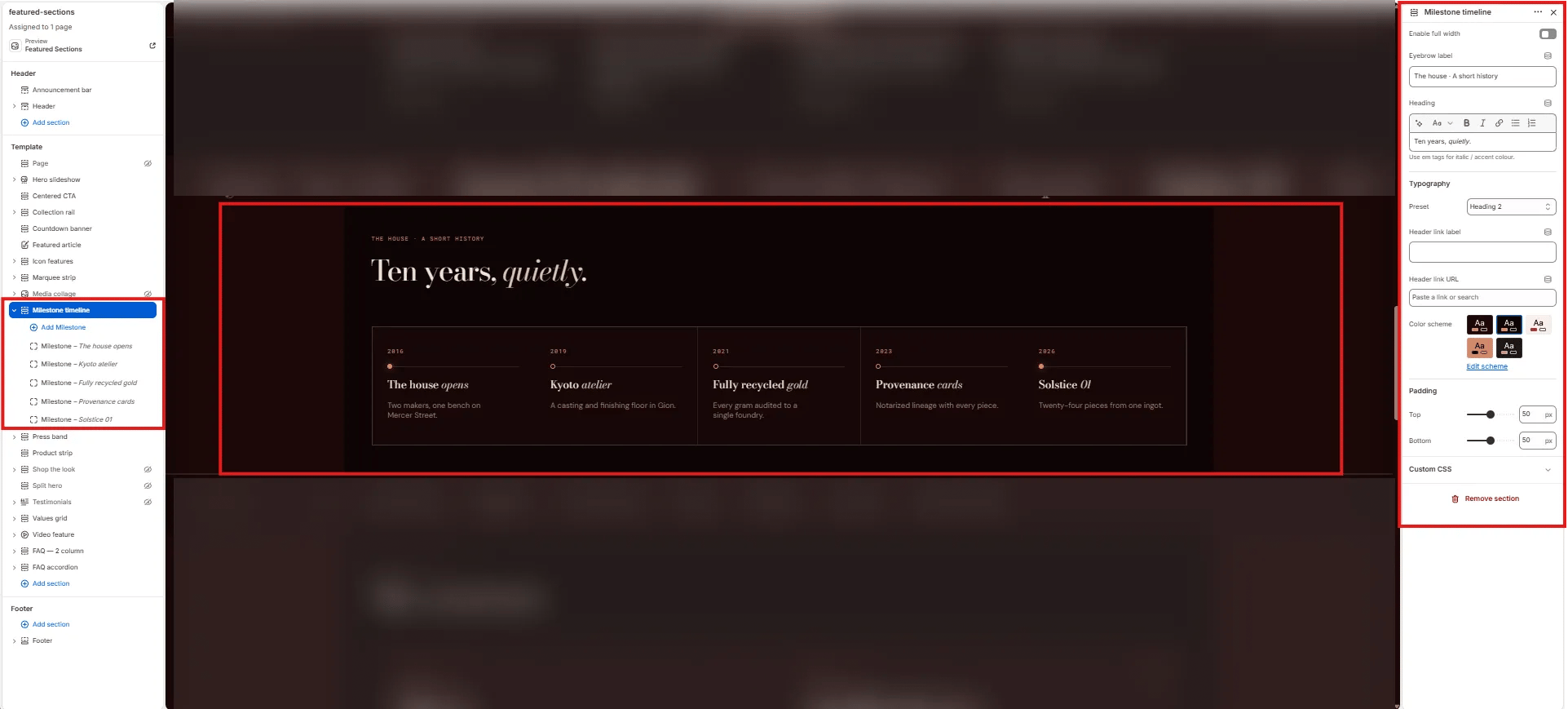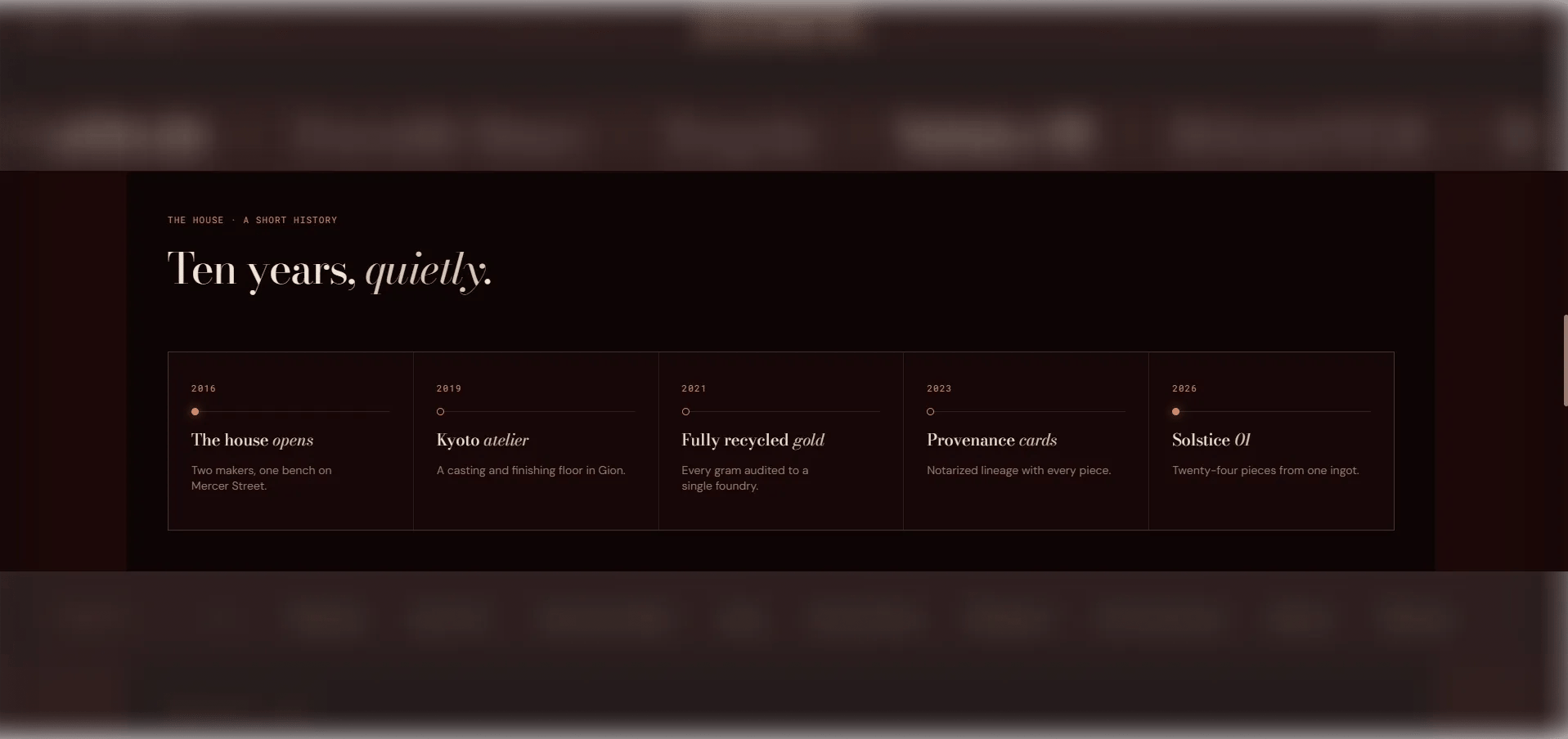
How to Add the Section
- From your Shopify admin, go to Online Store → Themes and click Customize.
- Navigate to the page where you want to add this section.
- Click Add section and select Milestone timeline.
- Add Milestone blocks for each event in your timeline, in chronological order.
- Click Save.
Section Settings
Content
- Eyebrow: Small label above the heading.
- Heading: Main section heading. Supports rich text and italic emphasis.
- Heading typography: Select the typographic style for the heading.
- Link label / Link URL: An optional CTA link displayed beside the heading.
Style
- Full width: When enabled, the section stretches edge-to-edge.
- Color scheme: Choose a color scheme for the section.
Spacing
- Padding top / Padding bottom: Control vertical spacing around the section.
Milestone Block Settings
Each Milestone block is one event in the timeline.- Year: The year or date label for this milestone (e.g., “2016”).
- Title: The milestone heading. Supports rich text and italic emphasis for design variety.
- Body: Supporting description text providing context for this milestone.
- Highlighted: When enabled, this milestone receives a distinct visual treatment — use it to draw attention to founding moments, major launches, or pivotal events.