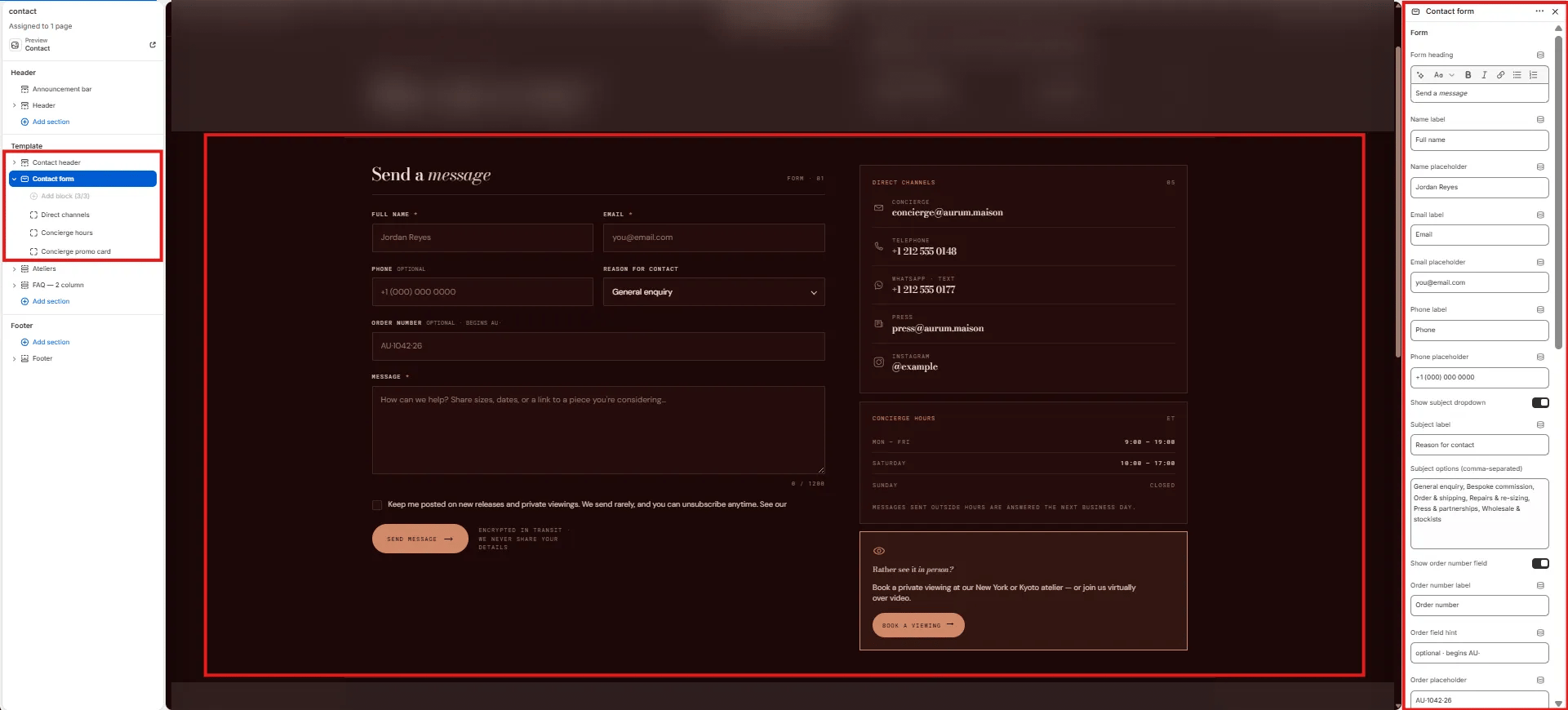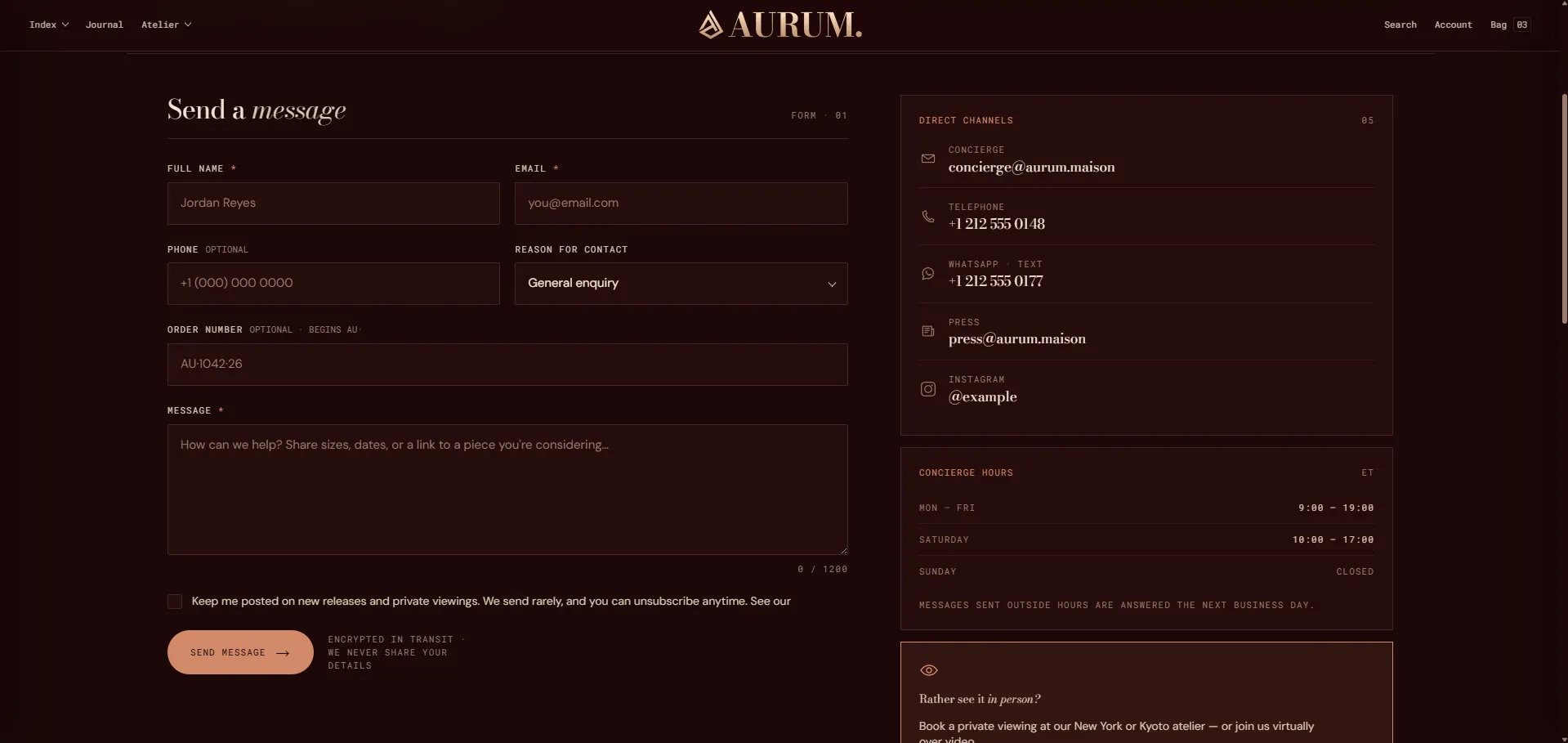
How to Add the Section
- From your Shopify admin, go to Online Store → Themes and click Customize.
- Navigate to your Contact page.
- Click Add section and select Contact form.
- Add sidebar blocks (Concierge, Hours, Channels) as needed.
- Configure the form settings and click Save.
Section Settings
Form Heading
- Form heading: The heading displayed above the form fields. Supports rich text formatting.
Form Fields
- Name label / placeholder: Label and placeholder text for the name input field.
- Email label / placeholder: Label and placeholder text for the email input field.
- Phone label / placeholder: Label and placeholder text for the phone number field.
- Show subject: Toggle to show or hide the subject selection dropdown.
- Subject label: The label shown above the subject dropdown.
- Subject options: Enter one option per line to populate the subject dropdown choices.
- Show order field: Toggle to show or hide an order reference input field.
- Order label / hint / placeholder: Label, hint text, and placeholder for the order reference field.
- Message label / placeholder: Label and placeholder for the message textarea.
- Message max length: Maximum character count for the message field (default: 1200).
- Show consent: Toggle to display a consent/privacy agreement checkbox.
- Consent text: The consent statement shown next to the checkbox.
- Privacy URL: Link to your privacy policy page.
Submission
- Submit label: Text displayed on the submit button.
- Submit note: A small note displayed below the submit button (e.g., response time expectations).
- Channels heading: Heading for the contact channels list in the sidebar.
Layout & Style
- Layout: Choose whether the form appears on the left with the sidebar on the right, or vice versa.
- Color scheme: Choose a color scheme for the section.
Spacing
- Padding top / Padding bottom: Control vertical spacing around the section.
Concierge Block Settings (limit 1)
An info card displayed in the sidebar, ideal for a personal shopping or concierge service callout.- Concierge heading: Heading for the card. Supports rich text.
- Concierge body: Body text for the card.
- Concierge button label / URL: Button label and link destination.
Hours Block Settings (limit 1)
An opening hours table displayed in the sidebar.- Hours heading: Heading displayed above the hours table.
- Hours timezone: Timezone label shown next to the table (e.g., “EST”).
- Rows 1–5 (Day / Time / Closed): Up to 5 hours rows. Each row has a day label, a time string, and a “Closed” checkbox toggle.
- Hours footer: A footer note below the hours table (e.g., “All times local to studio”).
Channels Block Settings (limit 1)
A list of contact channels displayed in the sidebar.- Channel 1–5 (Icon / Label / Value / URL): Each channel entry has an icon type (Email, Phone, WhatsApp, Press, Instagram, or Other), a display label, a value or handle, and a link.