How to Configure the Footer
- From your Shopify admin, go to Online Store → Themes and click Customize.
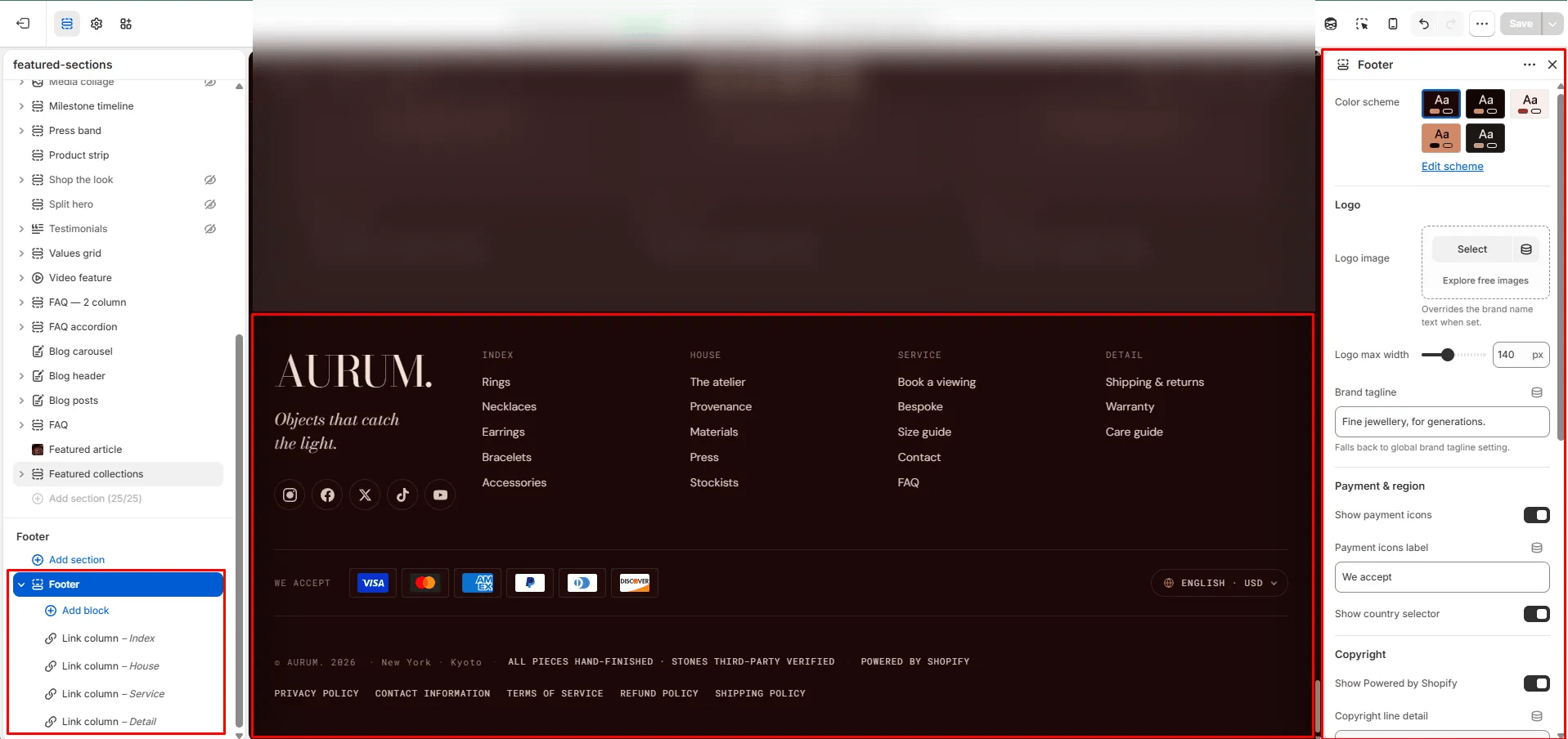
- Scroll to the bottom of any page and select the Footer section in the left sidebar.
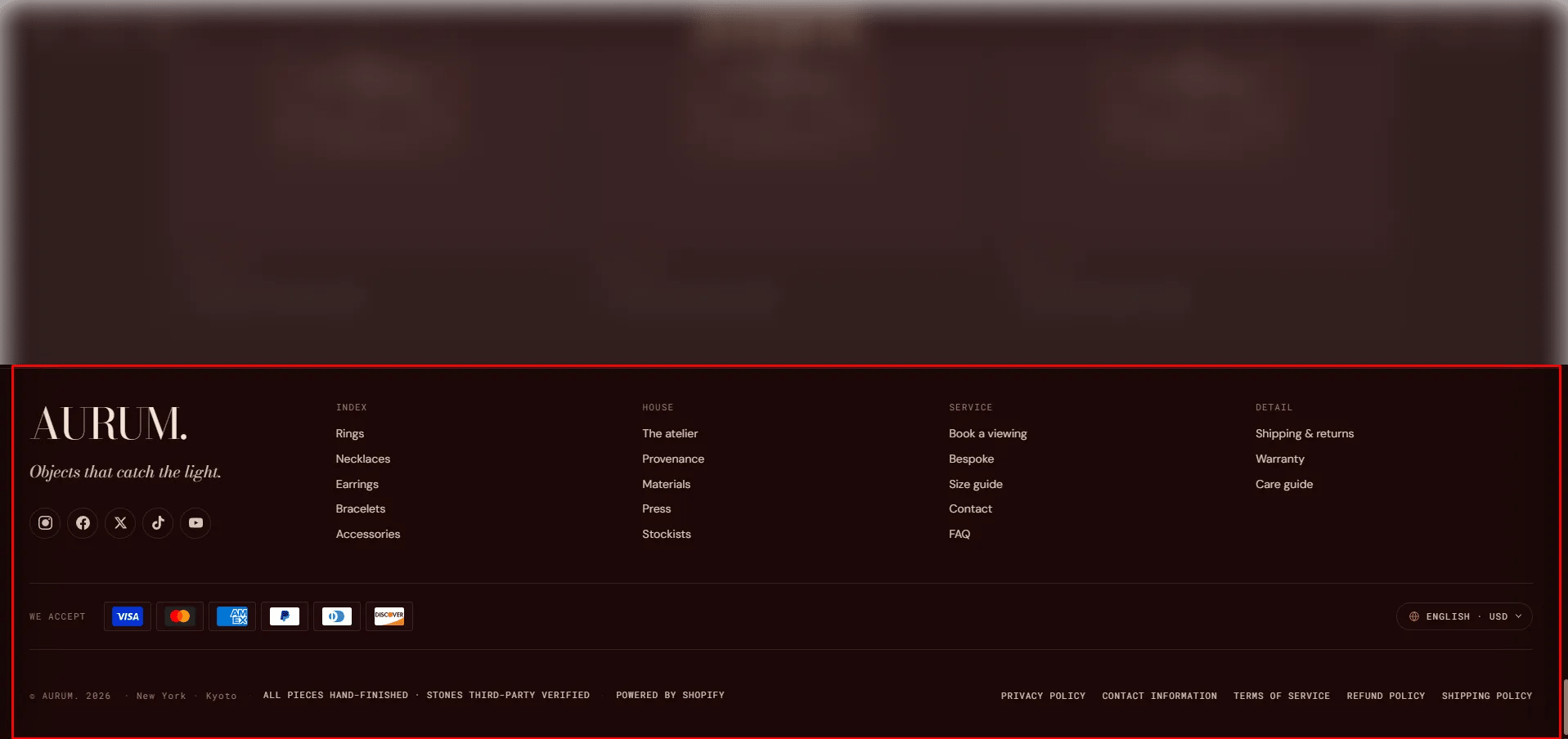
- Add blocks (Link column, Text column, Newsletter) to build the footer columns.
- Configure the section settings and click Save.
Section Settings
Brand Identity
- Footer logo: Upload a logo specifically for the footer. Falls back to the global logo from Brand settings if left blank.
- Logo width: Control how wide the footer logo appears (range: 40–300px).
- Tagline: A short brand tagline displayed below the logo. Falls back to the global tagline from Brand settings if left blank.
Payment & Compliance
- Show payment icons: Toggle to display accepted payment method icons in the footer.
- Payments label: Label displayed next to the payment icons (default: “We accept”).
- Show country selector: Toggle to display a country/region and language selector.
- Show powered by: Toggle to display the “Powered by Shopify” link.
Bottom Bar
- Copyright detail: Additional text displayed after the copyright year and store name.
- Bottom detail: A secondary line of text in the footer bottom bar. Supports inline rich text.
- Show policy links: Toggle to display shop policy links (Privacy, Terms, Refund, etc.).
- Policy menu: Select a navigation menu to use for policy links. Falls back to your Shopify shop policies if left blank.
Spacing
- Padding top / Padding bottom: Control the vertical spacing of the footer.
Link Column Block Settings
A navigation link column in the footer. Add one block per column.- Heading: The column heading text displayed above the links.
- Menu: Select a Shopify navigation menu to populate the column’s links automatically.
Text Column Block Settings
A free-form text column in the footer. Add one block per column.- Heading: The column heading text.
- Content: Rich text content for the column — useful for addresses, descriptions, or brand copy.
Newsletter Block Settings (limit 1)
An email signup form embedded in the footer.- Heading: Heading above the signup form (default: “Letters”).
- Subtext: Supporting text below the heading (default: “Four letters a year, nothing more.”).
- Placeholder: Placeholder text inside the email input field.
- Submit text: Label on the submit button.
- Success text: Confirmation message shown after a successful subscription.
- Email label: Accessible label for the email input field (used by screen readers).