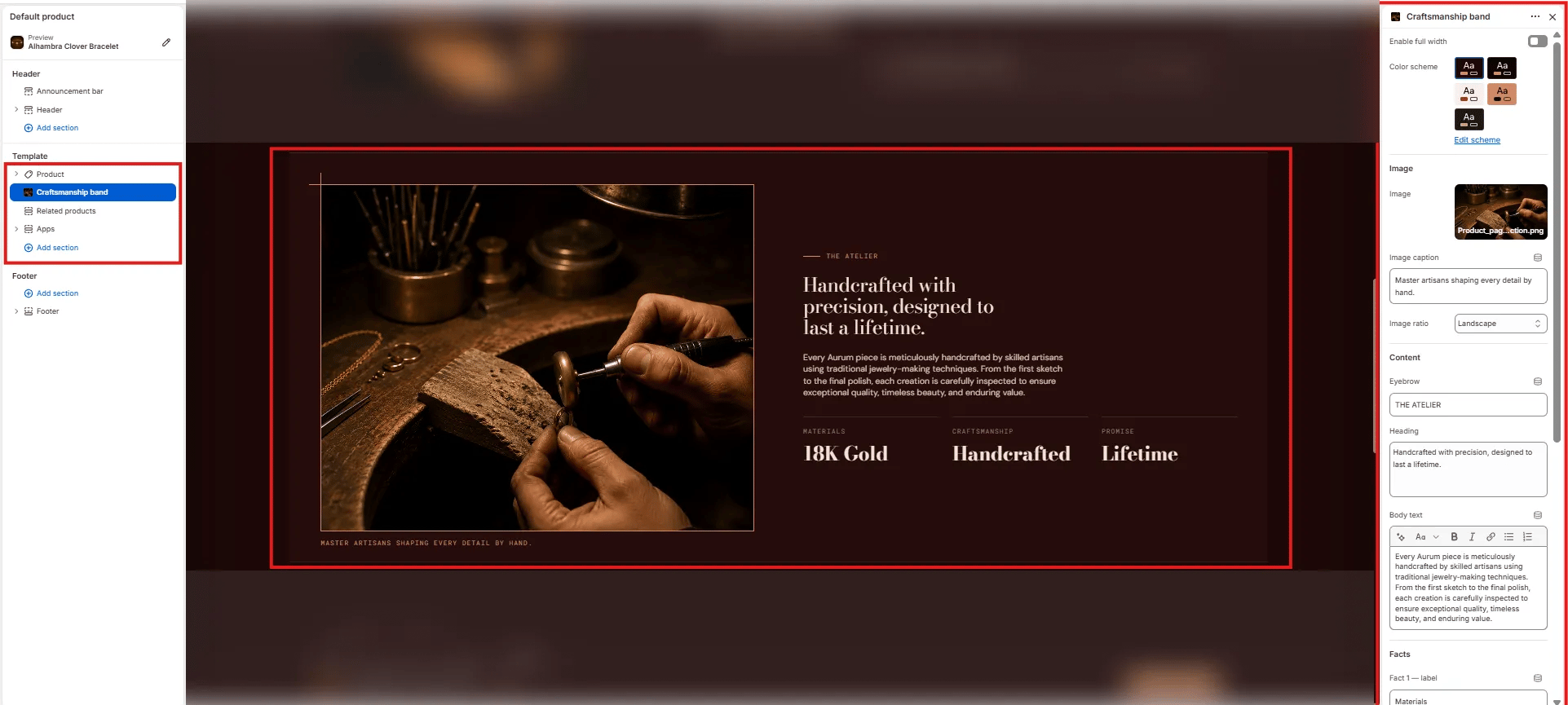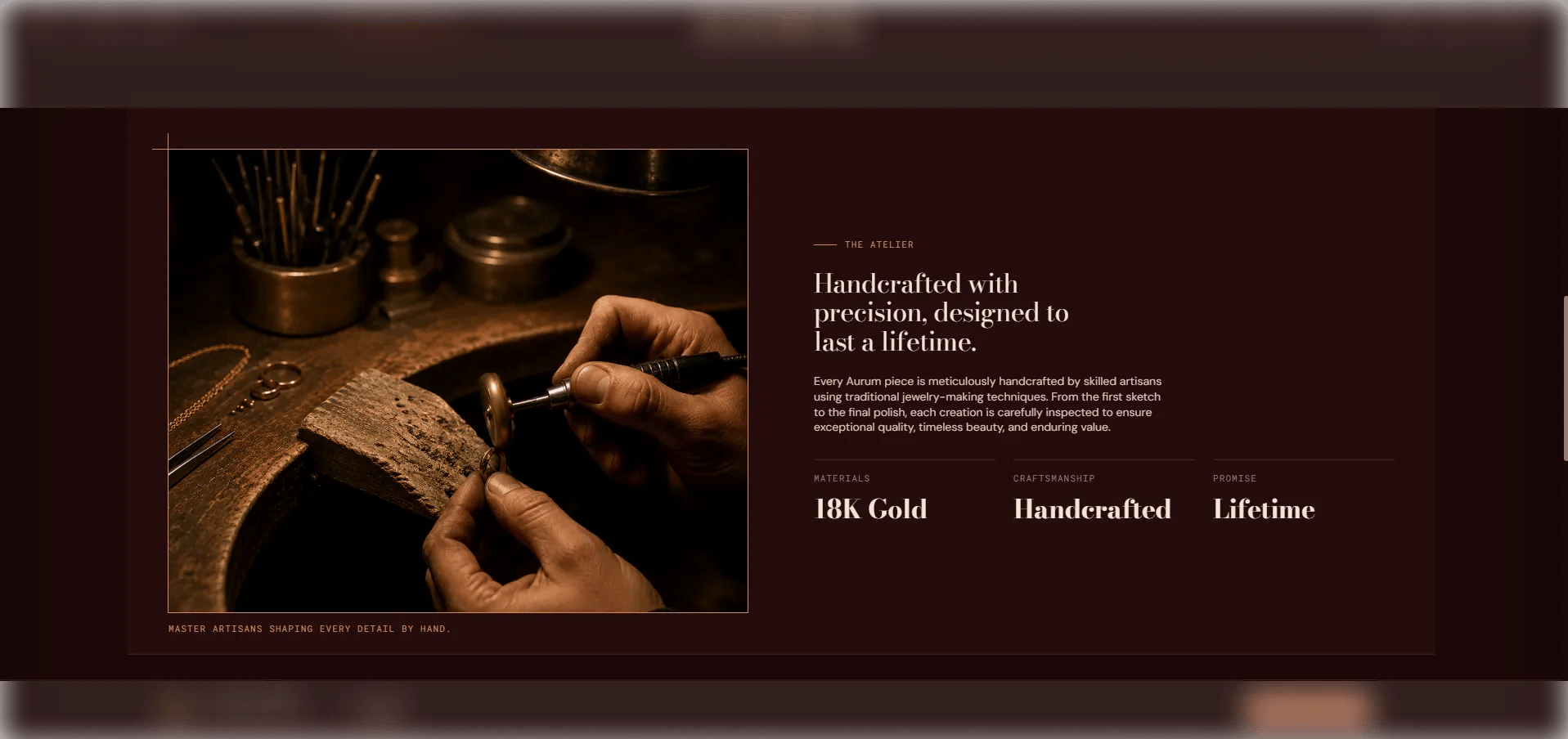
How to Add the Section
- From your Shopify admin, go to Online Store → Themes and click Customize.
- Navigate to the page where you want to add this section.
- Click Add section and select Craftsmanship band.
- Upload an image and fill in the content and fact fields.
- Click Save.
Section Settings
Image
- Image: Upload the primary image for the band.
- Image tag: A caption label displayed over the image (e.g., “Atelier · Geneva”).
- Image ratio: Aspect ratio for the image — Portrait, Square, Landscape, or Adapt. Default is 5:4.
Content
- Eyebrow: Small label above the heading.
- Heading: Main section heading.
- Body: Rich text body copy displayed beside the image.
- Fact 1 / 2 / 3 — Label & Value: Three key-value fact cells displayed below the body text. Use these for material specs (e.g., “Purity / 18k Au”), certifications (e.g., “Certified / RJC member”), or process details (e.g., “Setting / Hand-set”).
Style
- Full width: When enabled, the section stretches edge-to-edge.
- Color scheme: Choose a color scheme for the section.
Spacing
- Padding top / Padding bottom: Control vertical spacing around the section.