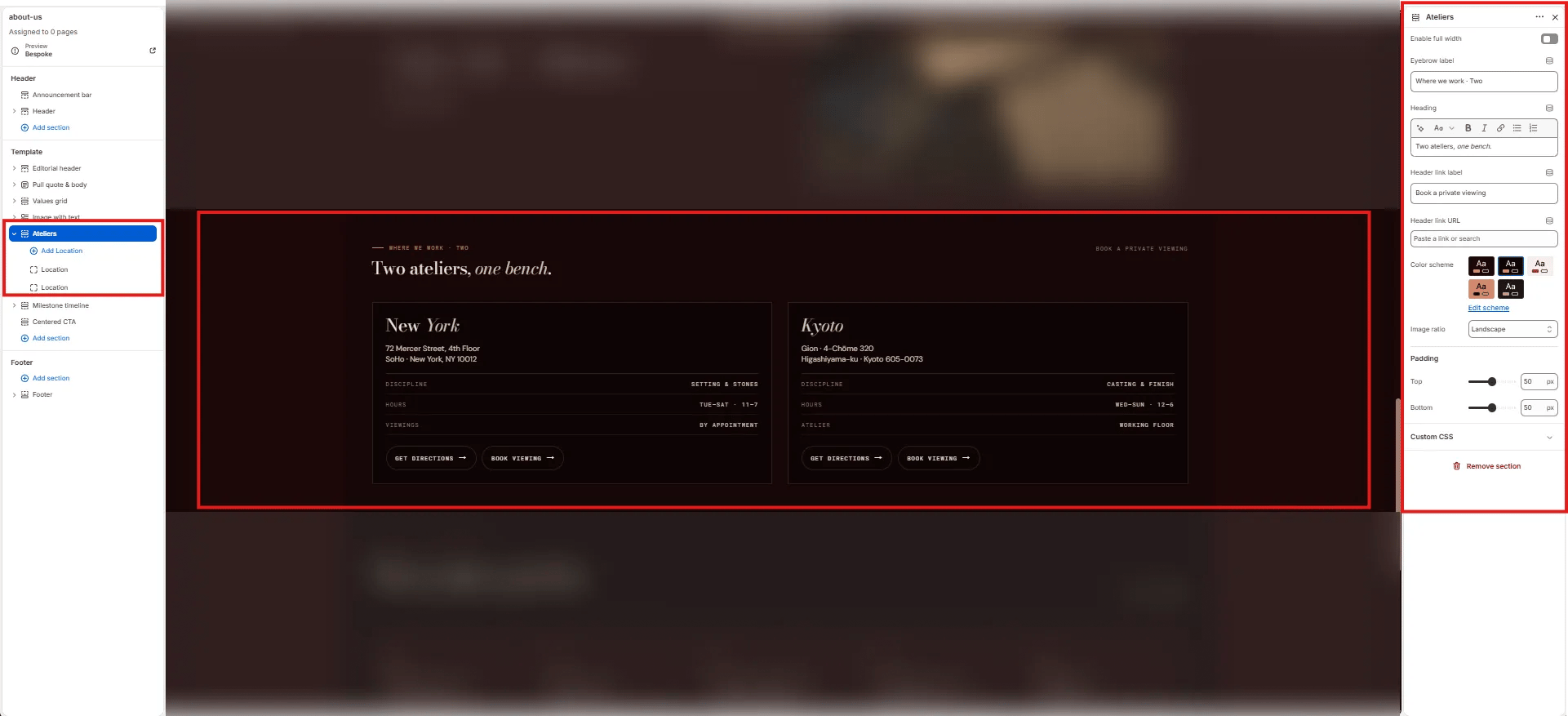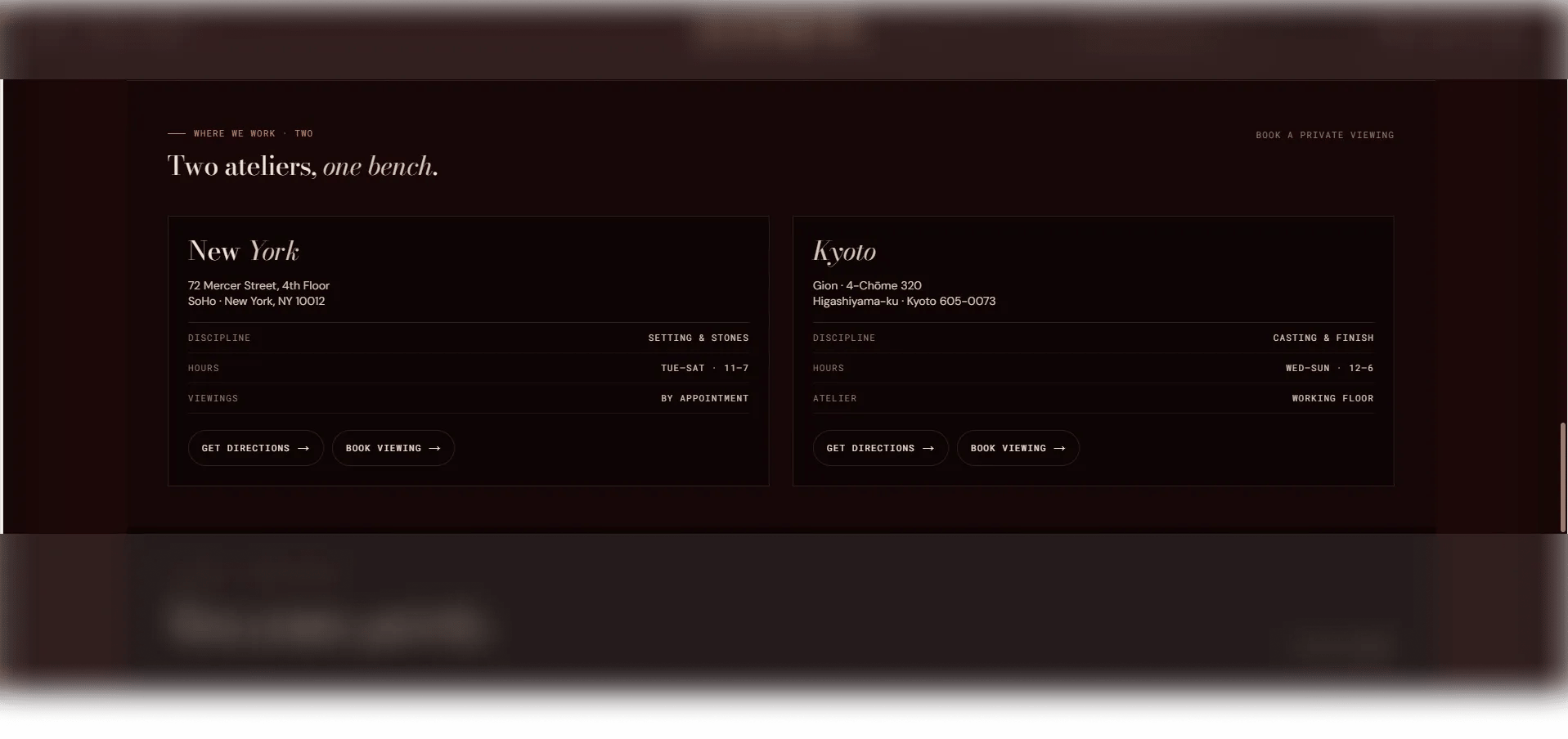
How to Add the Section
- From your Shopify admin, go to Online Store → Themes and click Customize.
- Navigate to the page where you want to add this section.
- Click Add section and select Ateliers.
- Add one Atelier block per location and configure each one.
- Click Save.
Section Settings
Content
- Eyebrow: Small label displayed above the heading.
- Heading: Main section heading. Supports rich text formatting.
- Link label / Link URL: An optional section-level CTA link displayed beside or below the heading.
Display
- Full width: When enabled, the section stretches edge-to-edge.
- Image ratio: Aspect ratio for all location card images — Portrait, Square, Landscape, or Adapt.
Style
- Color scheme: Choose a color scheme for the section.
Spacing
- Padding top / Padding bottom: Control vertical spacing around the section.
Atelier Block Settings
Each Atelier block represents one studio or store location. Add one block per location.Image & Identity
- Image: Upload a photo of the atelier or studio space.
- City: The city name for this location. Supports rich text and italic emphasis.
Address
- Address 1 / Address 2: Street address lines for the location.
Details
- Row 1–3 (Key / Value): Up to three configurable detail rows for displaying additional information such as opening hours, appointment requirements, or contact details (e.g., “Hours / Tue–Sat, 10–6”).
Actions
- Directions label / URL: The label and link for a “get directions” CTA (e.g., linking to Google Maps).
- Viewing label / URL: The label and link for a private viewing booking CTA.