How to Configure the Collection List Page
- From your Shopify admin, go to Online Store → Themes and click Customize.
- From the top page dropdown, select Collections → Collection list.
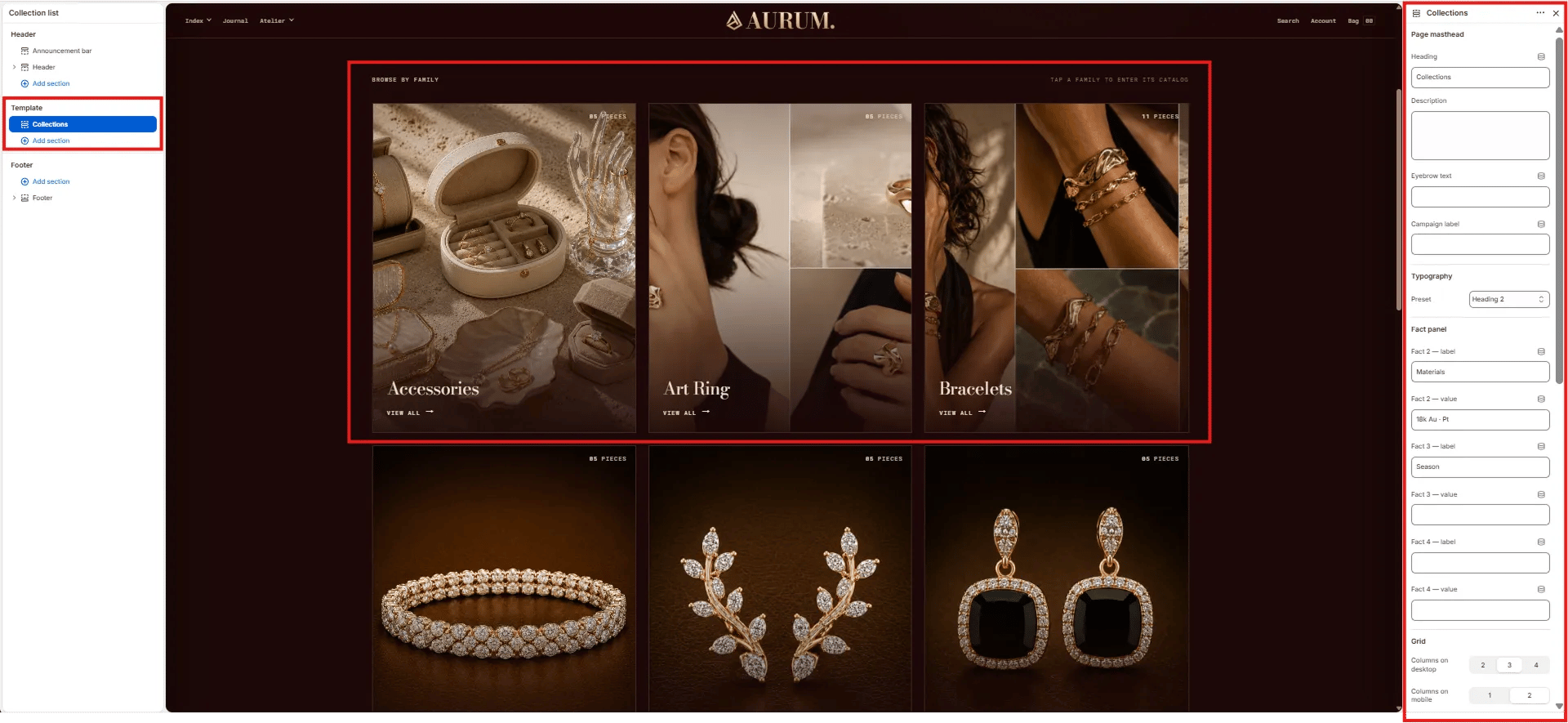
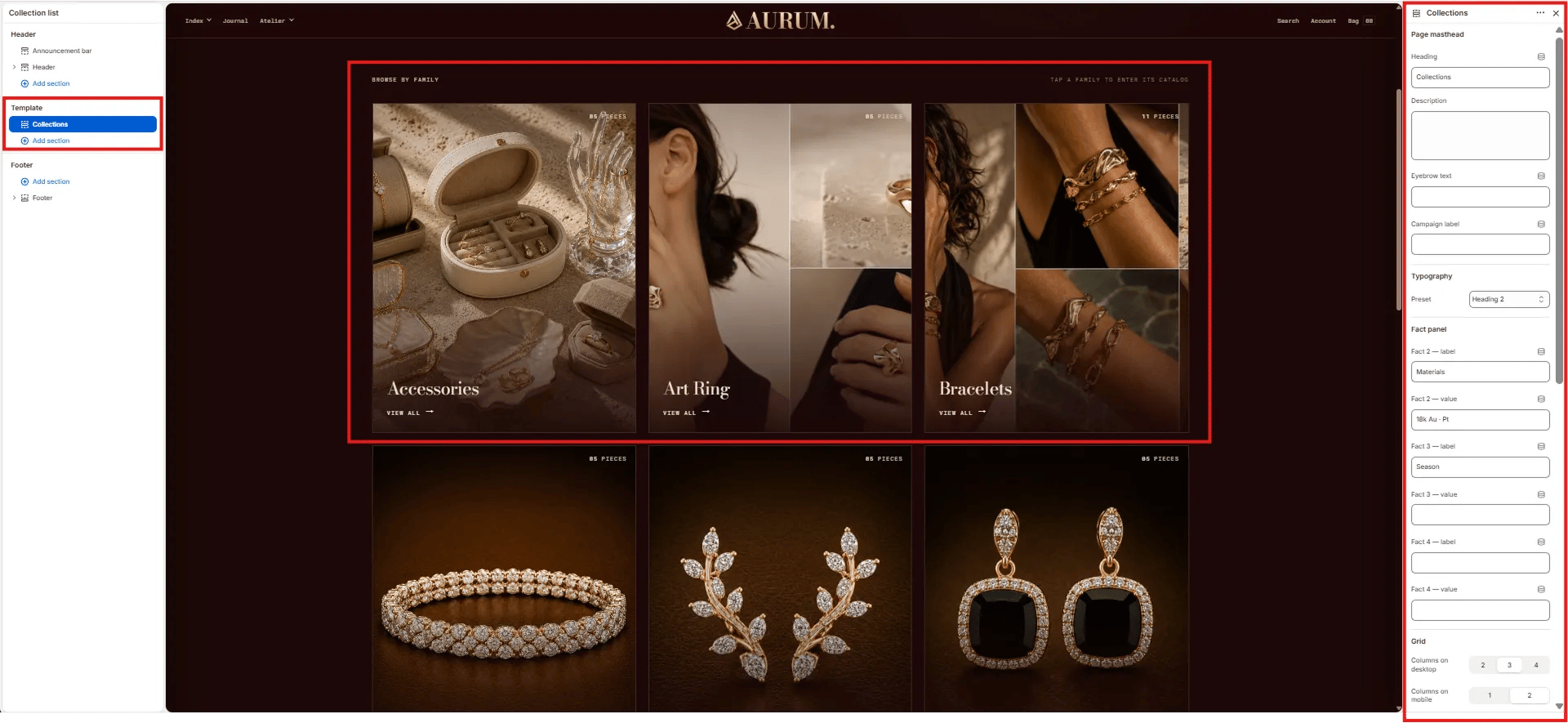
- Click Collections in the left sidebar under Template to open its settings.
- Click Save when done.
Collections Section Settings
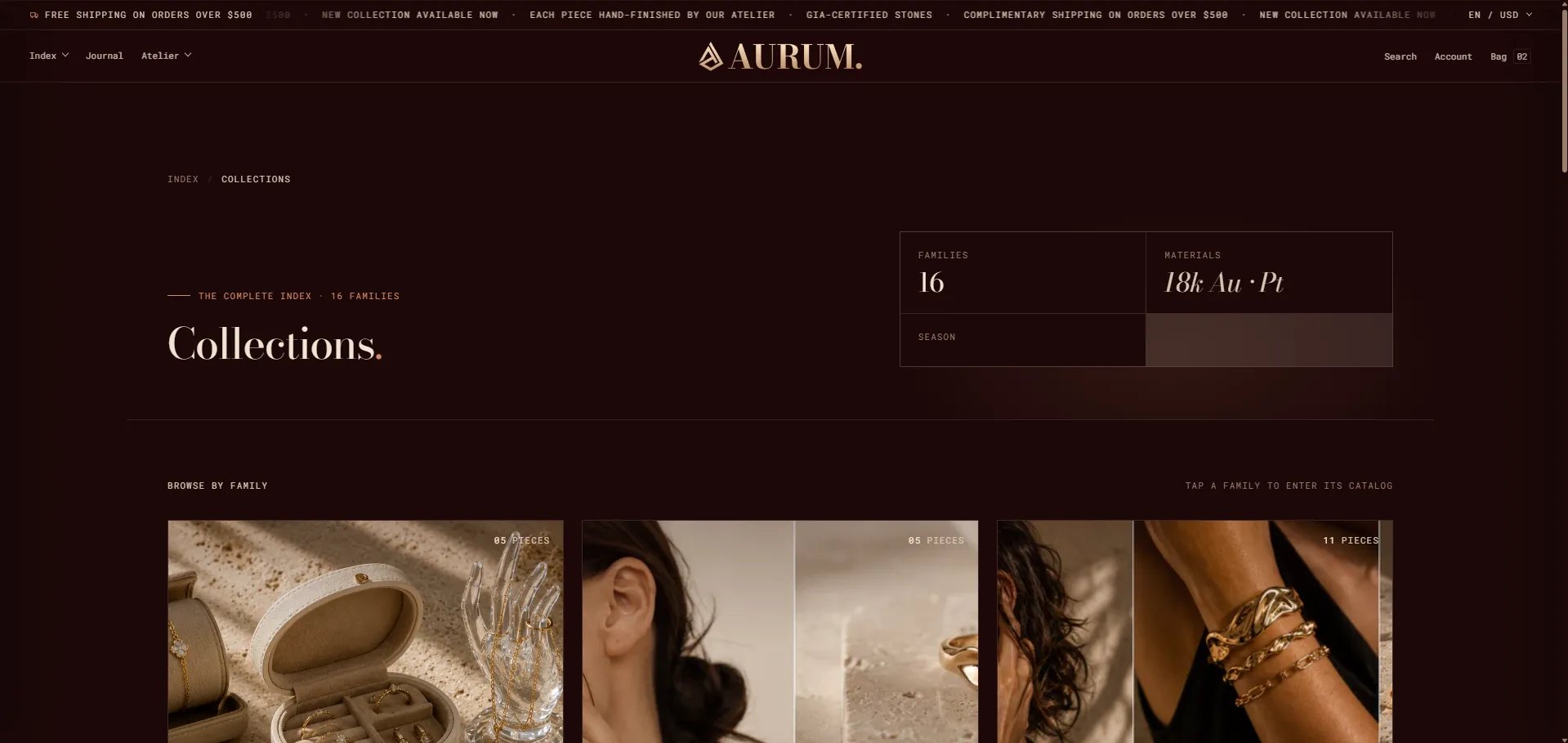
The Collections section controls everything on the collection list page — the page masthead (heading, stats, description), the collections grid layout, and the CTA cards shown after the grid.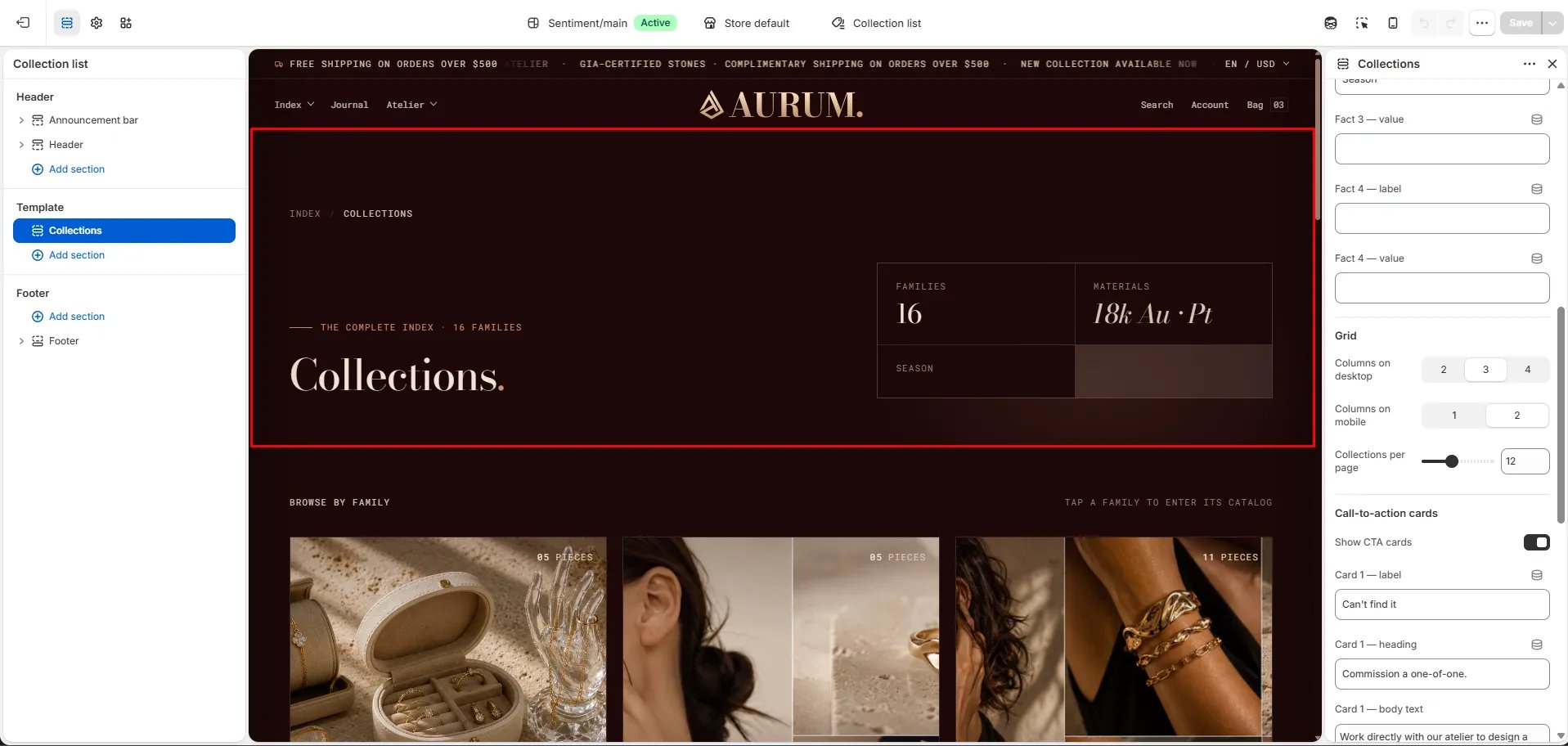
Page Masthead
- Heading: The main page heading displayed in the masthead (e.g., “Collections.”). Pulls from the section settings rather than Shopify admin.
- Description: Optional description text displayed below the heading in the masthead area.
- Eyebrow text: Small label displayed above the heading (e.g., “THE COMPLETE INDEX · 16 FAMILIES”).
- Campaign label: Secondary small label displayed alongside the eyebrow — useful for drop or seasonal tags.
- Typography: Choose the typographic preset for the page heading (e.g., Heading 2).
Fact Panel
Up to four label/value stat pairs displayed in a panel to the right of the masthead heading — use these to communicate scope, materials, or season at a glance.- Fact 2 — label / value: Second stat (e.g., label: “Materials”, value: “18k Au · Pt”).
- Fact 3 — label / value: Third stat (e.g., label: “Season”, value: leave blank to hide).
- Fact 4 — label / value: Fourth stat (leave both blank to hide).
Note: Fact 1 is auto-generated from the total number of collections (e.g., “FAMILIES / 16”) and cannot be edited here.
Grid
- Columns on desktop: Number of collection card columns on desktop — 2, 3, or 4.
- Columns on mobile: Number of columns on mobile — 1 or 2.
- Collections per page: Number of collection cards shown per page before pagination (default: 12).
Call-to-Action Cards
Two optional CTA cards appear below the collection grid — useful for surfacing bespoke commissions, private viewings, or other services when customers don’t find what they need in the standard catalog.- Show CTA cards: Toggle to show or hide the CTA card pair below the grid.
- Card 1 — label: Small eyebrow label above the card heading (e.g., “Can’t find it”).
- Card 1 — heading: Main card heading (e.g., “Commission a one-of-one.”).
- Card 1 — body text: Supporting description text (e.g., “Work directly with our atelier to design a piece around your own stones, sketches or heirloom gold.”).
- Card 1 — button text: CTA button label (e.g., “Begin a bespoke enquiry →”).
- Card 1 — button URL: Link destination for the button.
- Card 2 — label: Small eyebrow label (e.g., “In person”).
- Card 2 — heading: Main card heading (e.g., “Book a private viewing.”).
- Card 2 — body text: Supporting description text (e.g., “See the families in the metal before you decide.”).
- Card 2 — button text: CTA button label (e.g., “Reserve an appointment →”).
- Card 2 — button URL: Link destination for the button.