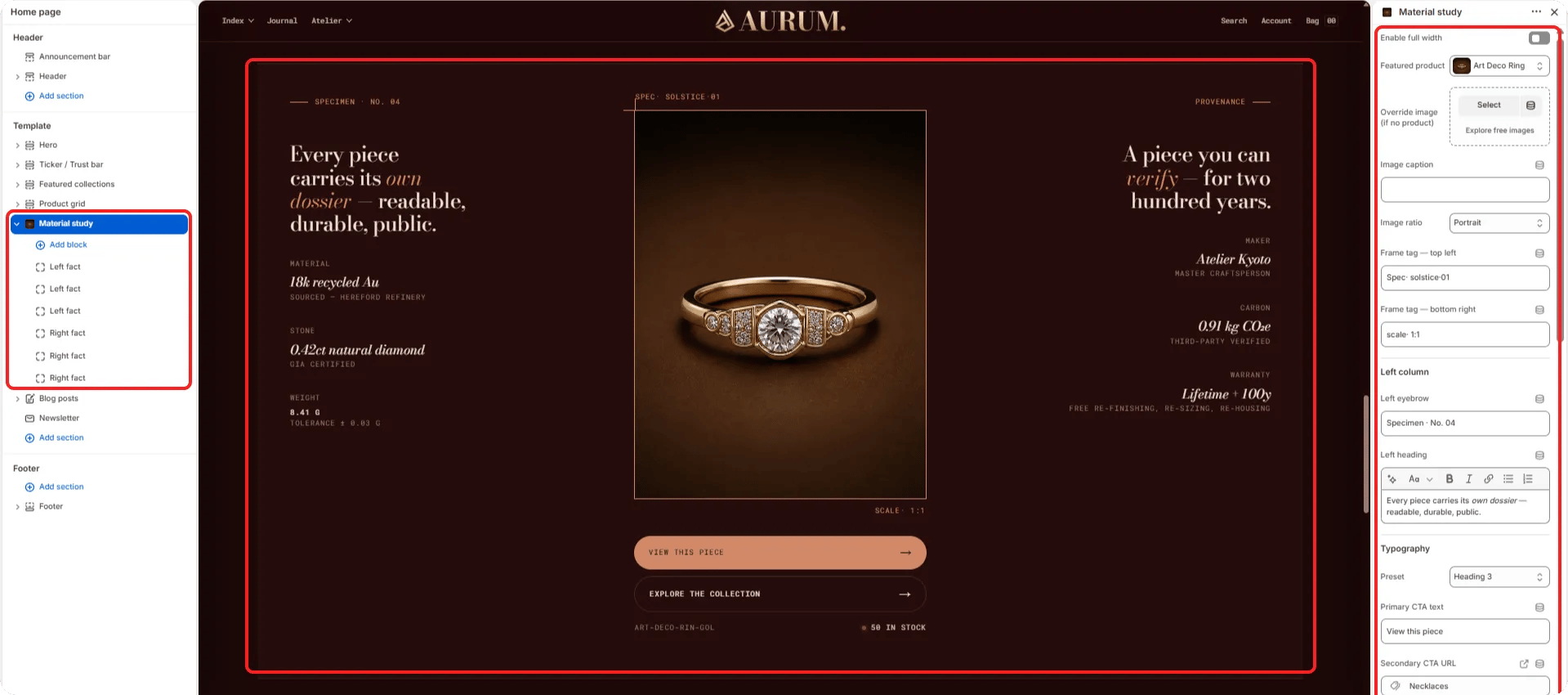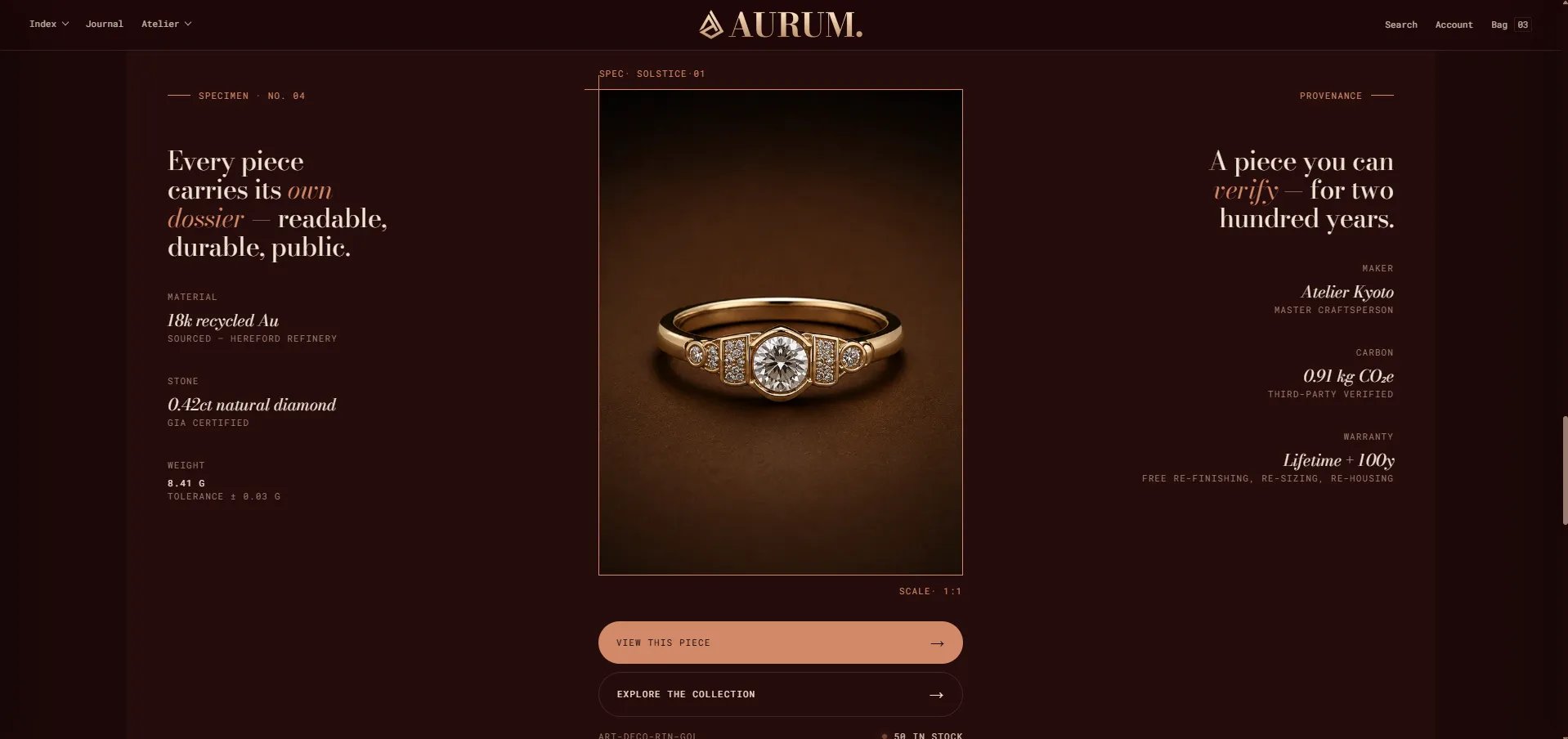
How to Add the Section
- From your Shopify admin, go to Online Store → Themes and click Customize.
- Navigate to the page where you want to add this section.
- Click Add section and select Material study.
- Add Fact left and Fact right blocks to populate the data grids on each side.
- Click Save.
Section Settings
Layout
- Full width: When enabled, the section stretches edge-to-edge across the viewport.
Image
- Product: Select a product to use its media as the central image panel.
- Image: Upload a custom image to use instead of the product media. If both are set, the image takes priority.
- Image caption: A small caption displayed below the image.
- Image ratio: Aspect ratio for the image — Portrait, Square, Landscape, or Adapt.
- Tag top-left: A label displayed in the top-left corner of the image (e.g., “18k Au”).
- Tag bottom-right: A label displayed in the bottom-right corner of the image (e.g., “Recycled gold”).
Left Column
- Eyebrow: Small label above the left column heading.
- Heading: Main heading for the left column. Supports rich text and italic emphasis.
- Heading typography: Select the typographic style for the left heading.
- CTA primary: Primary CTA button label.
- CTA secondary label / URL: Secondary CTA link label and destination.
Right Column
- Eyebrow right: Small label above the right column heading.
- Heading right: Heading for the right column. Supports rich text.
- Heading right typography: Typographic style for the right heading.
Alignment
- Desktop left / right alignment: Horizontal alignment of content in the left and right columns (Start, Center, or End).
- Mobile left / right alignment: Horizontal alignment on mobile.
Style
- Color scheme: Choose a color scheme for the section.
Spacing
- Padding top / Padding bottom: Control vertical spacing around the section.
Fact Left Block Settings
Each Fact Left block adds one data cell to the left column’s fact grid.- Label: The category or key label (e.g., “Origin”).
- Value: The primary value. Displayed in italic or number style depending on the Value display setting.
- Value display: Choose between Italic (editorial style) or Number (tabular/data style).
- Sub: A sub-label displayed below the value (e.g., a qualifier or unit).
Fact Right Block Settings
Each Fact Right block adds one data cell to the right column’s fact grid. Uses the same settings as Fact Left.- Label / Value / Value display / Sub: Same fields as the Fact Left block.