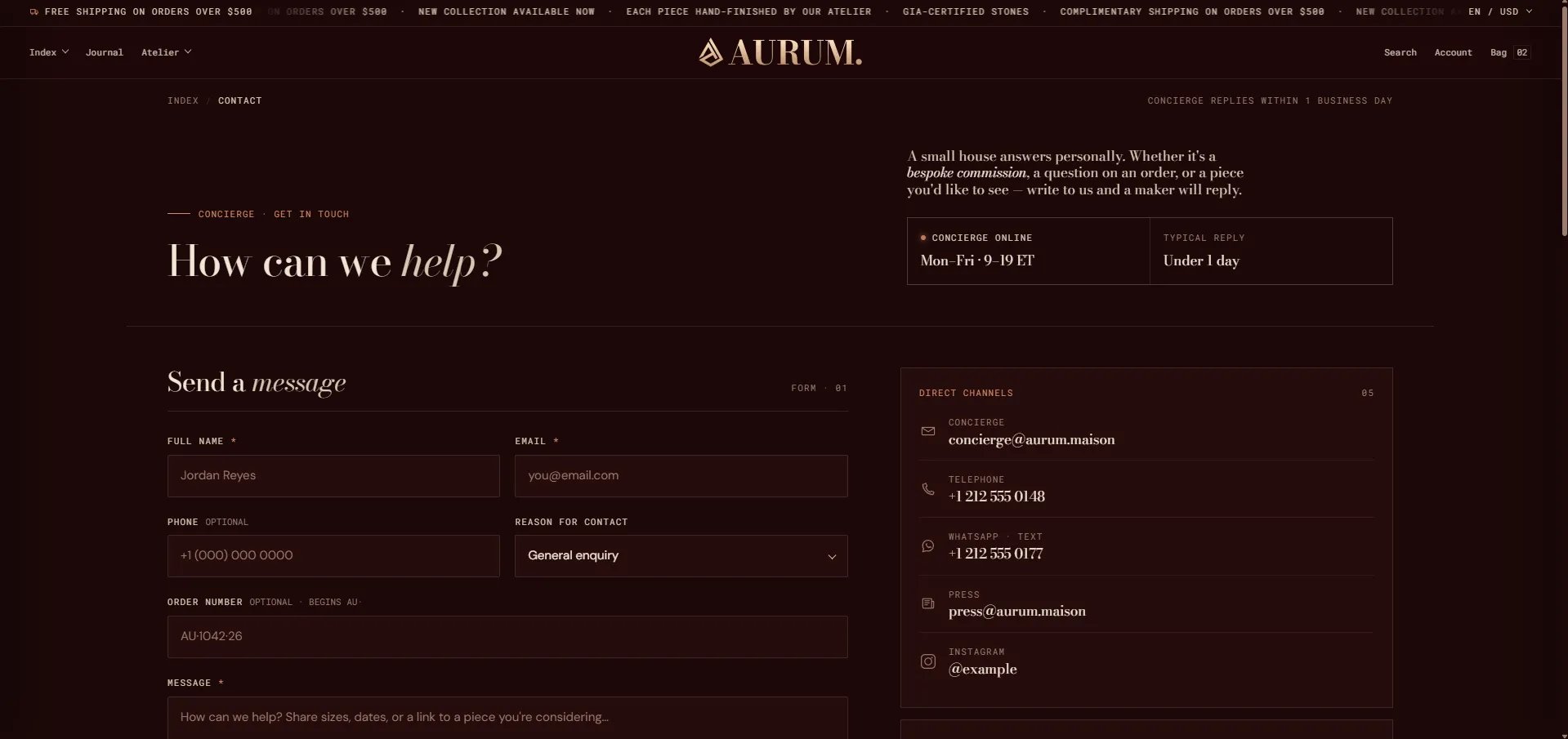
How to Configure the Contact Page
- From your Shopify admin, go to Online Store → Themes and click Customize.
- From the top page dropdown, select Pages → Contact.
- Click any section or block in the left sidebar under Template to open its settings.
- Click Save when done.
- Contact header — masthead with breadcrumb, heading, lede paragraph, and meta stats blocks
- Contact form — message form with direct channels, concierge hours, and promo card blocks
- Ateliers — atelier location cards
- FAQ — 2 column — quick answers accordion with a full-FAQ link
Contact Header Section Settings
The Contact Header is the page masthead — it shows the breadcrumb, an eyebrow label, the main heading, and optional side-column blocks for a lede paragraph and availability stats.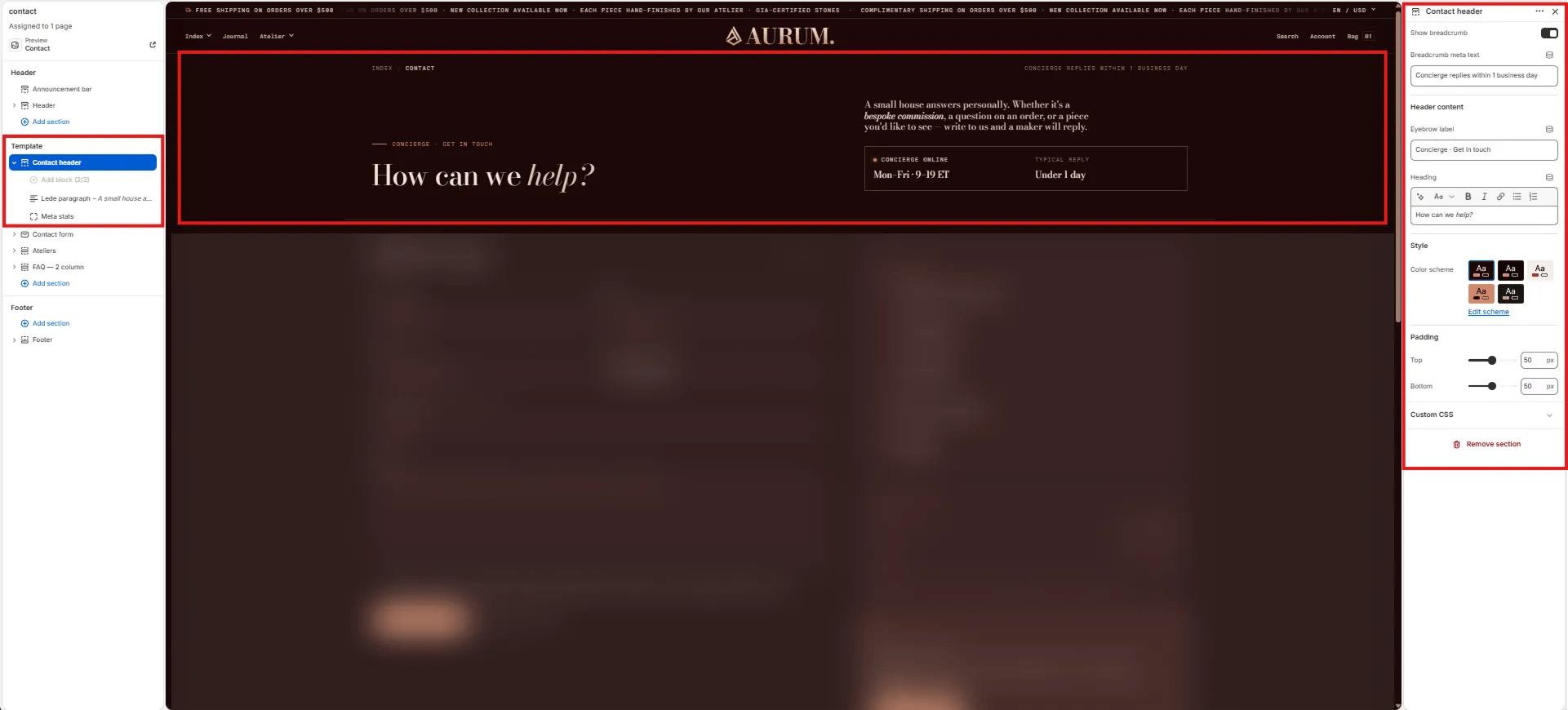
Breadcrumb
- Show breadcrumb: Toggle to show or hide the breadcrumb navigation bar above the heading.
- Breadcrumb meta text: Short text shown on the right side of the breadcrumb bar (e.g., “Concierge replies within 1 business day”).
Header Content
- Eyebrow label: Small label displayed above the heading (e.g., “Concierge · Get in touch”).
- Heading: Main page heading. Supports rich text and italic emphasis (e.g., “How can we help?”).
Style
- Color scheme: Choose a color scheme for the section.
Spacing
- Padding top / Padding bottom: Control vertical spacing.
Lede Paragraph Block Settings
The Lede Paragraph block renders an introductory text paragraph in the right side column of the Contact header.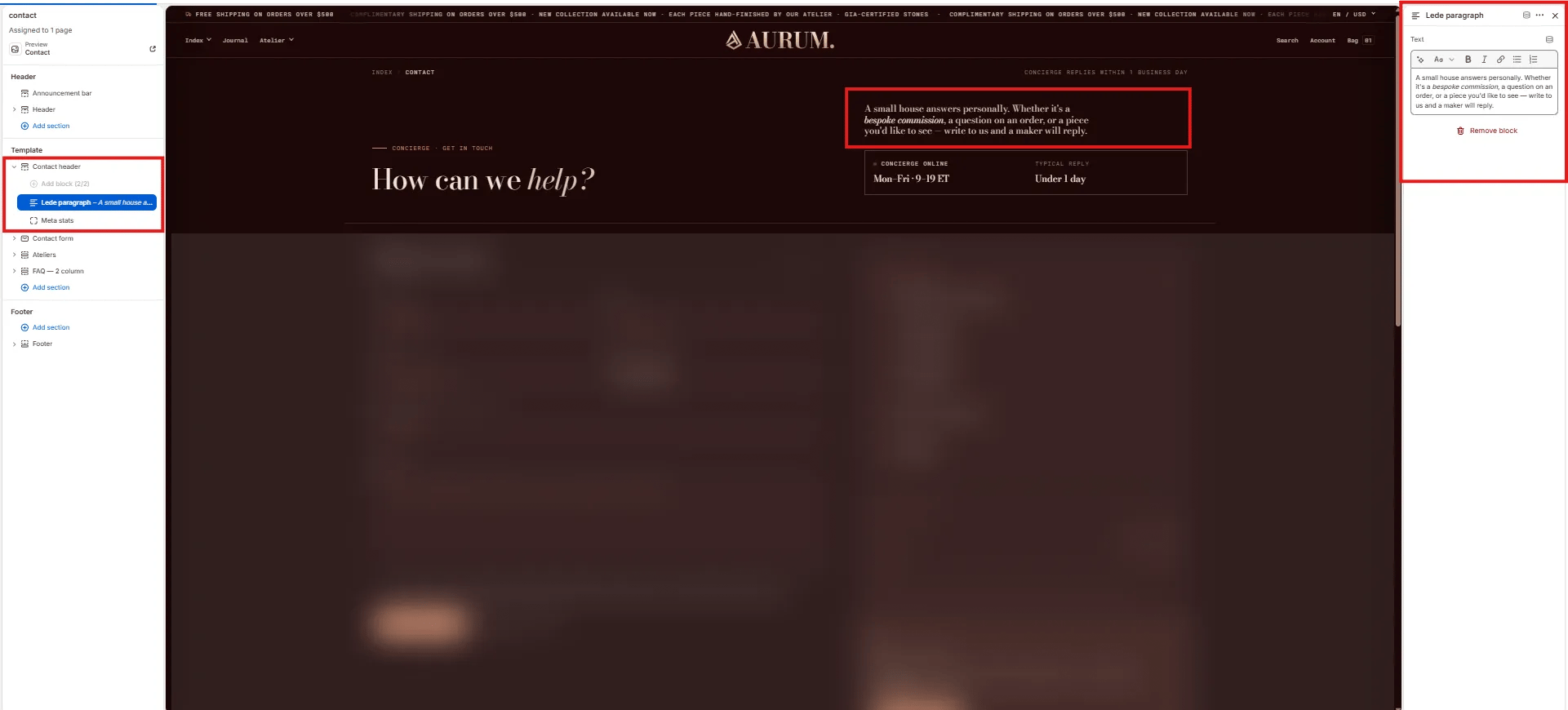
- Text: Rich text introductory paragraph displayed in the header’s right column (e.g., “A small house answers personally. Whether it’s a bespoke commission, a question on an order, or a piece you’d like to see — write to us and a maker will reply.”).
Meta Stats Block Settings
The Meta Stats block displays a two-cell availability panel in the right column of the Contact header — showing concierge online hours and typical reply time.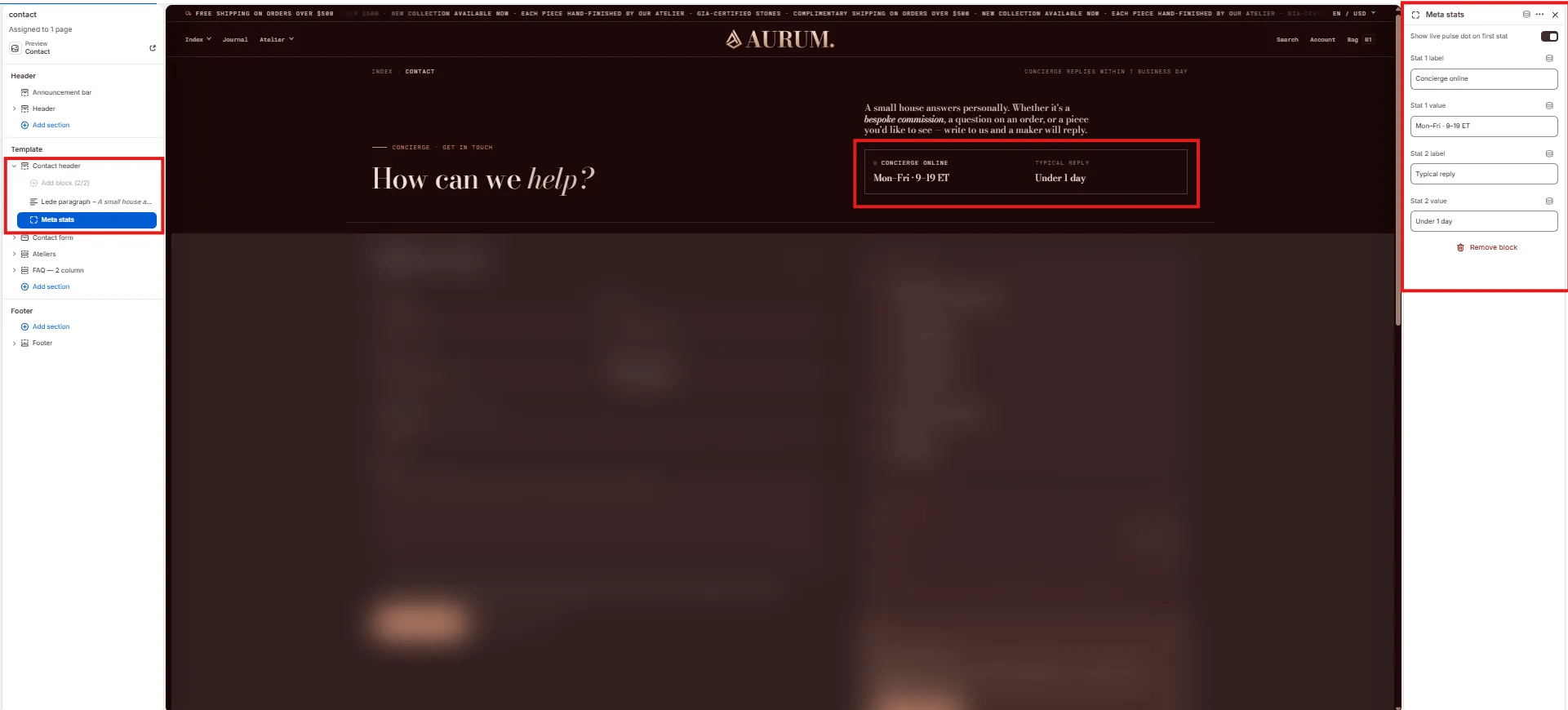
- Show live pulse dot on first stat: Toggle to display an animated green live-dot next to the first stat label, indicating real-time availability.
- Stat 1 label: Label for the first stat cell (e.g., “Concierge online”).
- Stat 1 value: Value for the first stat (e.g., “Mon–Fri · 9–19 ET”).
- Stat 2 label: Label for the second stat cell (e.g., “Typical reply”).
- Stat 2 value: Value for the second stat (e.g., “Under 1 day”).
Contact Form Section Settings
The Contact Form section renders the two-column message form and its right-side panel (direct channels, concierge hours, promo card).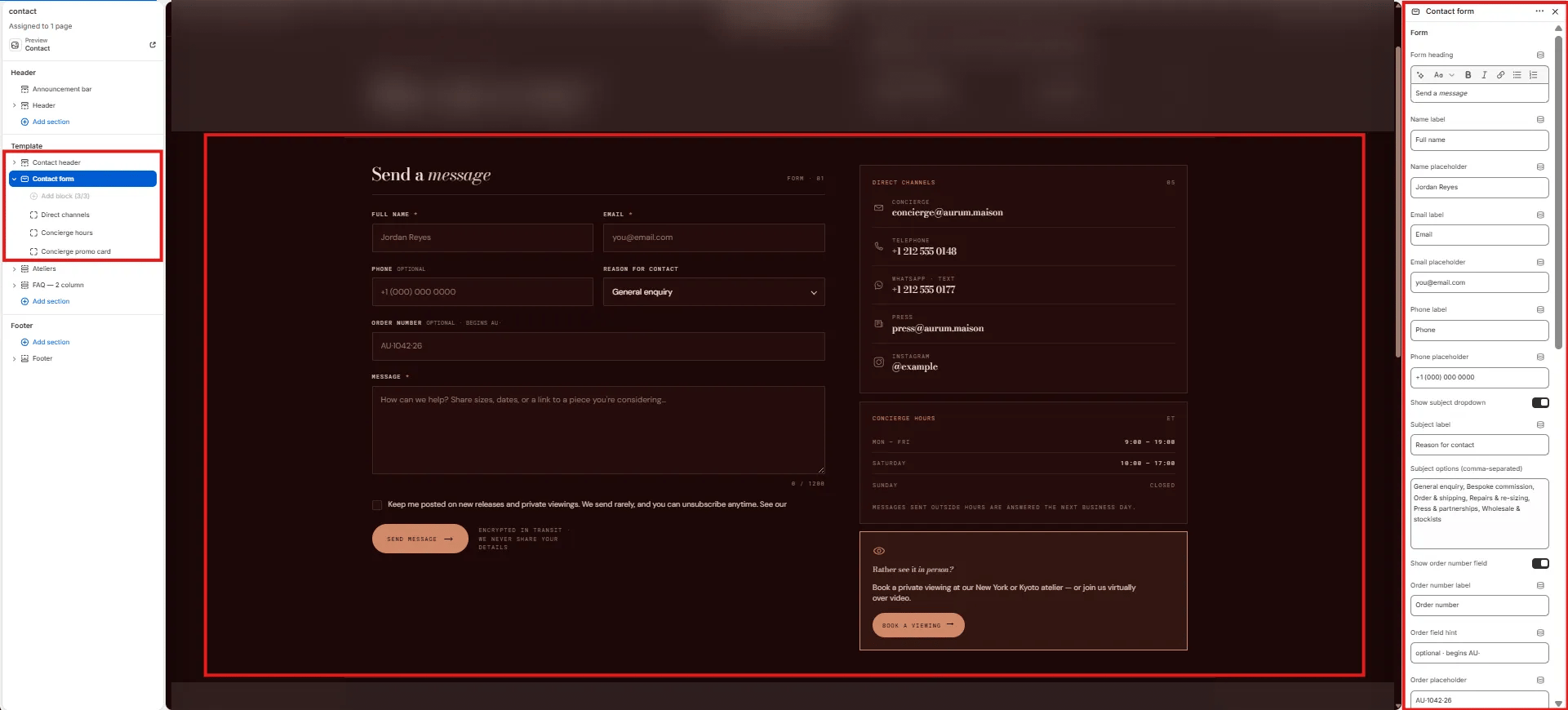
Form
- Form heading: Heading displayed above the form (e.g., “Send a message”). Supports italic/accent colour.
- Name label: Label for the full name field (e.g., “Full name”).
- Name placeholder: Placeholder text inside the name field (e.g., “Jordan Reyes”).
- Email label: Label for the email field (e.g., “Email”).
- Email placeholder: Placeholder text inside the email field (e.g., “you@email.com”).
- Phone label: Label for the phone field (e.g., “Phone”).
- Phone placeholder: Placeholder text inside the phone field (e.g., “+1 (000) 000 0000”).
- Show subject dropdown: Toggle to show or hide the “Reason for contact” subject dropdown.
- Subject label: Label for the subject dropdown (e.g., “Reason for contact”).
- Subject options: Comma-separated list of dropdown options (e.g., “General enquiry, Bespoke commission, Order & shipping, Repairs & re-sizing, Press & partnerships, Wholesale & stockists”).
- Show order number field: Toggle to show or hide the optional order number field.
- Order number label: Label for the order number field (e.g., “Order number”).
- Order field hint: Helper text shown next to the label (e.g., “optional · begins AU-”).
- Order placeholder: Placeholder inside the order number field (e.g., “AU-1042·26”).
Direct Channels Block Settings
The Direct Channels block displays a list of up to four direct contact methods (email, phone, WhatsApp, press) in the right column of the form.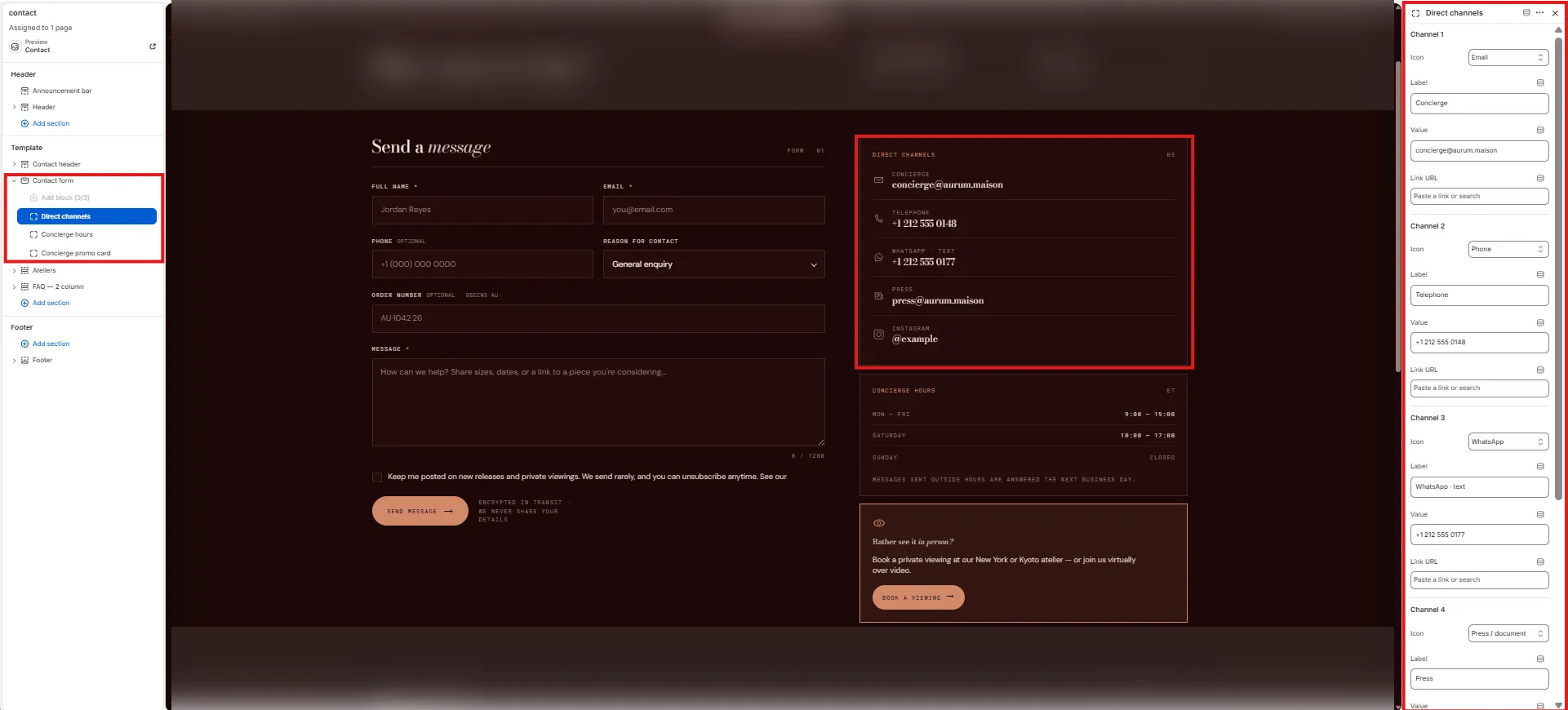
- Icon: Select a built-in icon from the dropdown — Email, Phone, WhatsApp, Press / document, Instagram, etc.
- Label: The channel category label (e.g., “Concierge”, “Telephone”, “WhatsApp · text”, “Press”).
- Value: The contact detail displayed (e.g., “concierge@aurum.maison”, “+1 212 555 0148”).
- Link URL: Optional URL to make the value a clickable link (e.g.,
mailto:,tel:, or a WhatsApp link).
Concierge Hours Block Settings
The Concierge Hours block displays a structured hours table in the right column — showing day, hours, and closed status for up to five rows.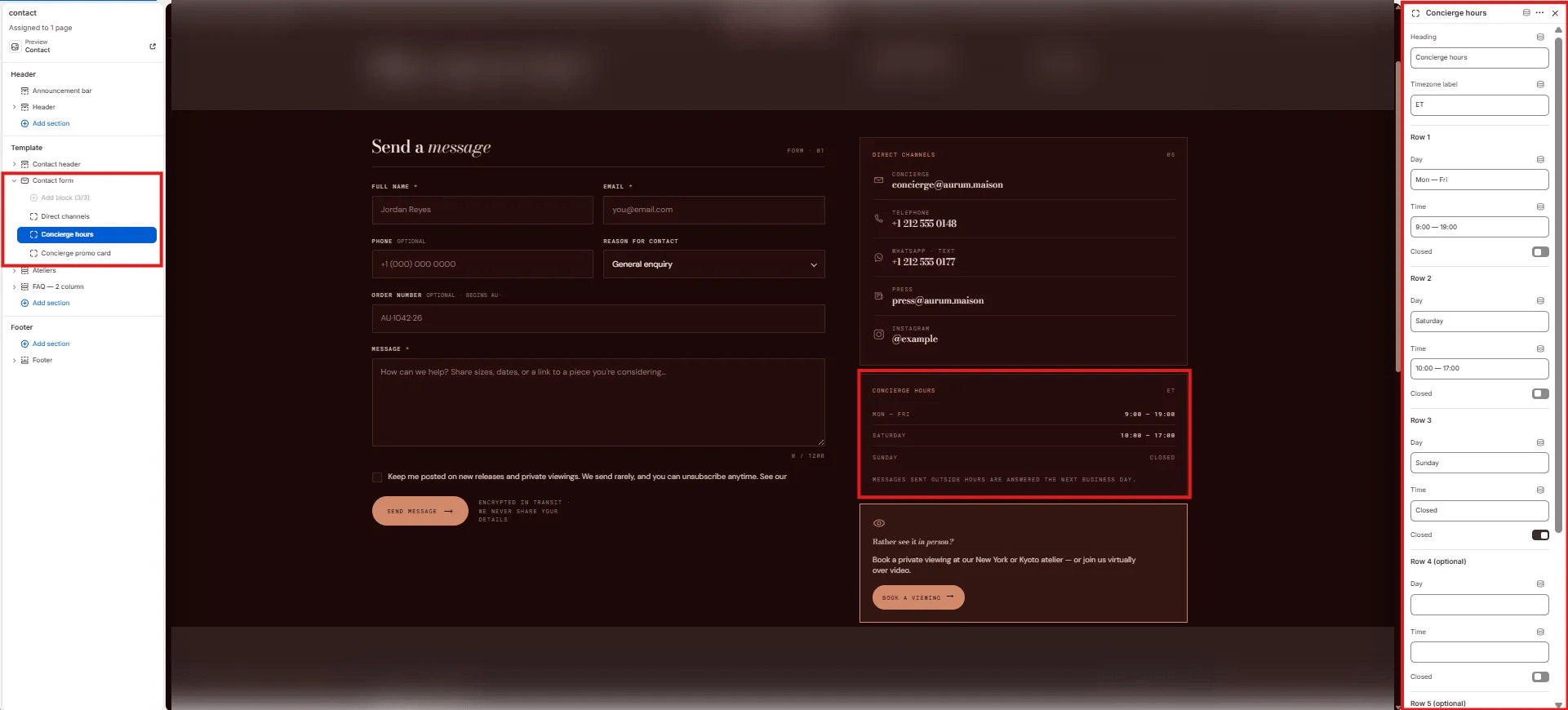
- Heading: Label displayed above the hours table (e.g., “Concierge hours”).
- Timezone label: Short timezone indicator shown next to the heading (e.g., “ET”).
- Day: Day or day range label (e.g., “Mon — Fri”, “Saturday”, “Sunday”).
- Time: Hours string displayed in the right column (e.g., “9:00 — 19:00”, “10:00 — 17:00”).
- Closed: Toggle to mark this row as closed — replaces the time with “CLOSED” styling.
Concierge Promo Card Block Settings
The Concierge Promo Card is a highlighted card shown at the bottom of the right column, encouraging customers to book a private viewing instead of (or in addition to) writing.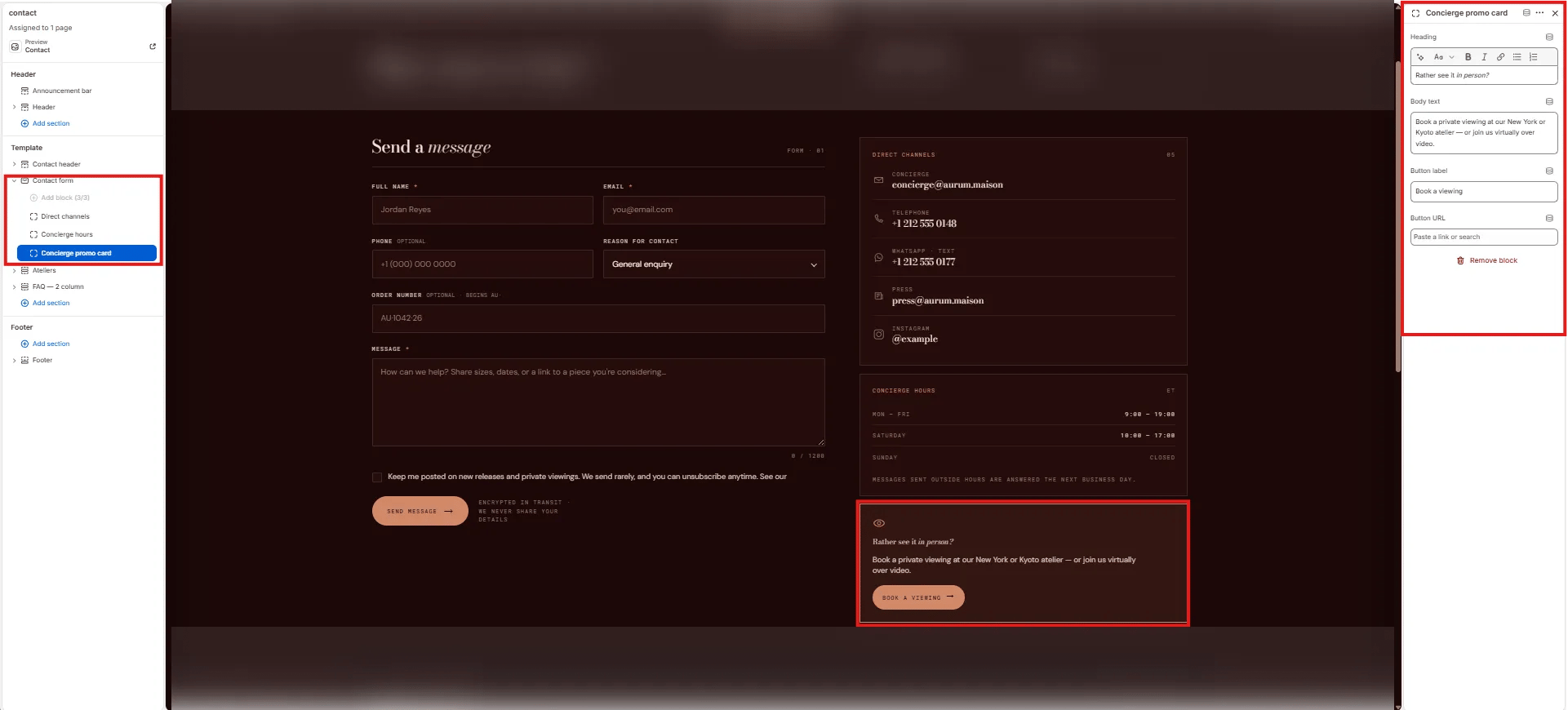
- Heading: Card heading (e.g., “Rather see it in person?”).
- Body text: Supporting description (e.g., “Book a private viewing at our New York or Kyoto atelier — or join us virtually over video.”).
- Button label: CTA button text (e.g., “Book a viewing”).
- Button URL: Link destination for the button.
Ateliers Section Settings
The Ateliers section on the contact page renders the same side-by-side location card grid as the about page — giving customers directions, hours, and booking links for each atelier.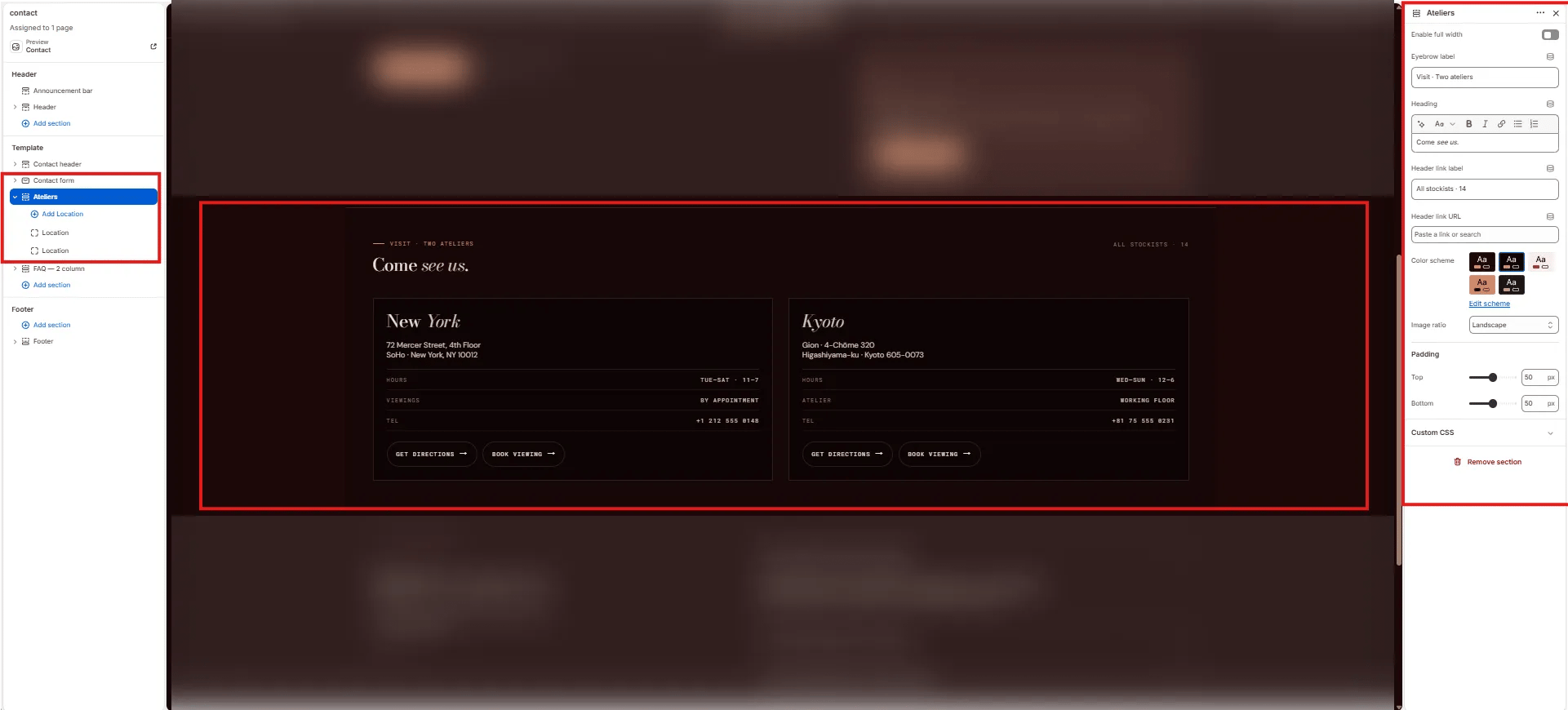
- Enable full width: Toggle to extend the section edge-to-edge.
- Eyebrow label: Small label above the heading (e.g., “Visit · Two ateliers”).
- Heading: Section heading (e.g., “Come see us.”). Supports italic/accent colour.
- Header link label: Label for the link on the right side of the heading (e.g., “All stockists · 14”). Leave blank to hide.
- Header link URL: URL destination for the header link.
- Color scheme: Choose a color scheme for the section.
- Image ratio: Aspect ratio for atelier images — Landscape, Portrait, or Square.
- Padding top / Padding bottom: Control vertical spacing.
Location Block Settings
Each Location block is one atelier card. The Location block on the contact page includes the same fields as on the about page, plus a telephone detail row.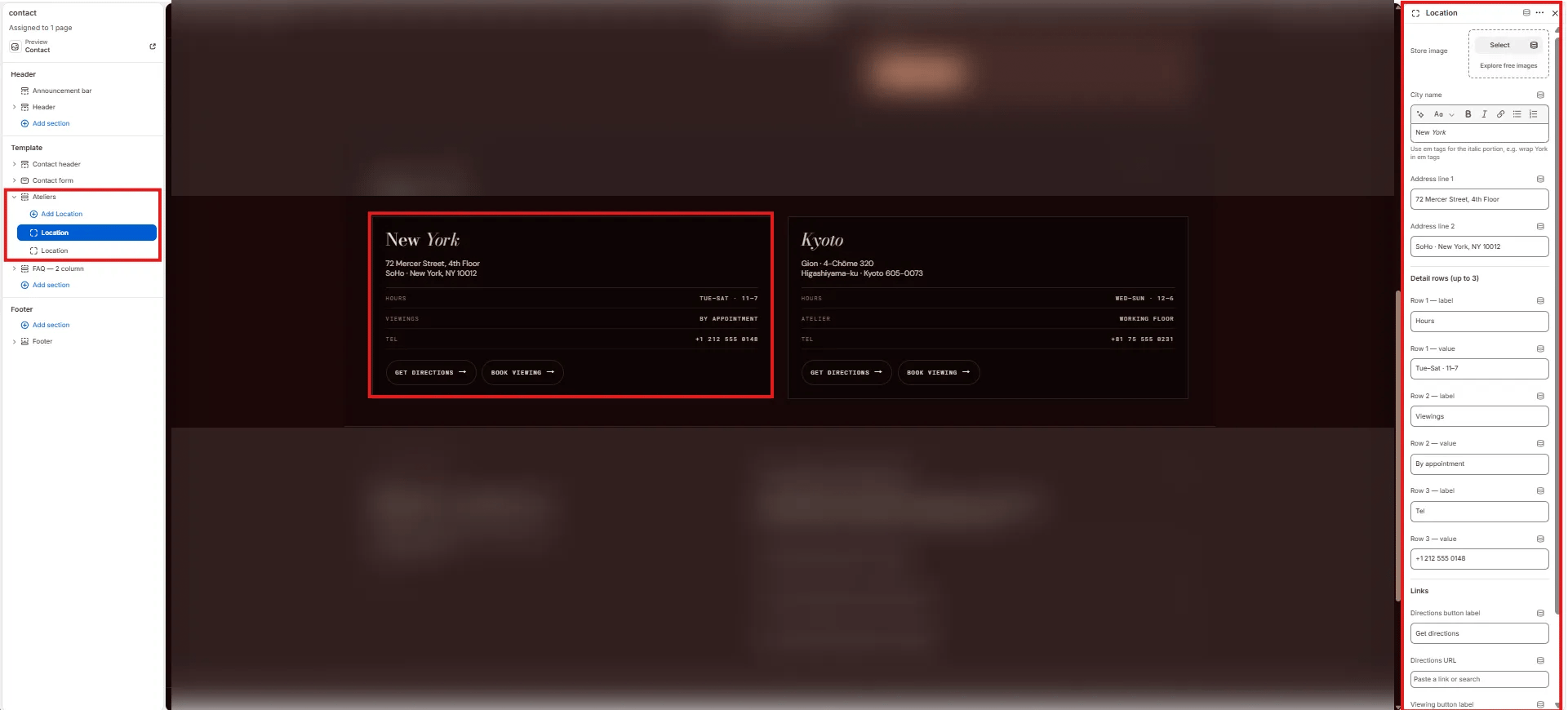
- Store image: Upload a photo of the atelier.
- City name: Card heading with italic support (e.g., “New York”, “Kyoto”).
- Address line 1 / 2: Two-line address (e.g., “72 Mercer Street, 4th Floor” / “SoHo · New York, NY 10012”).
- Row 1–3 label / value (e.g., “Hours / Tue–Sat · 11–7”, “Viewings / By appointment”, “Tel / +1 212 555 0148”).
- Directions button label / URL: Label and link for the directions CTA.
- Viewing button label / URL: Label and link for the booking CTA.
FAQ — 2 Column Section Settings
The FAQ — 2 column section renders a two-column layout with editorial copy on the left and an expandable FAQ accordion on the right — perfect for answering common pre-contact questions without the customer needing to write in.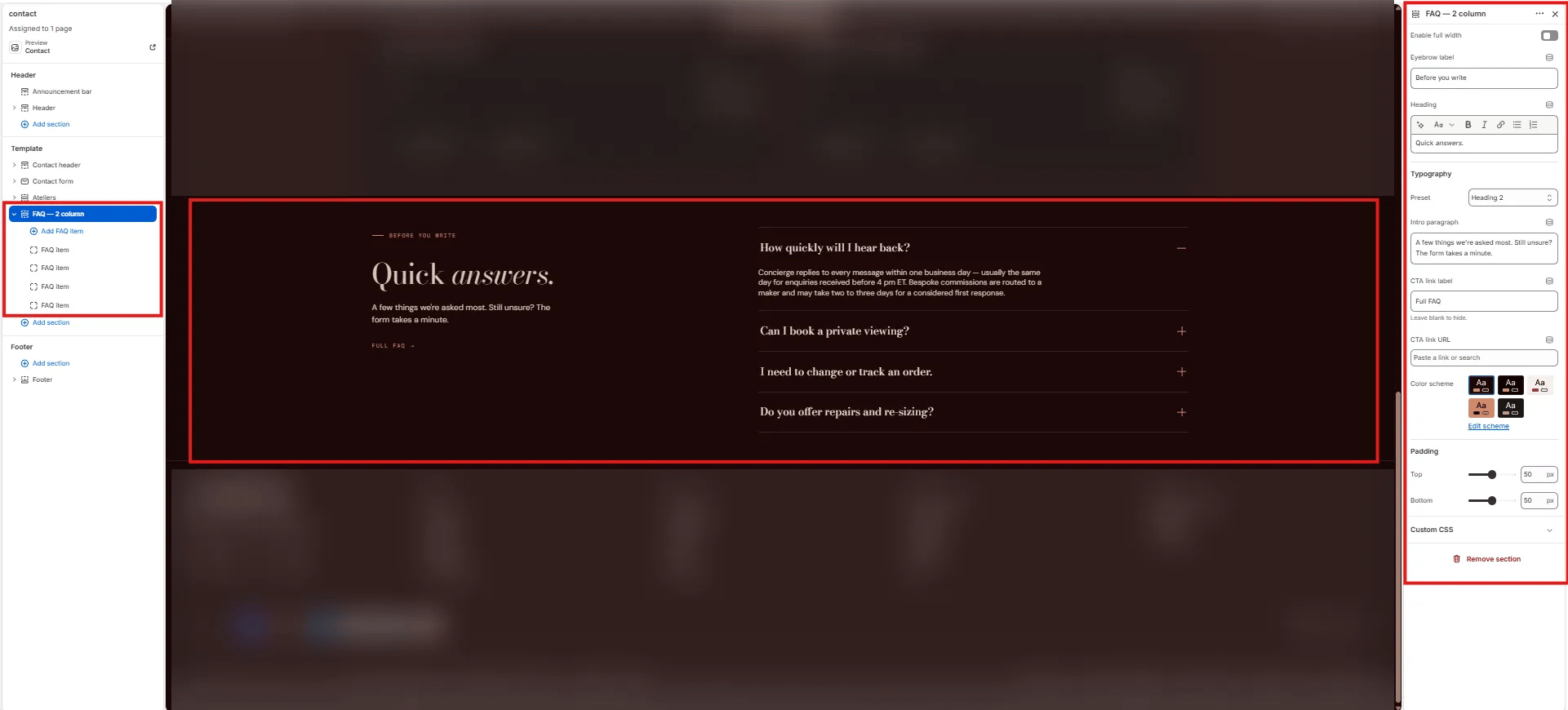
Content
- Enable full width: Toggle to extend the section edge-to-edge.
- Eyebrow label: Small label above the heading (e.g., “Before you write”).
- Heading: Section heading (e.g., “Quick answers.”). Supports italic/accent colour.
- Typography: Choose the typographic preset for the heading (e.g., Heading 2).
- Intro paragraph: Short supporting text displayed below the heading in the left column (e.g., “A few things we’re asked most. Still unsure? The form takes a minute.”).
- CTA link label: Label for an optional link below the intro (e.g., “Full FAQ”). Leave blank to hide.
- CTA link URL: Destination for the CTA link.
Style
- Color scheme: Choose a color scheme for the section.
Spacing
- Padding top / Padding bottom: Control vertical spacing.
FAQ Item Block Settings
Each FAQ Item block is one question/answer row in the accordion on the right column.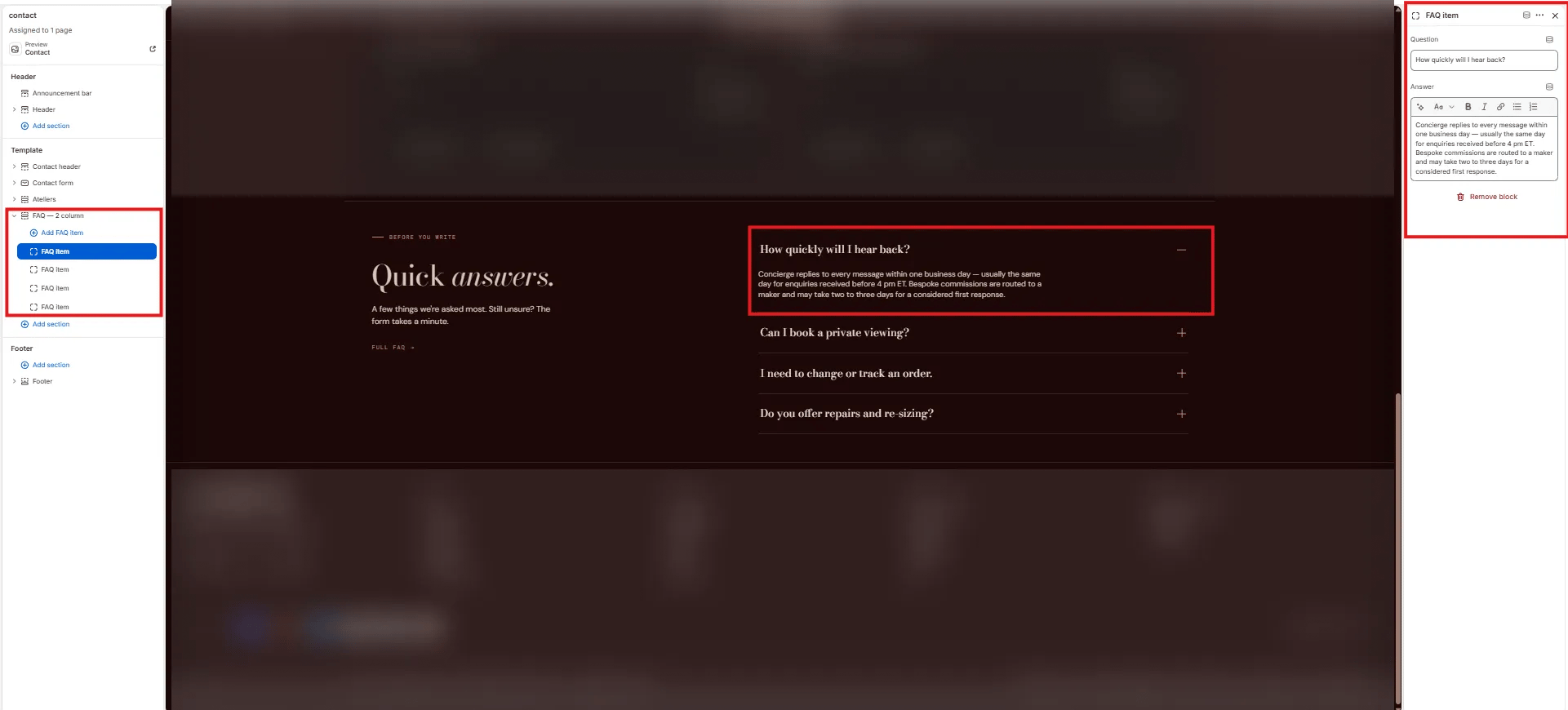
- Question: The accordion row heading — the customer question (e.g., “How quickly will I hear back?”).
- Answer: Rich text answer displayed when the row is expanded (e.g., “Concierge replies to every message within one business day — usually the same day for enquiries received before 4 pm ET.”).