How to Add the Section
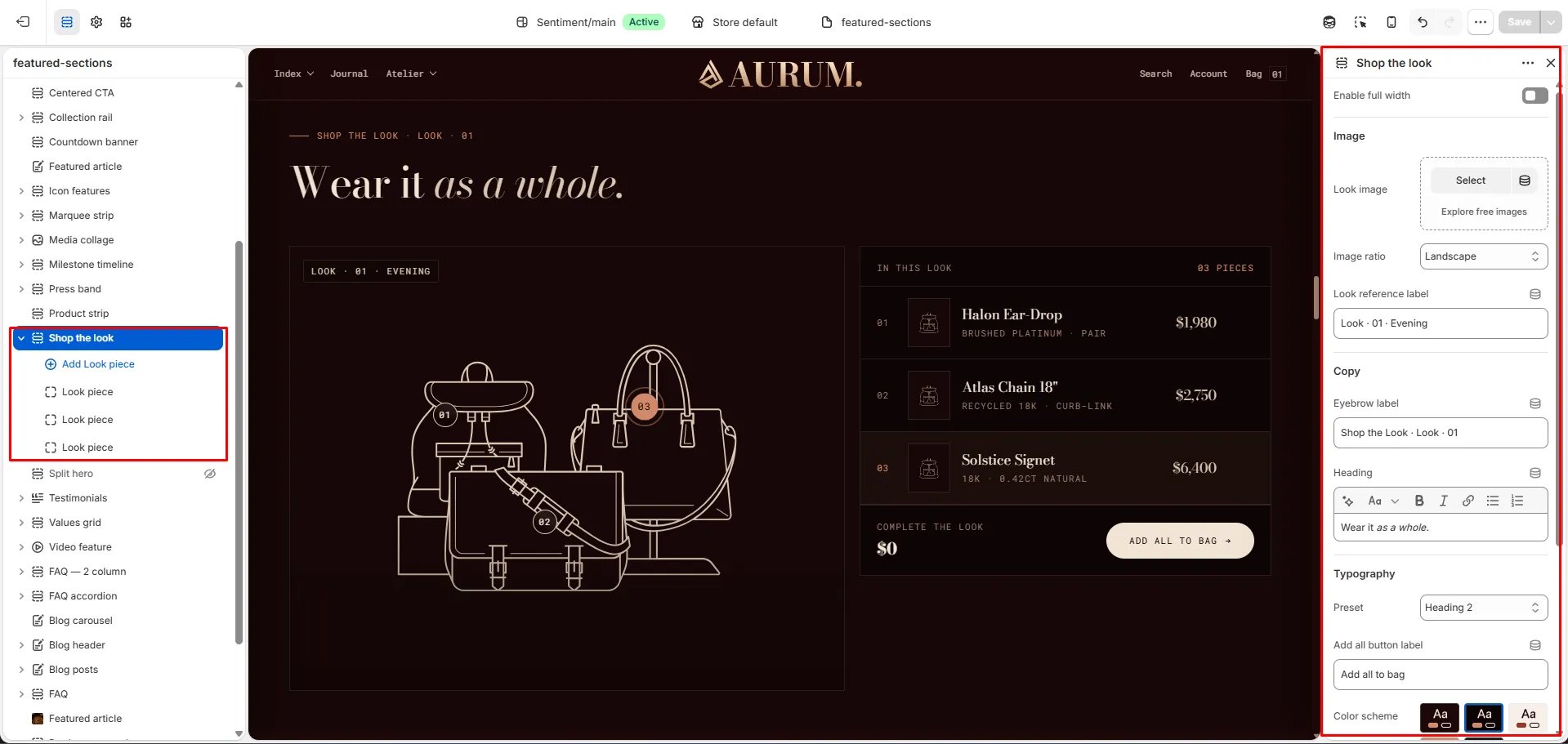
- From your Shopify admin, go to Online Store → Themes and click Customize.
- Navigate to the page where you want to add this section.
- Click Add section and select Shop the look.
- Upload a look image, then add Piece blocks and position each dot pin on the image using the X and Y position sliders.
- Click Save.
Section Settings
Content
- Eyebrow: Small label displayed above the heading.
- Heading: Main section heading. Supports rich text and italic emphasis.
- Heading typography: Select the typographic style for the heading.
- Add all text: Label for the “Add all to bag” button in the product credits panel (default: “Add all to bag”).
Image
- Image: Upload the main lookbook or editorial image that the dot pins will be placed on.
- Image ratio: Aspect ratio for the look image — Portrait, Square, Landscape, or Adapt.
- Ref label: A reference label displayed on the look image (e.g., “Look · 01 · Evening”).
Style
- Color scheme: Choose a color scheme for the section.
Spacing
- Padding top / Padding bottom: Control the vertical spacing around the section.
Piece Block Settings
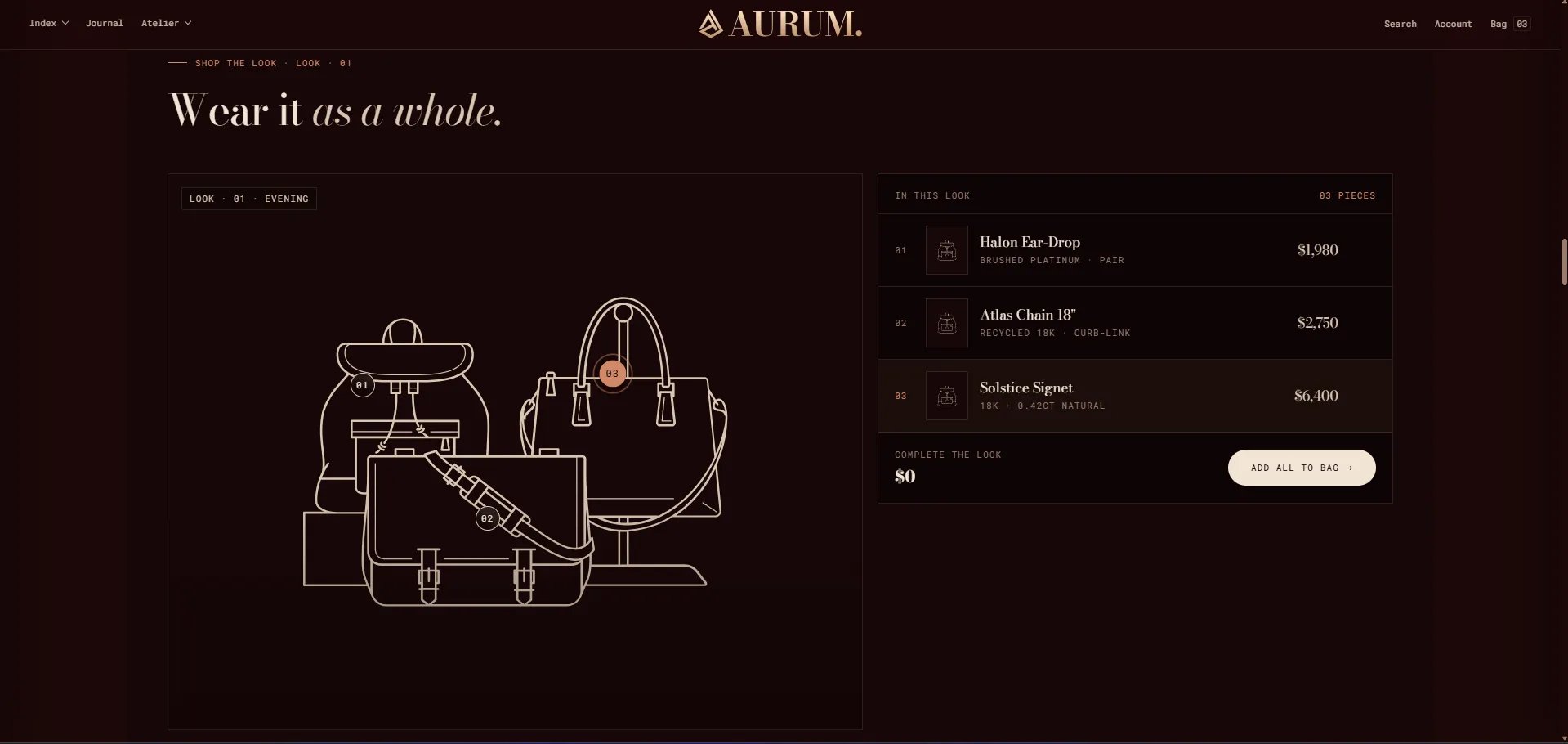
Each Piece block pins one product onto the look image. You can add up to 8 pieces. Each pin appears as a numbered dot on the image.Product
- Product: Select the Shopify product this pin links to. The product’s price and variants will be shown in the credits panel.
Card Content
- Thumbnail: Upload a custom thumbnail image for this product in the credits panel. Used as a fallback if the product has no image.
- Piece name: Display name for the product in the credits panel.
- Spec text: A specification detail line shown below the name (e.g., “Brushed platinum · pair”).
- Price display: A manual price string shown in the credits panel if no product is linked.
Pin Position
- X position: Horizontal position of the dot pin on the look image, expressed as a percentage (0–100%). Drag the slider to position the pin left or right.
- Y position: Vertical position of the dot pin on the look image, expressed as a percentage (0–100%). Drag the slider to position the pin up or down.