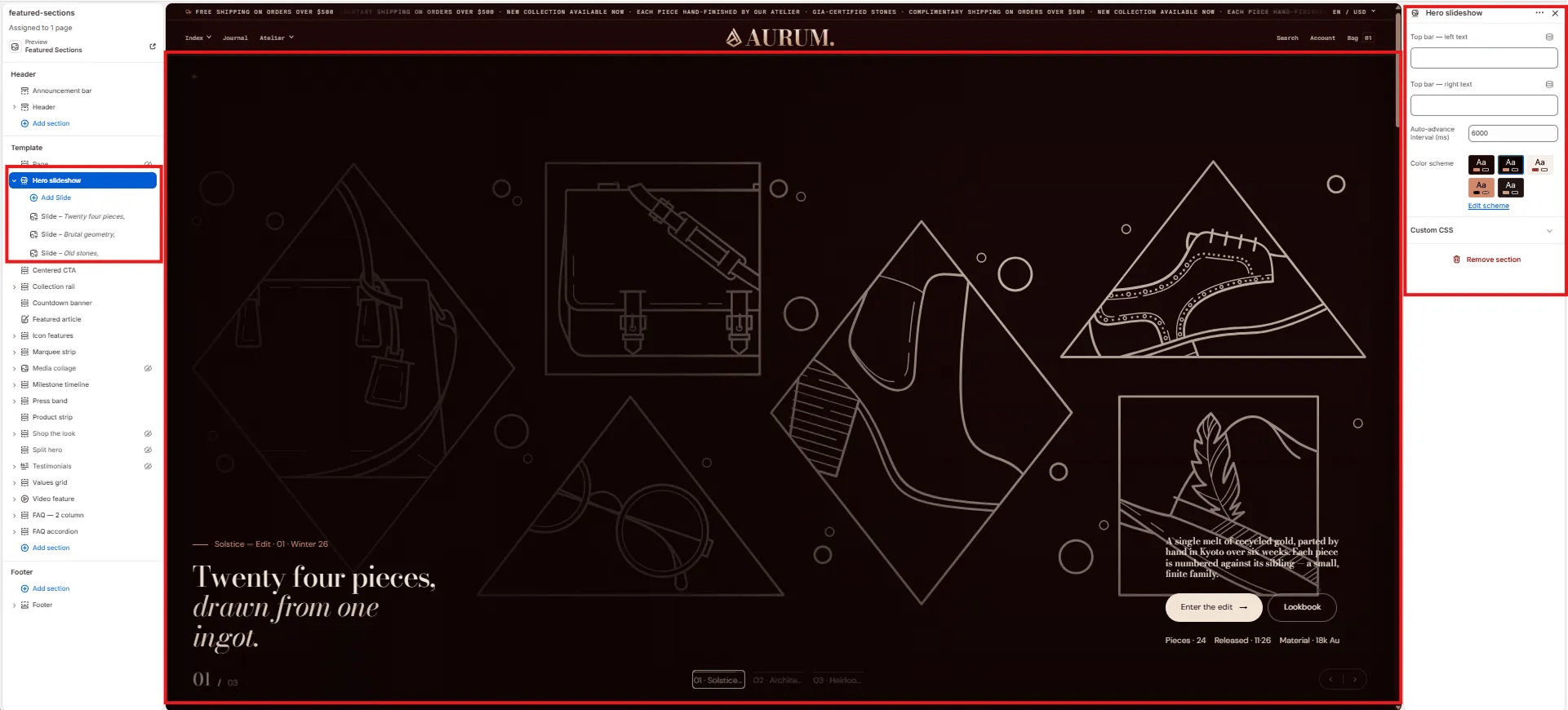
How to Add the Section
- From your Shopify admin, go to Online Store → Themes and click Customize.
- Navigate to your homepage.
- Click Add section and select Hero slideshow.
- Add Slide blocks and configure each one individually.
- Click Save.
Section Settings
Persistent Labels
- Top left: A text label displayed in the top-left corner across all slides simultaneously.
- Top right: A text label displayed in the top-right corner across all slides simultaneously.
Behaviour
- Interval: The time in milliseconds before the slideshow automatically advances to the next slide (default: 6000ms / 6 seconds).
Style
- Color scheme: Choose a color scheme for the slideshow navigation UI.
Slide Block Settings
Each individual slide added within the Hero slideshow has its own settings panel. You can add up to 6 slides.Image
- Image: Upload the background image for this slide.
Content
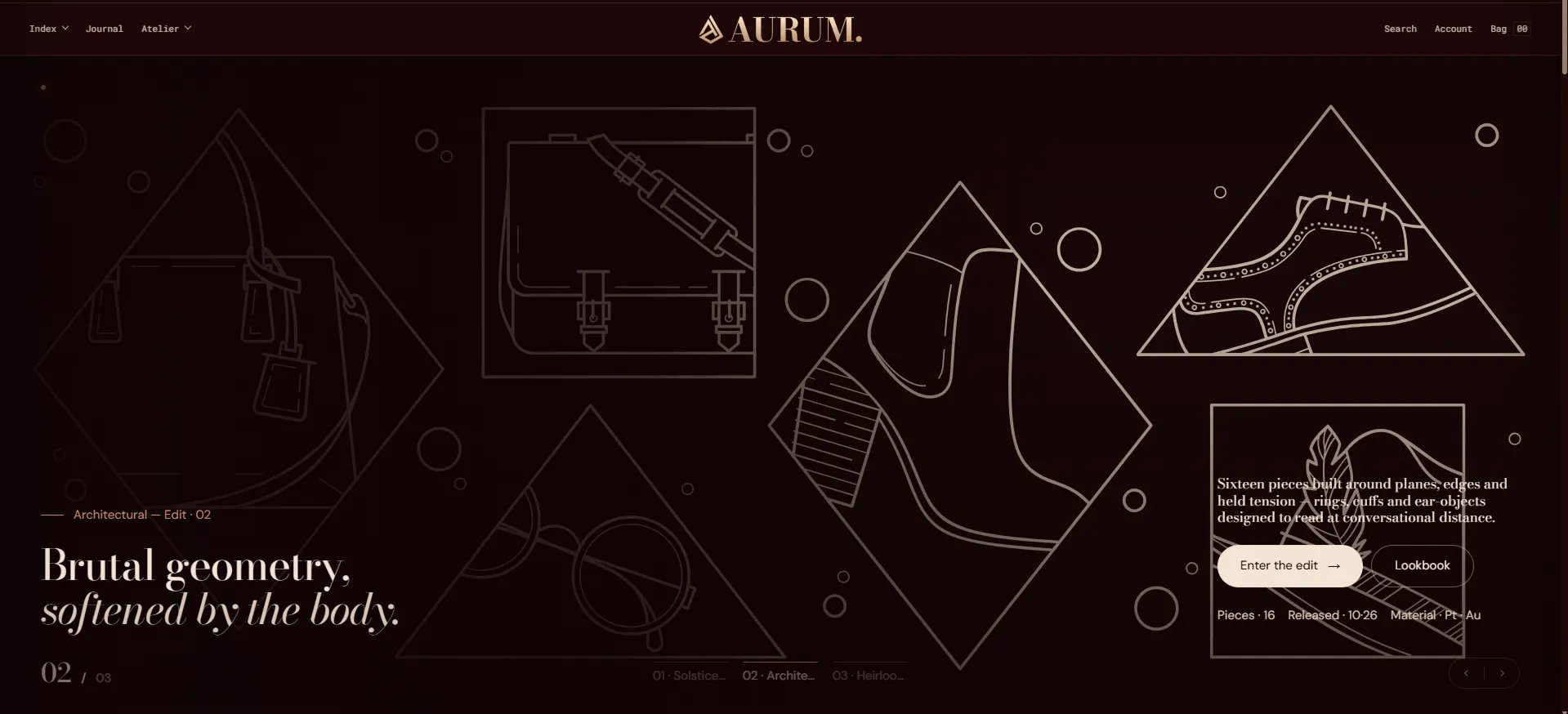
- Eyebrow: A small label displayed above the heading.
- Heading: Main heading for the slide.
- Heading italic: An italic portion of the heading, rendered in the italic type style alongside the main heading.
- Body: Supporting body text for the slide.
- Meta: A pipe-separated metadata string displayed below the body (e.g.,
18k Au | 24 pieces | Winter 26).
Call to Action
- CTA 1 text / URL: Primary call-to-action button label and link.
- CTA 2 text / URL: Secondary call-to-action button label and link.
Navigation
- Nav label: The label shown in the slide navigation dots at the bottom of the slideshow for this specific slide.